
Ruckus One
Zgodność
Social WiFi zostało przetestowane i działa z następującą konfiguracją:
- Punkt dostępowy Ruckus R310 z oprogramowaniem układowym Solo Access Point 118.2.0.0.875
Instalacja
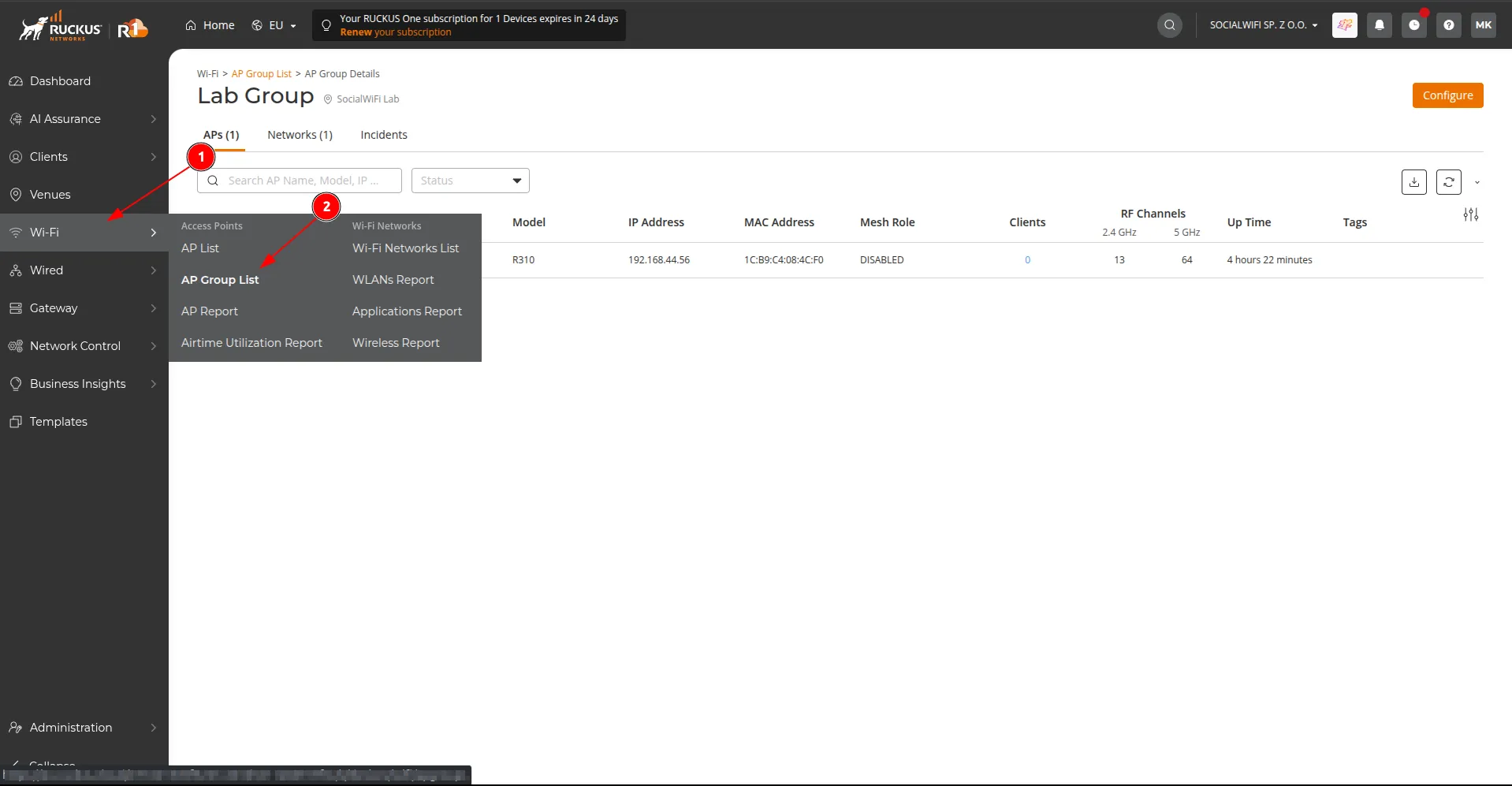
- W panelu sterowania Ruckus One przejdź do Wi-Fi -> AP Group List.
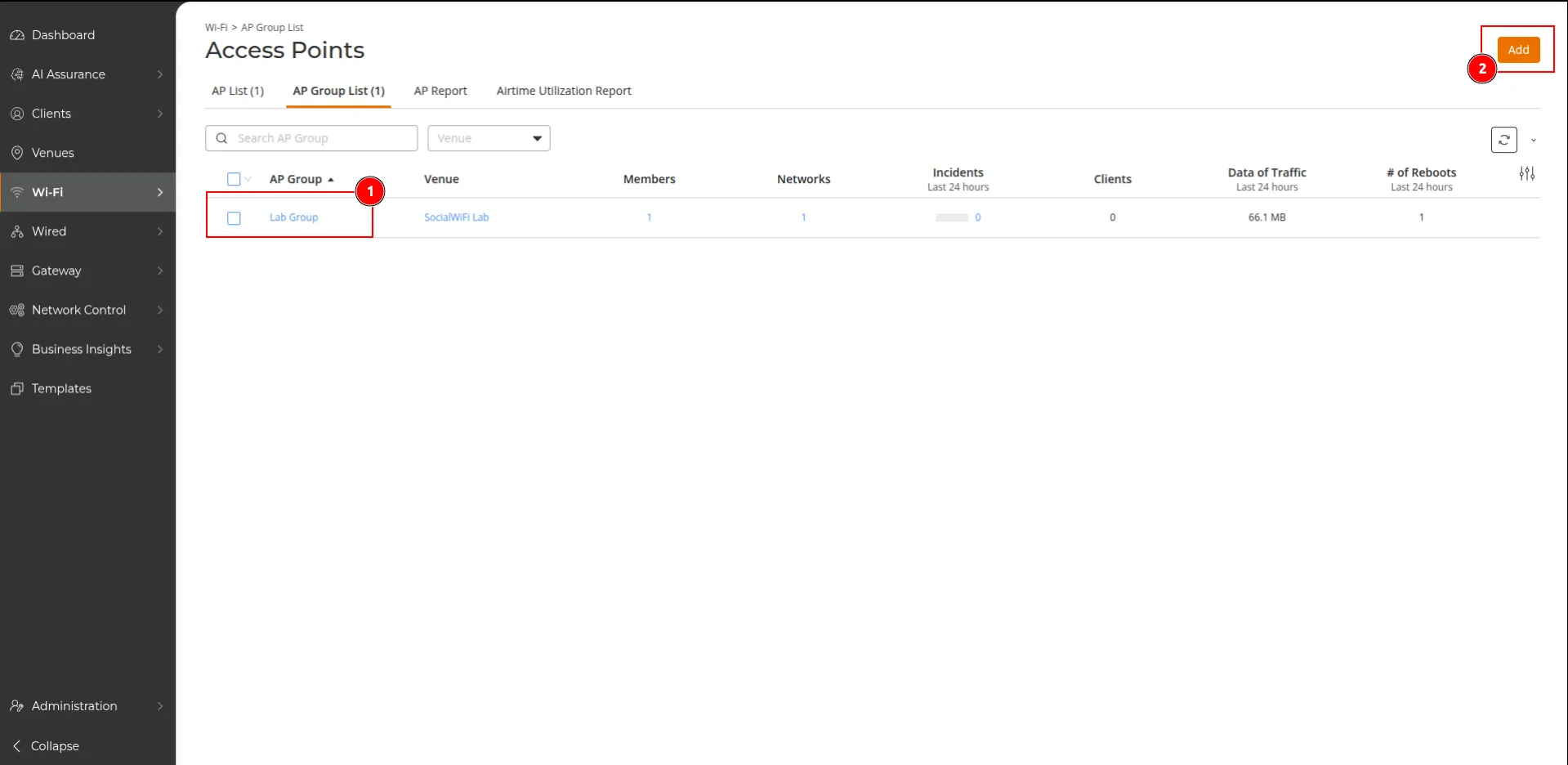
Wybierz istniejącą grupę punktów dostępowych (1) lub utwórz nową przyciskiem Add (2).
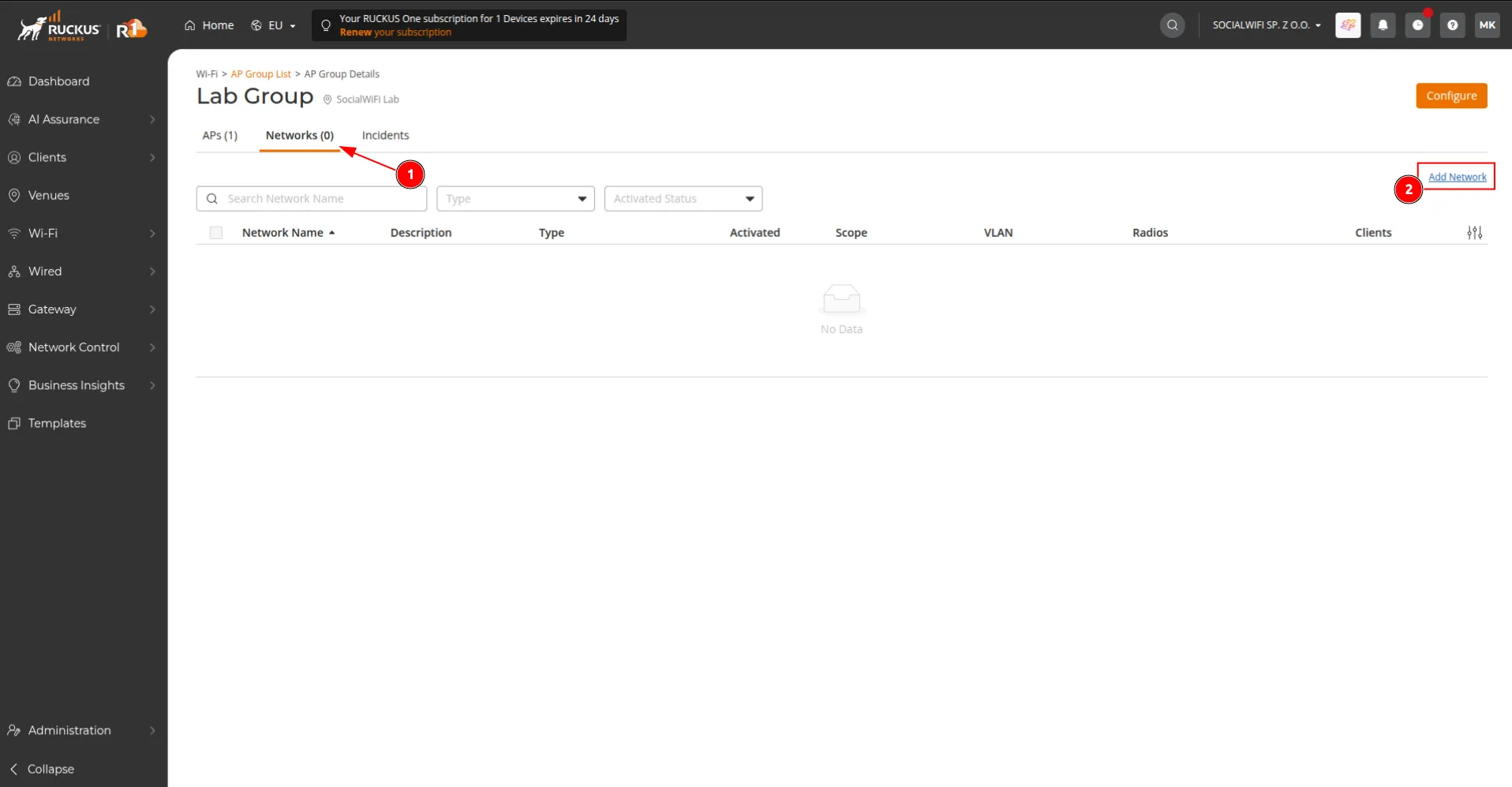
- Otwórz grupę punktów dostępowych, przejdź do zakładki Networks i kliknij Add Network.
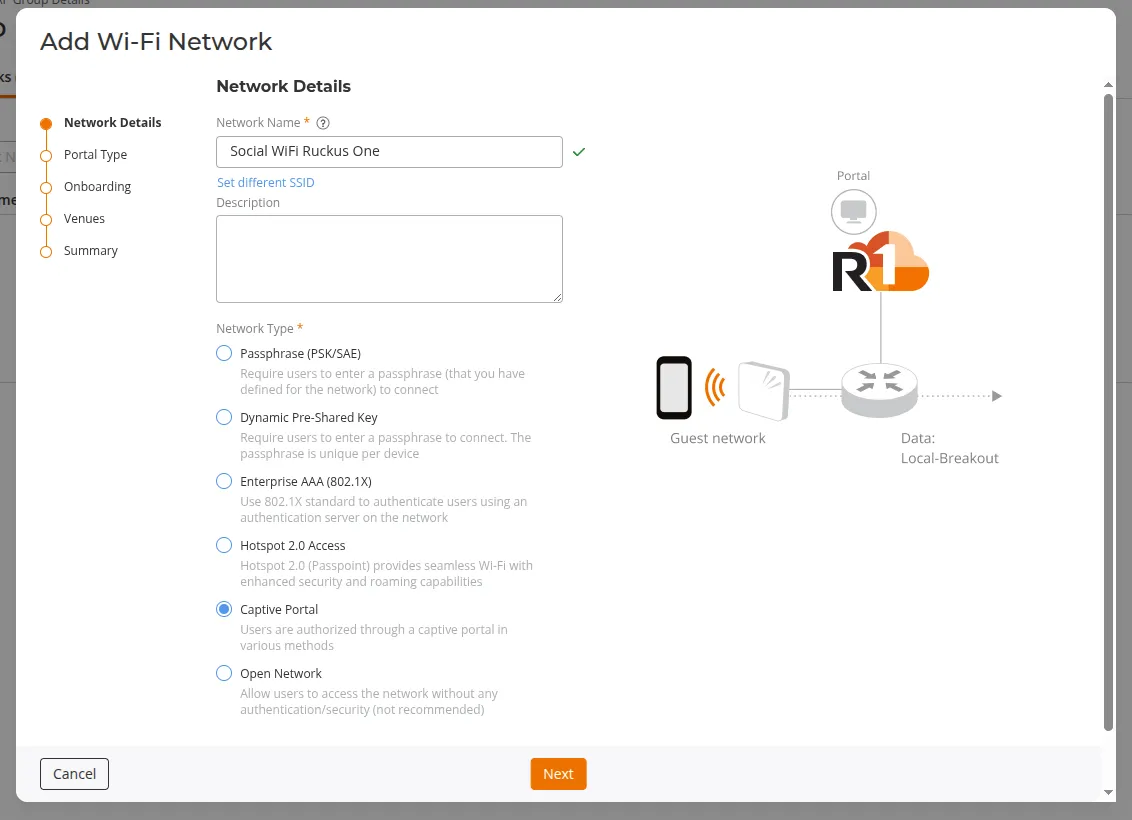
- W kroku Network Details ustaw Network Name (SSID widoczny dla klientów) i wybierz Network Type -> Captive Portal. Kliknij Next.
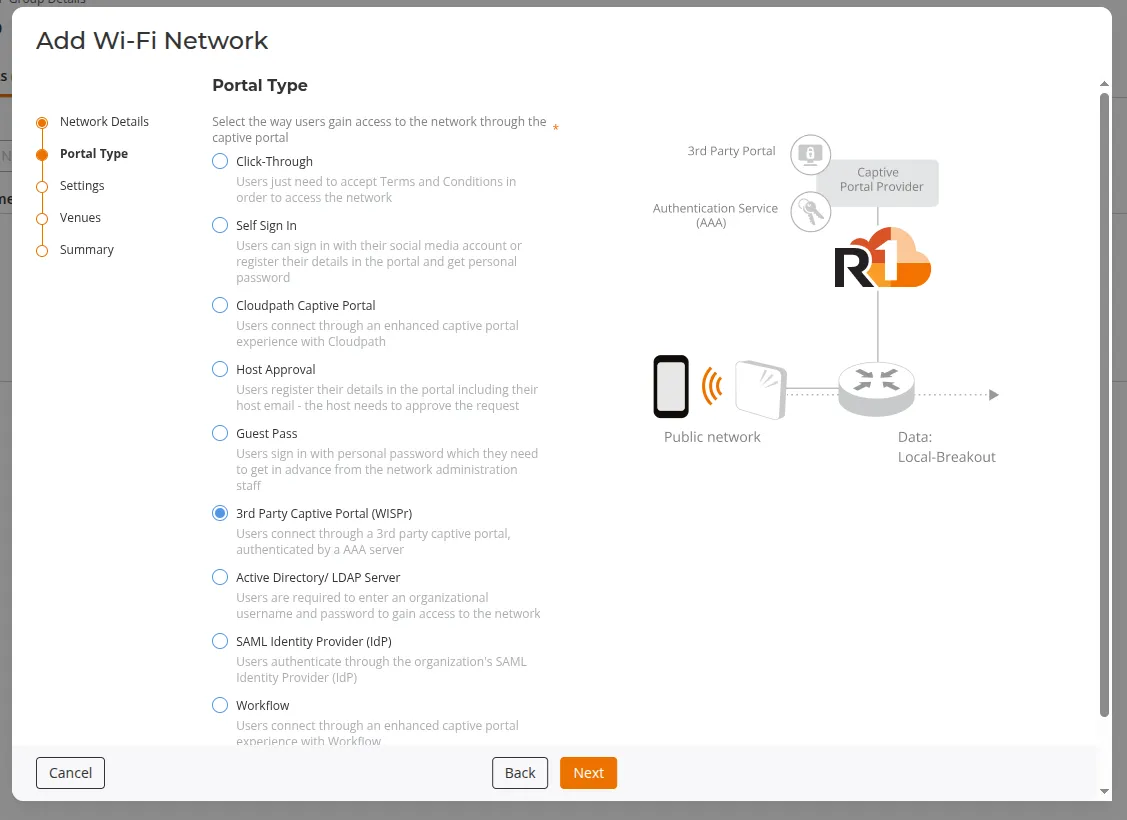
- W kroku Portal Type wybierz 3rd Party Captive Portal (WISPr). Kliknij Next.
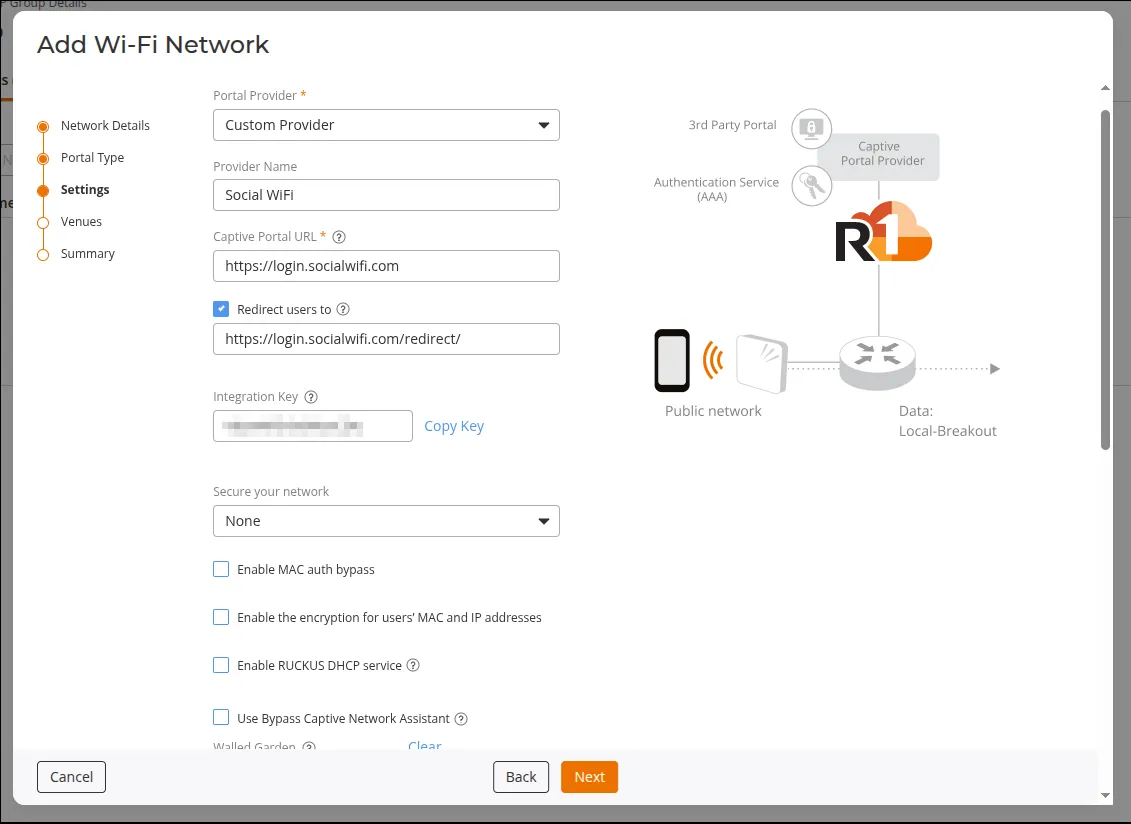
- W kroku Settings skonfiguruj następujące wartości:
| Portal Provider | Custom Provider |
|---|---|
| Provider Name | opcjonalnie (np. Social WiFi) |
| Captive Portal URL | https://login.socialwifi.com |
| Redirect users to | enabled - https://login.socialwifi.com/redirect/ |
| Secure your network | None |
| Enable MAC auth bypass | Disabled |
| Enable the encryption for users’ MAC and IP addresses | Disabled |
| Enable RUCKUS DHCP service | Disabled |
| Use Bypass Captive Network Assistant | Disabled |
- Przewiń w dół do sekcji Walled Garden, skopiuj i wklej poniższe domeny:
*.socialwifi.comsw-login.comfacebook.com*.facebook.com*.fbcdn.netlinkedin.com*.linkedin.com*.licdn.comtwitter.comapi.twitter.comx.comapi.x.com*.twimg.comwhatsapp.com*.whatsapp.net*.whatsapp.comconnect.facebook.netwww.facebook.comwww.googletagmanager.comwww.googleadservices.comgoogleads.g.doubleclick.net*.youtube.com*.ytimg.com*.googlevideo.comyt3.ggpht.com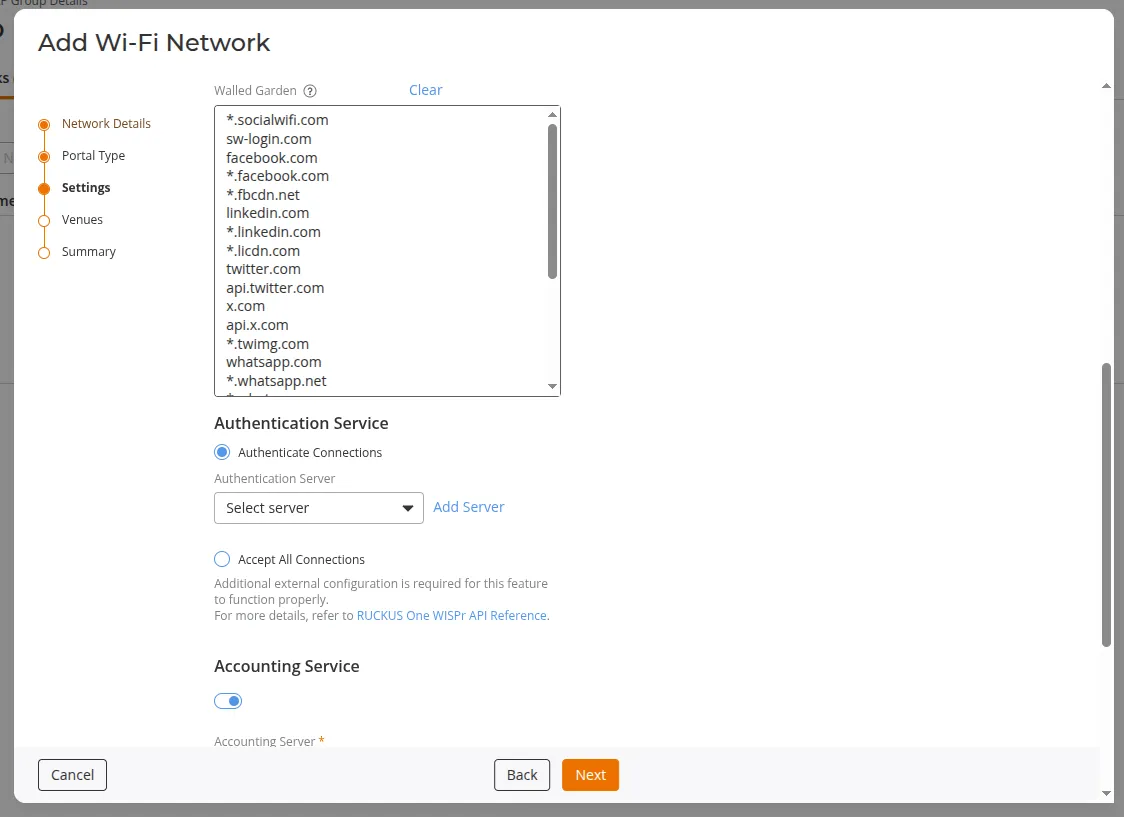
-
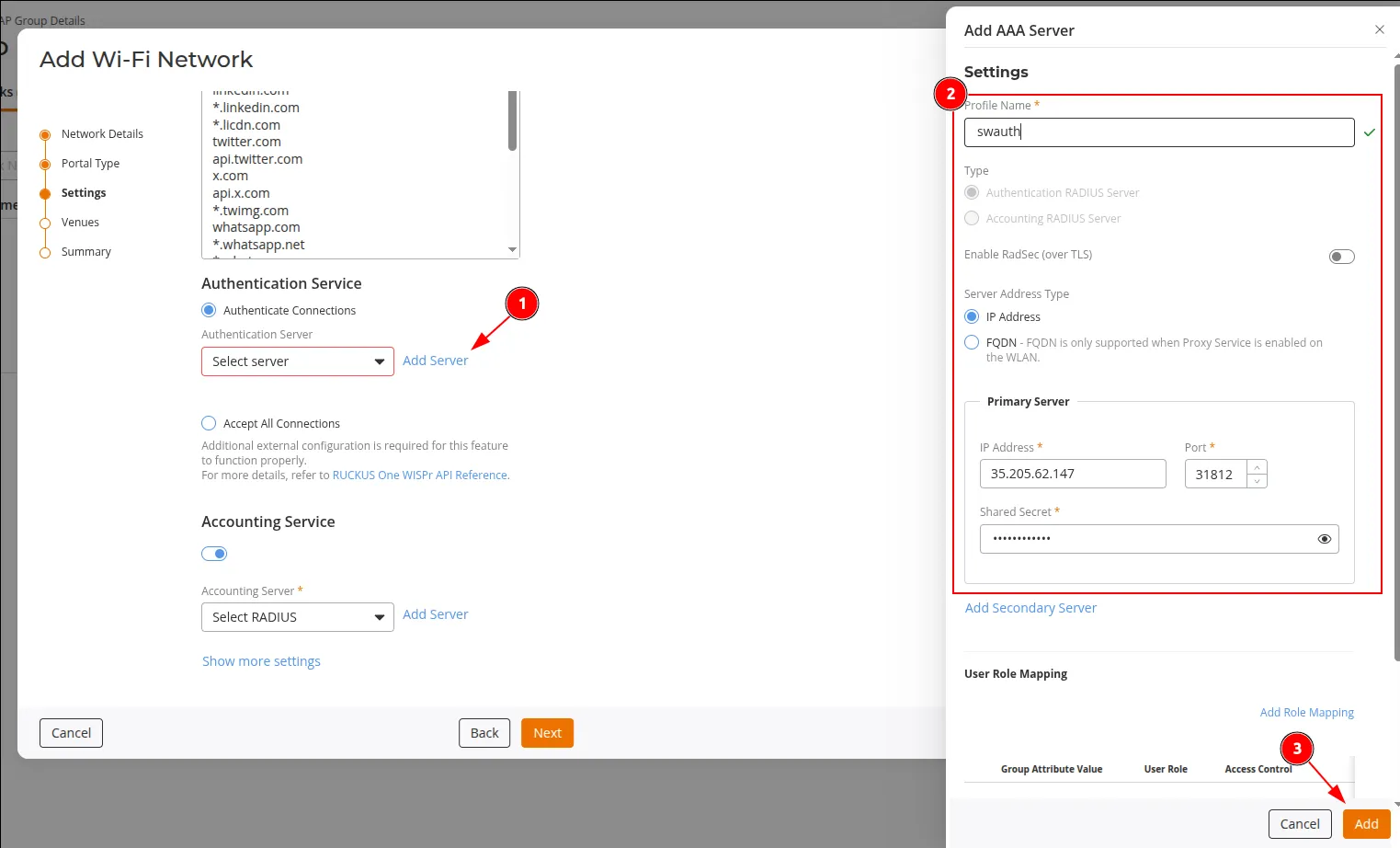
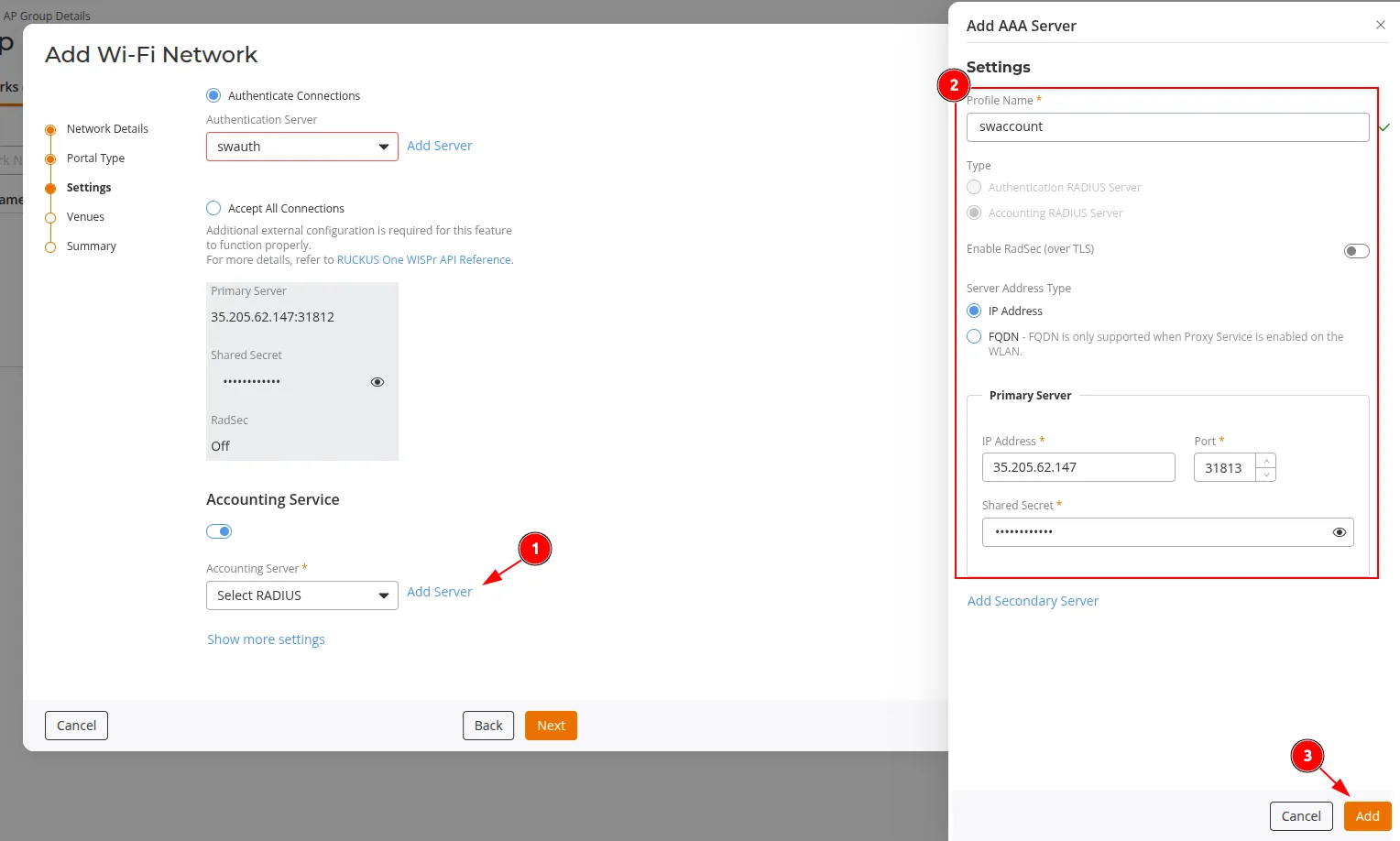
W sekcji Authentication Service wybierz Authenticate Connections i kliknij Add Server, aby dodać nowy serwer uwierzytelniania (RADIUS).
Użyj adresu serwera RADIUS, portu i klucza współdzielonego z Panelu Social WiFi. Przetestowana konfiguracja korzysta z portu 31812 dla serwera uwierzytelniania, przy wyłączonej opcji RadSec (over TLS).
-
W sekcji Accounting Service włącz przełącznik i kliknij Add Server, aby dodać nowy serwer rozliczeniowy (RADIUS).
Użyj tego samego adresu serwera RADIUS i klucza współdzielonego z Panelu Social WiFi. Przetestowana konfiguracja korzysta z portu 31813 dla serwera rozliczeniowego, przy wyłączonej opcji RadSec (over TLS). Kliknij Next.
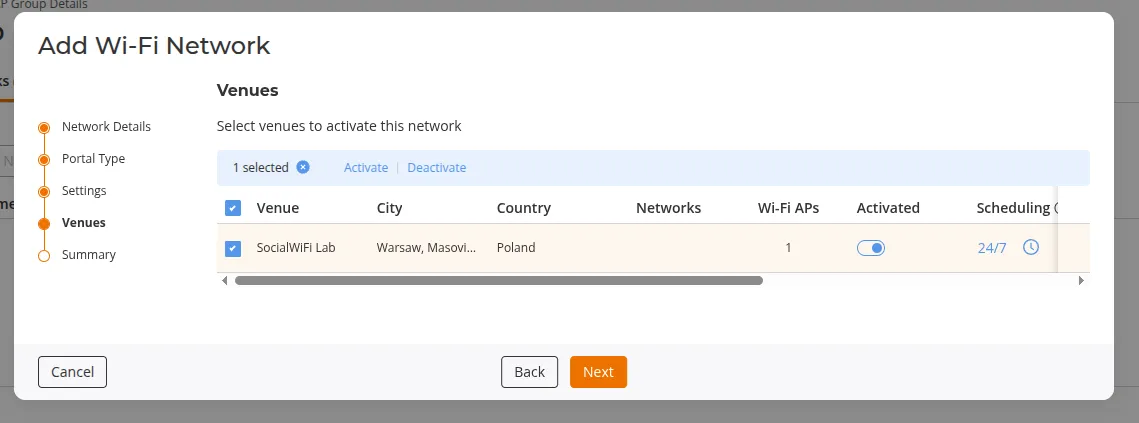
- W kroku Venues wybierz lokalizacje, w których ma zostać aktywowane nowe Wi-Fi dla gości. Kliknij Next.
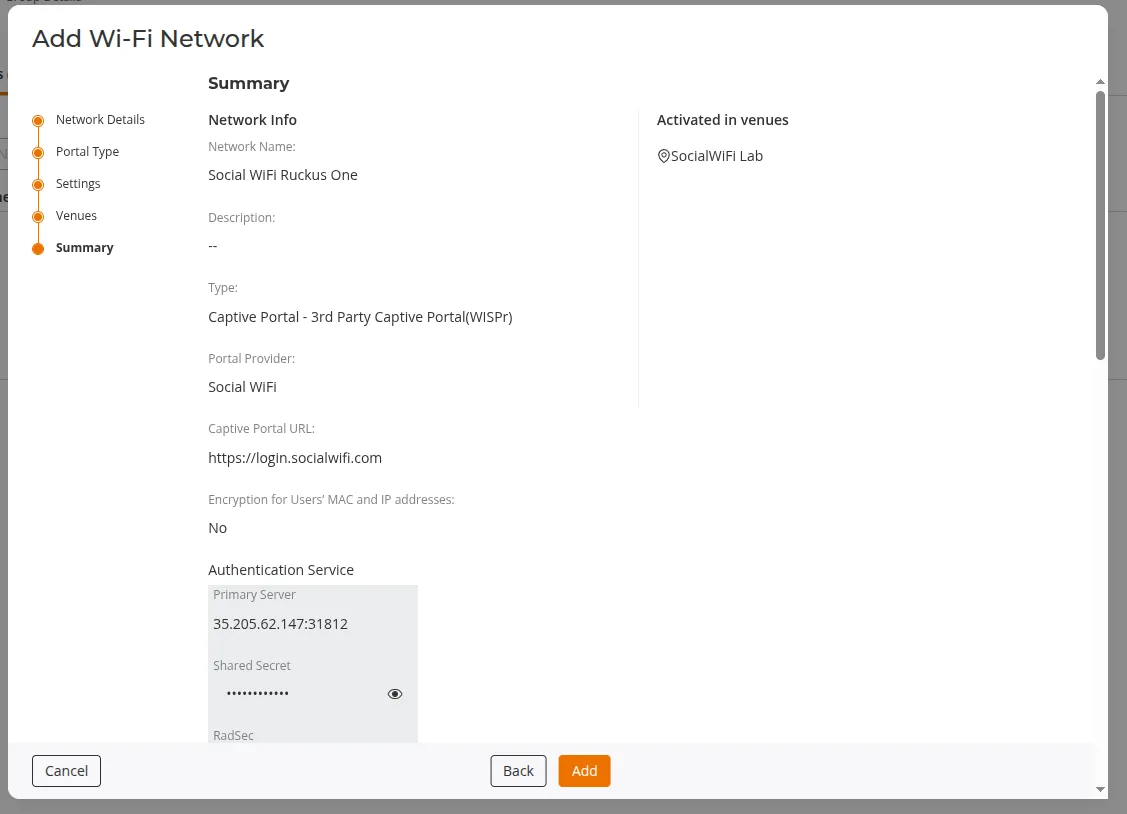
- W kroku Summary sprawdź konfigurację i kliknij Add.
Dodawanie punktu dostępowego do Panelu Social WiFi
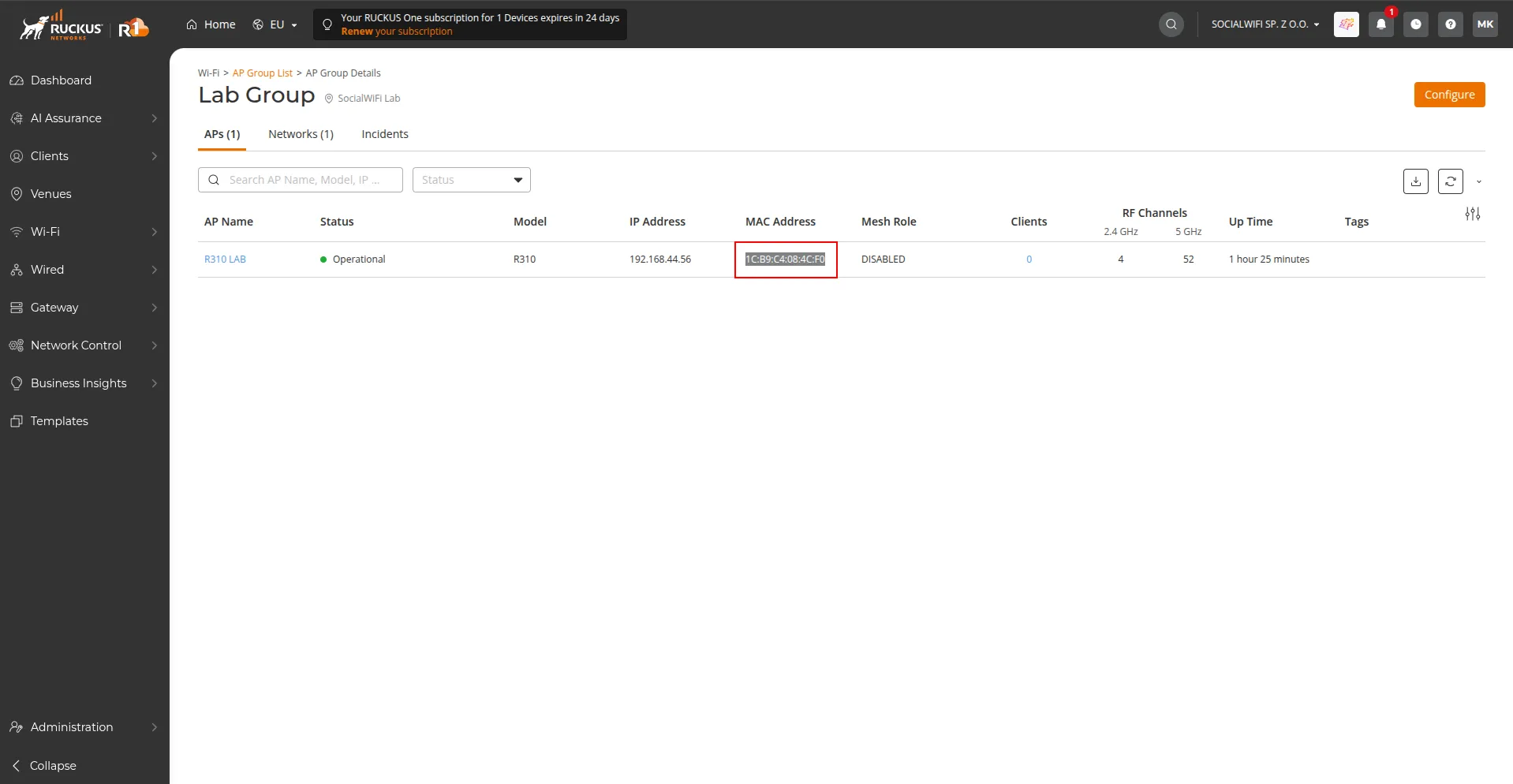
Wróć do Wi-Fi -> AP Group List i otwórz swoją grupę punktów dostępowych. Skopiuj adres MAC każdego punktu dostępowego, który będzie obsługiwał Wi-Fi dla gości przez integrację Social WiFi, a następnie wprowadź je w zakładce Access Point w Panelu Social WiFi.
Testowanie rozwiązania
Połącz się z siecią Wi-Fi. Powinieneś zostać przekierowany na stronę logowania. Zakończ proces logowania - po jego zakończeniu powinieneś mieć dostęp do Internetu. Twoje pierwsze połączenia i autoryzacje pojawią się w sekcji Statystyki w Panelu Social WiFi.