
EnGenius
Zgodność
Social WiFi zostało przetestowane i działa z następującym urządzeniem:
- EnGenius ECW520, Wersja oprogramowania 1.10.103
Adres MAC punktu dostępowego
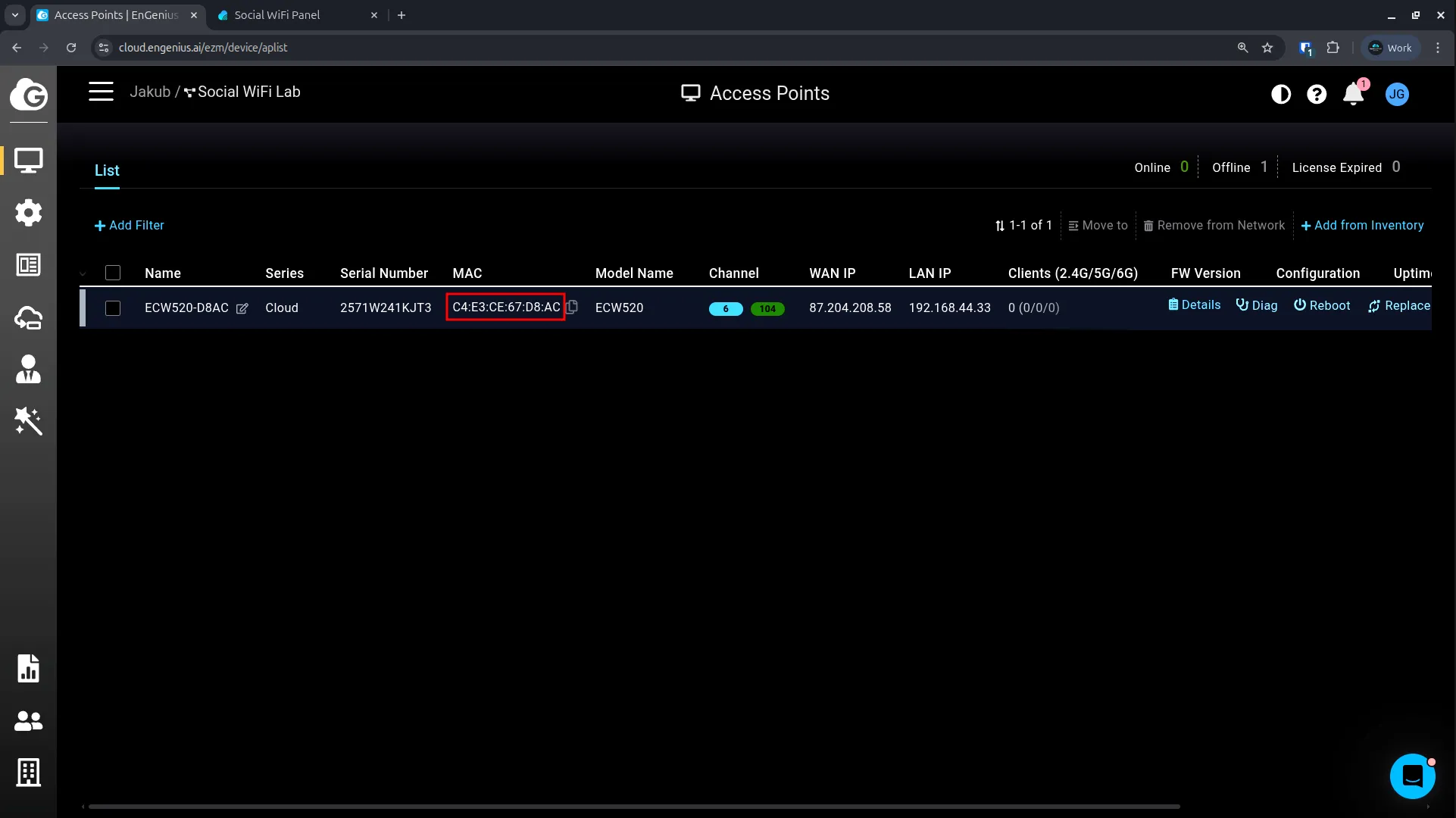
- Zaloguj się do portalu EnGenius Cloud.
- Przejdź do Manage -> Access Point.
- Skopiuj adres MAC punktu dostępowego.
Konfiguracja panelu Social WiFi
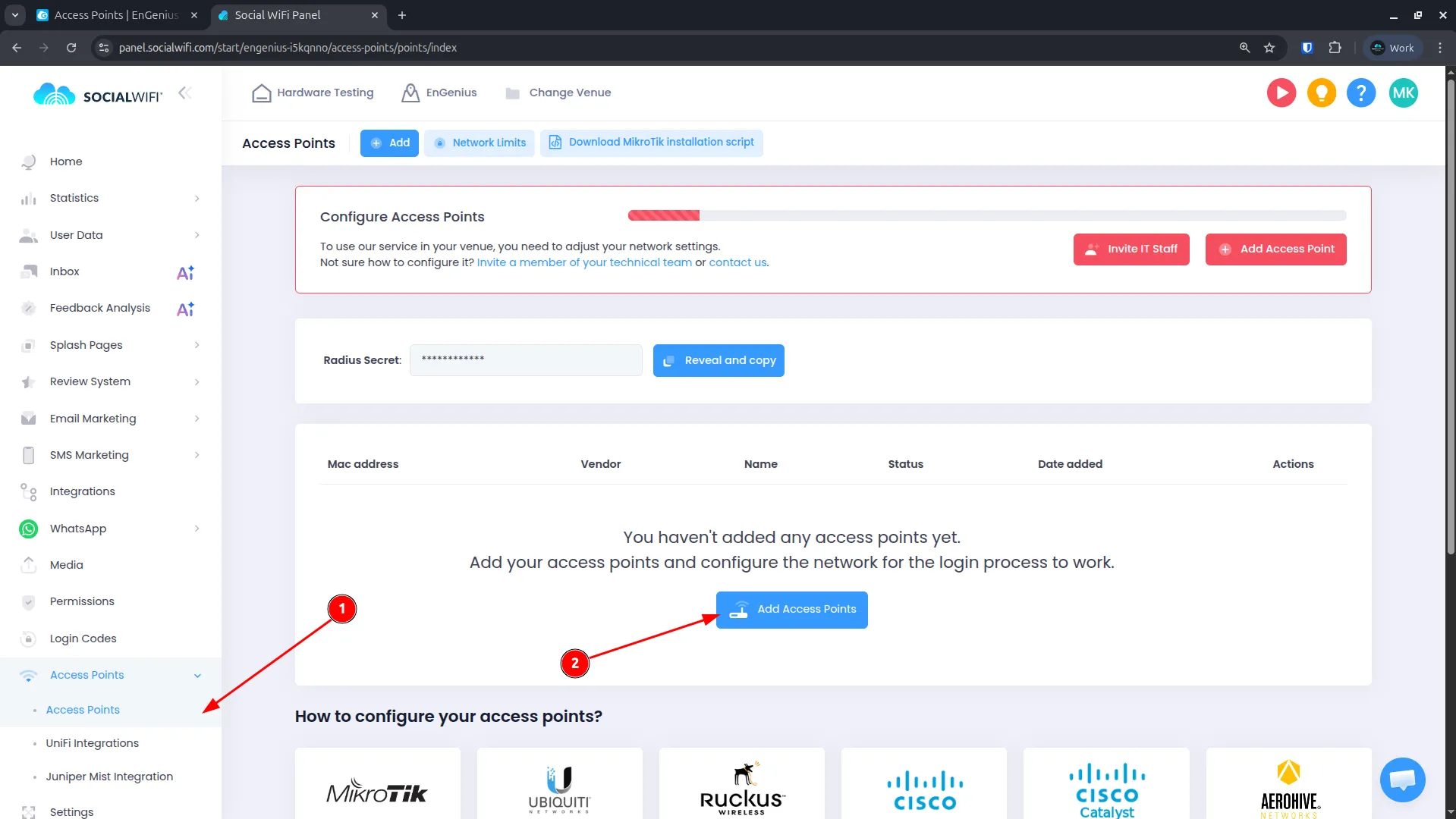
- Zaloguj się do panelu Social WiFi.
- Przejdź do Access Points.
- Kliknij Add Access Points.
-
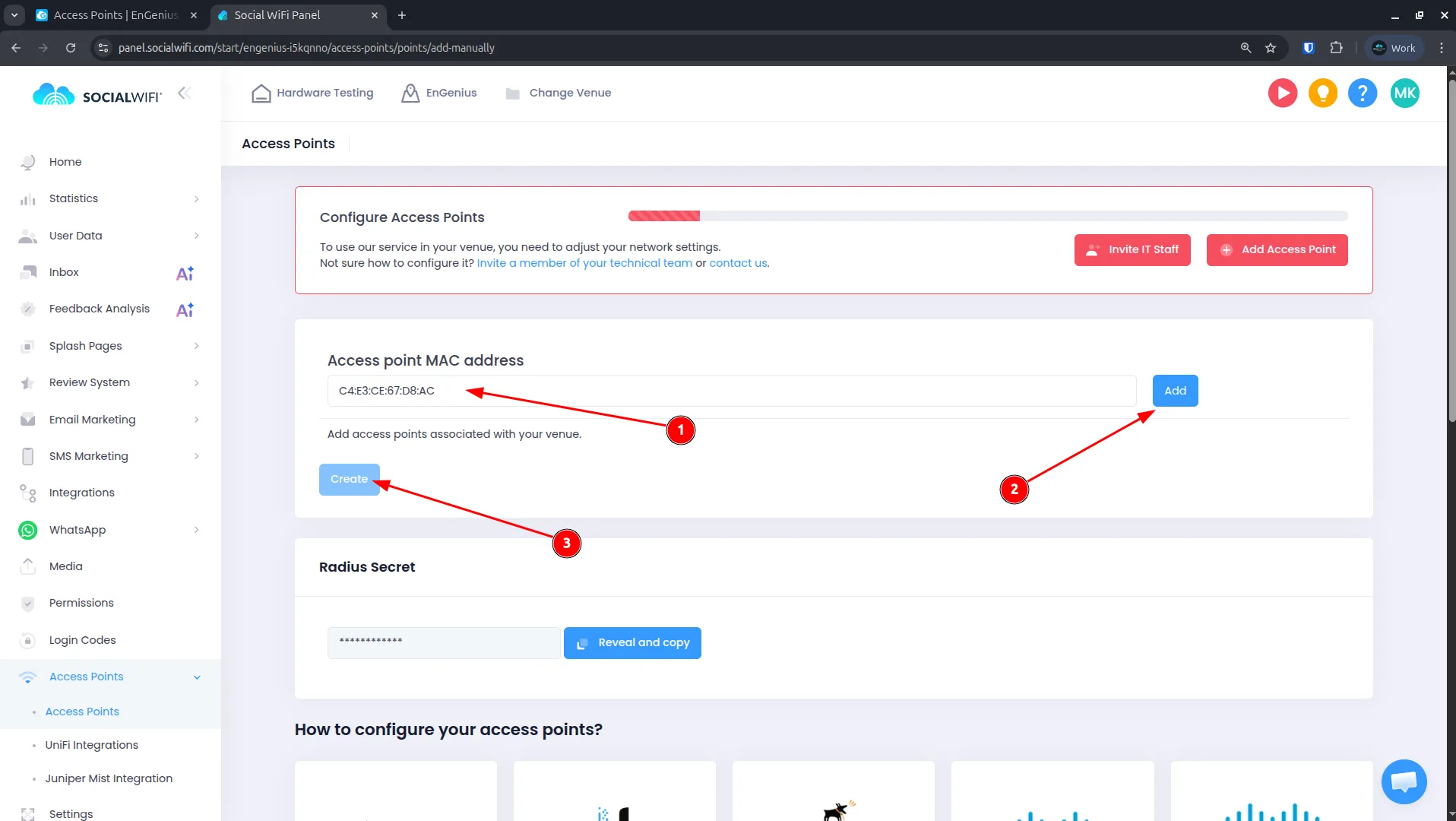
Wklej adres MAC skopiowany z portalu EnGenius.
-
Kliknij Add, a następnie Create.
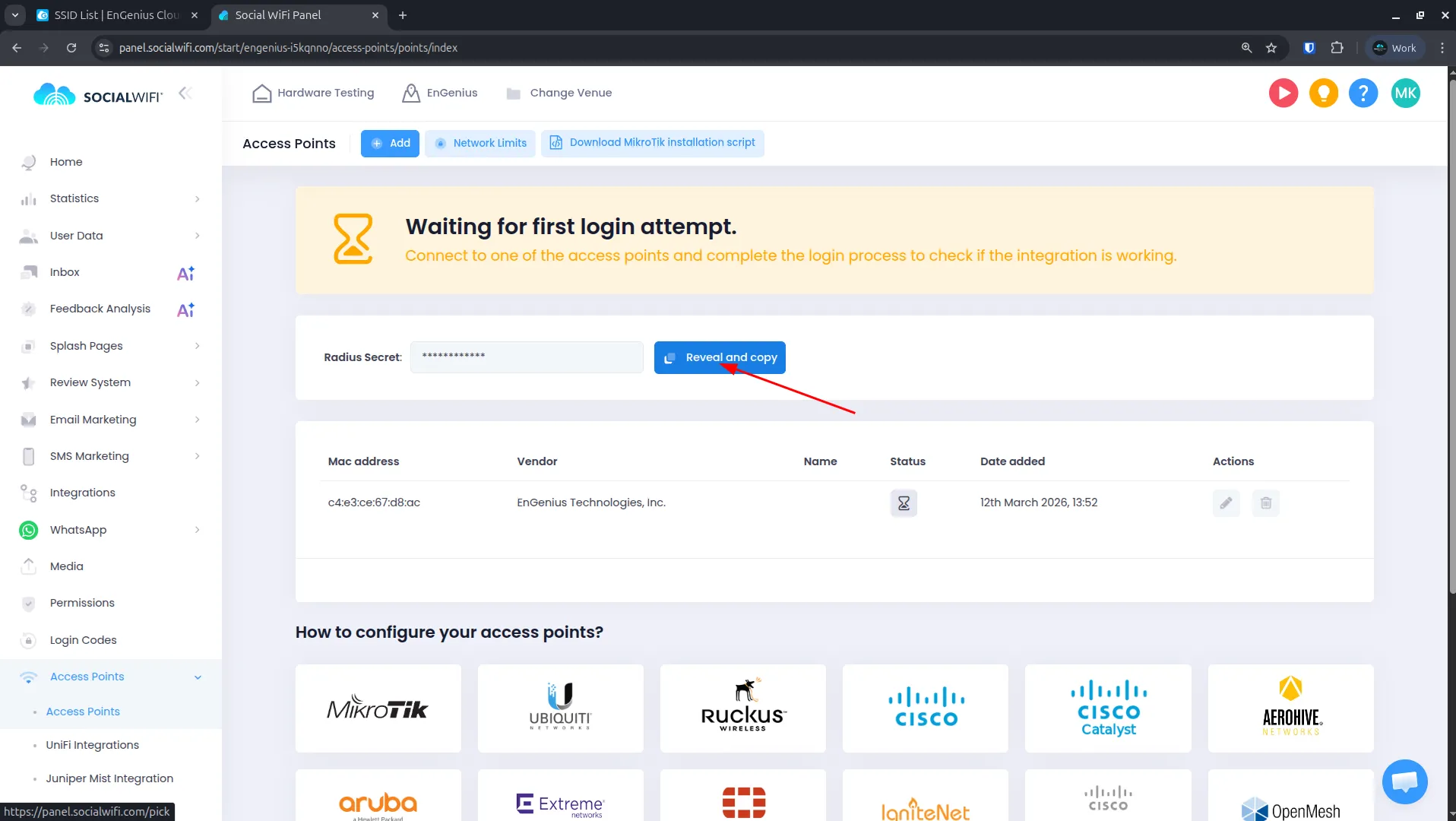
- Po dodaniu punktu dostępowego skopiuj wygenerowany “RADIUS Secret”. Będzie on potrzebny w jednym z kolejnych kroków.
Konfiguracja SSID
Wróć do portalu EnGenius Cloud.
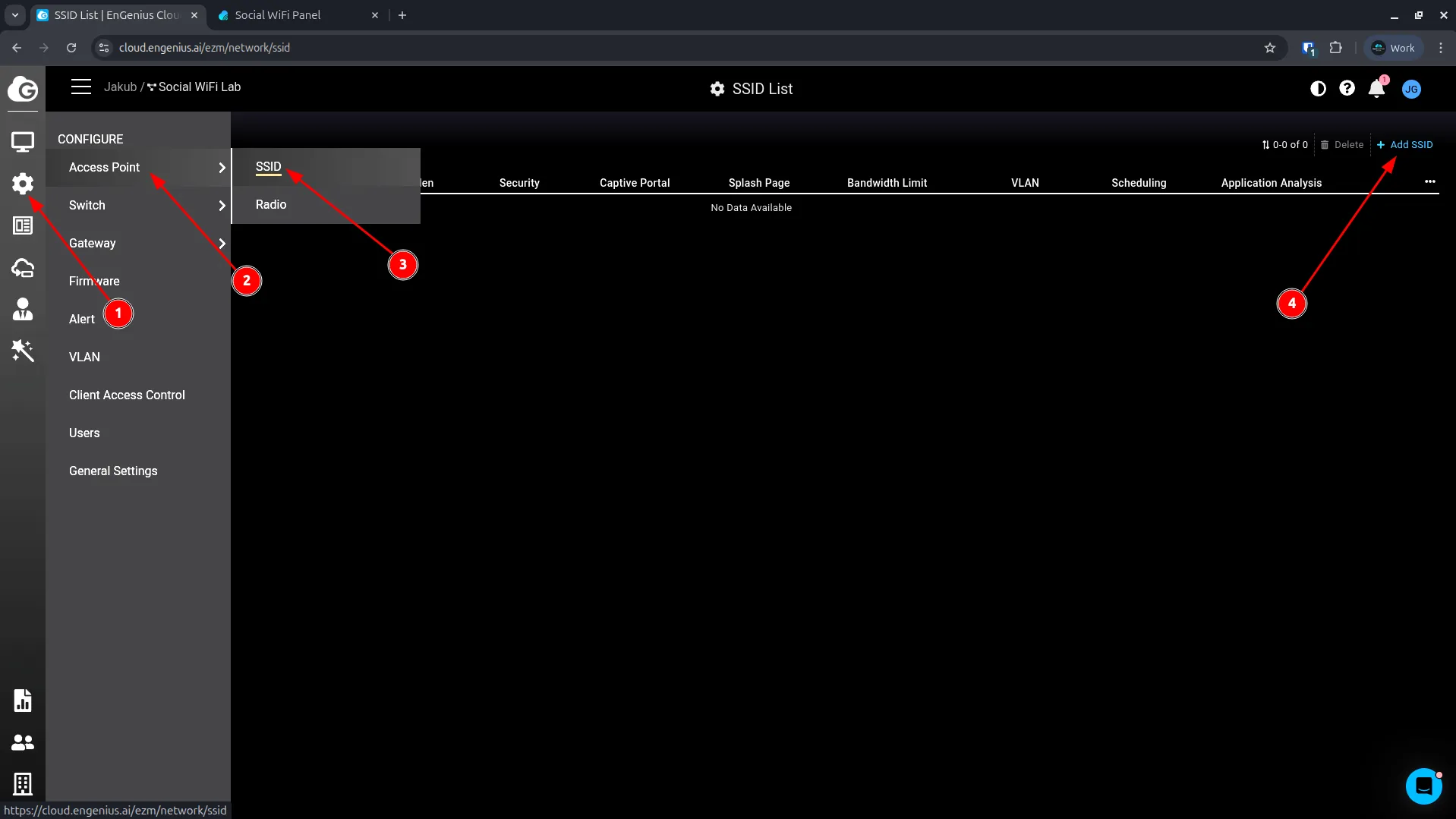
- Przejdź do Configure -> Access Point -> SSID.
- Kliknij Add SSID, aby utworzyć nową sieć lub edytuj istniejącą.
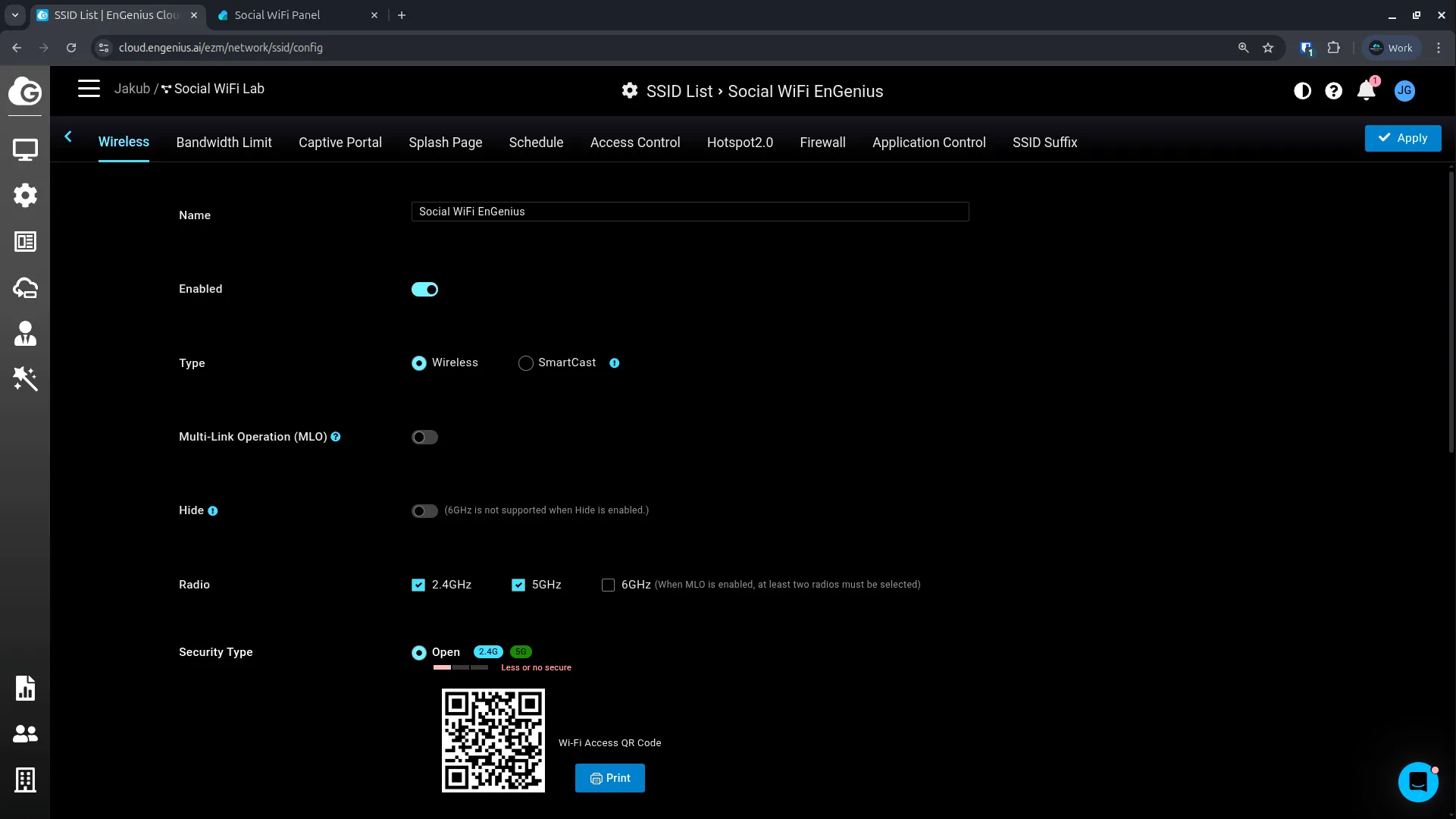
Ustawienia bezprzewodowe (Wireless settings)
Użyj następujących ustawień:
| Name | Wyświetlana nazwa dla sieci Guest WiFi |
|---|---|
| Enabled | Enabled |
| Type | Wireless |
| Security Type | Open |
Ustawienia Captive Portal
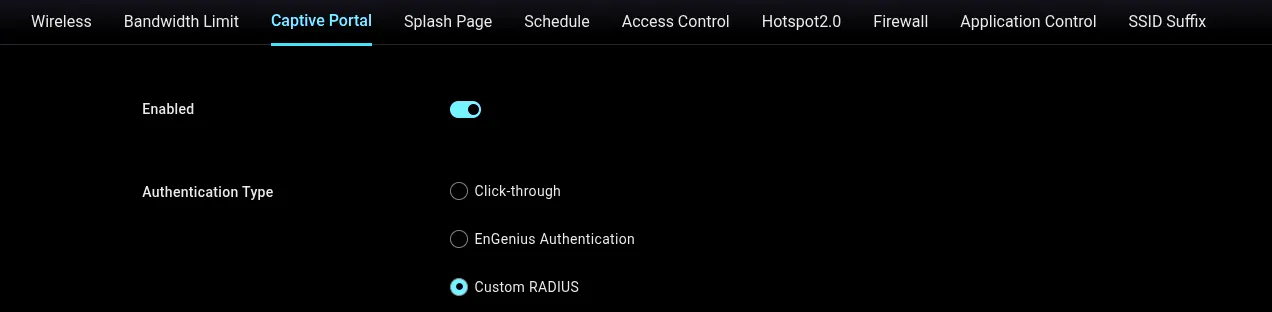
Przejdź do ustawień Captive Portal i użyj następujących parametrów:
| Enabled | Enabled |
|---|---|
| Authentication Type | Custom RADIUS |
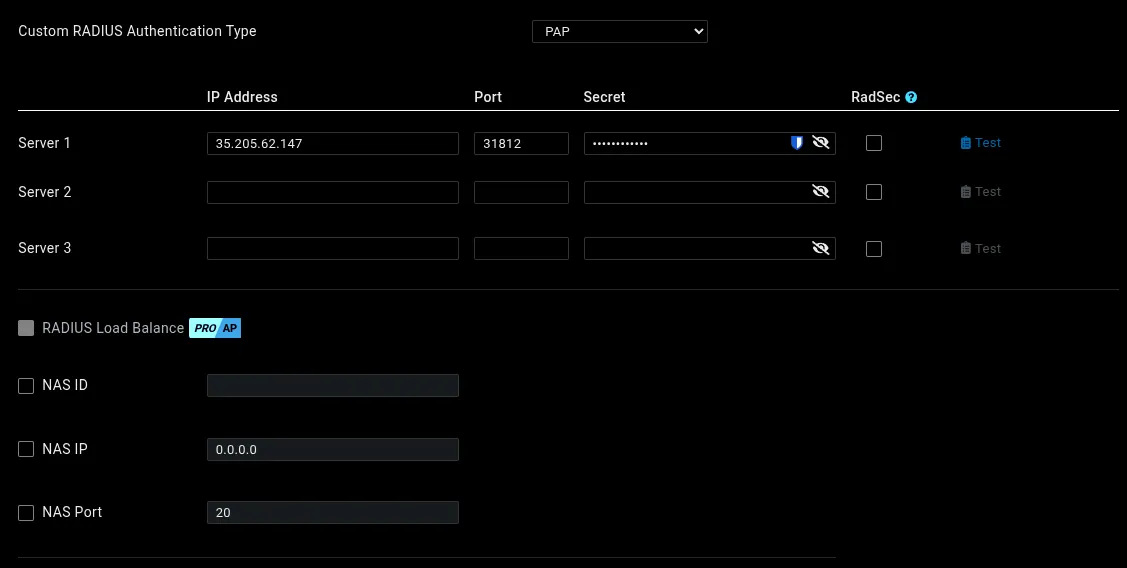
RADIUS server:
| Custom RADIUS Authentication Type | PAP |
|---|---|
| Server 1 IP Address | 35.205.62.147 |
| Server 1 Port | 31812 |
| Server 1 Secret | Wklej swój RADIUS Secret |
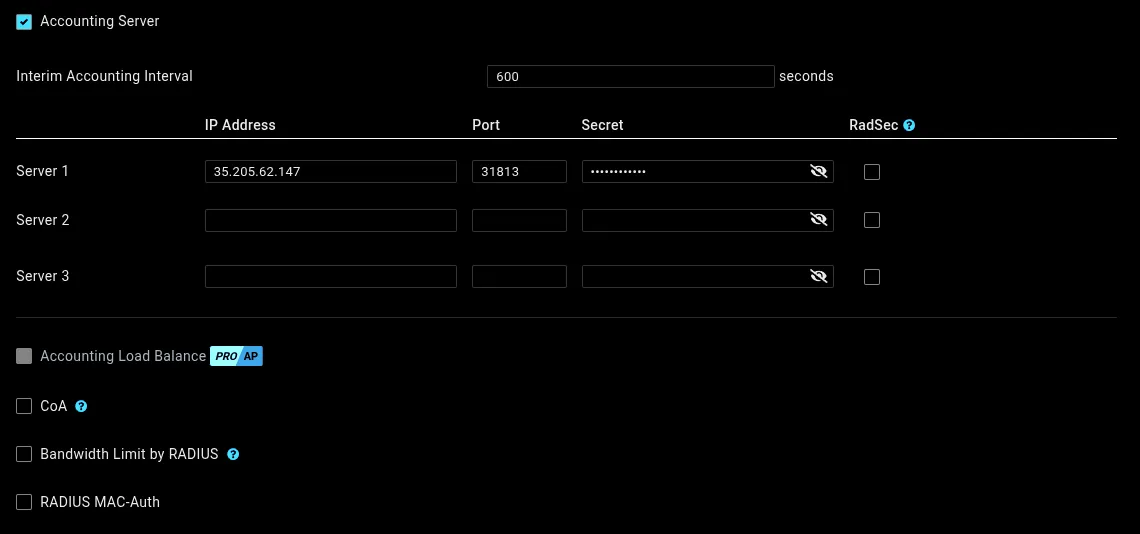
Accounting server:
| Accounting Server | Enabled |
|---|---|
| Server 1 IP Address | 35.205.62.147 |
| Server 1 Port | 31813 |
| Server 1 Secret | Wklej swój RADIUS Secret |
Redirect URL:
Ustaw tę opcję na Redirect to the URL that the user was trying to visit. Dzięki temu strona powitalna wyświetli się poprawnie, a punkt dostępowy będzie mógł zweryfikować, czy klient został pomyślnie autoryzowany.

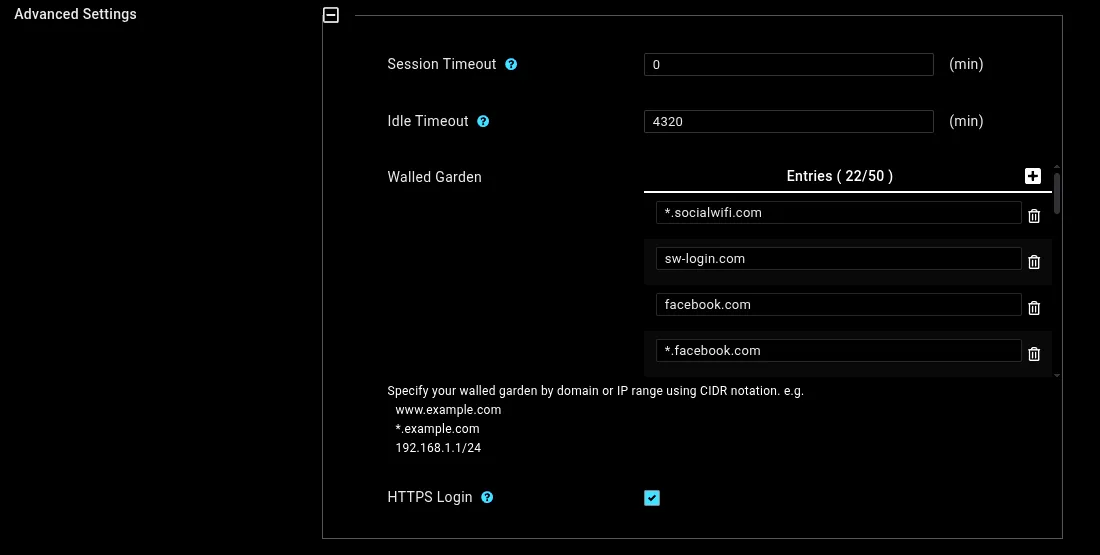
Zaawansowane ustawienia (Advanced Settings):
- Session Timeout:
0 - Idle Timeout: Ustaw na 4320 minut (3 dni). Decyduje to o tym, jak często użytkownicy będą musieli logować się ponownie.
Walled Garden: Dodaj następujące domeny:
*.socialwifi.comsw-login.comfacebook.com*.facebook.com*.fbcdn.netlinkedin.com*.linkedin.com*.licdn.comtwitter.comapi.twitter.comx.comapi.x.com*.twimg.comwhatsapp.com*.whatsapp.net*.whatsapp.comconnect.facebook.netwww.facebook.comwww.googletagmanager.comwww.googleadservices.comgoogleads.g.doubleclick.net*.youtube.com*.ytimg.com*.googlevideo.comyt3.ggpht.com- HTTPS Login: Pozostaw włączone (Enabled).
Karta Splash Page
| Splash Page Type | External Splash Page URL |
|---|---|
| External URL | http://login.socialwifi.com/ |

Kliknij Apply, aby zapisać konfigurację SSID.
Testowanie rozwiązania
- Połącz urządzenie klienckie z siecią dla gości. Strona logowania powinna załadować się automatycznie.
- Przeprowadź proces logowania.
- Potwierdź, że po zalogowaniu masz dostęp do internetu.
- Otwórz panel Social WiFi i sprawdź, czy połączenie oraz logowanie widoczne są na wykresie w sekcji Statystyki > Urządzenia.