
Integrate with Revinate
Accessing Revinate info
To get the data required for the integration, you’re going to need to log into your Revinate account.
1) Visit the Revinate dashboard.
2) Select the Marketing tab.
3) In the top bar, select Guests & Segments: Contact Lists.
4) Select the contact list you’d like to sync Social WiFi data to.
5) Choose upload via API and copy the token that is shown at the top of the page.

Enabling the integration
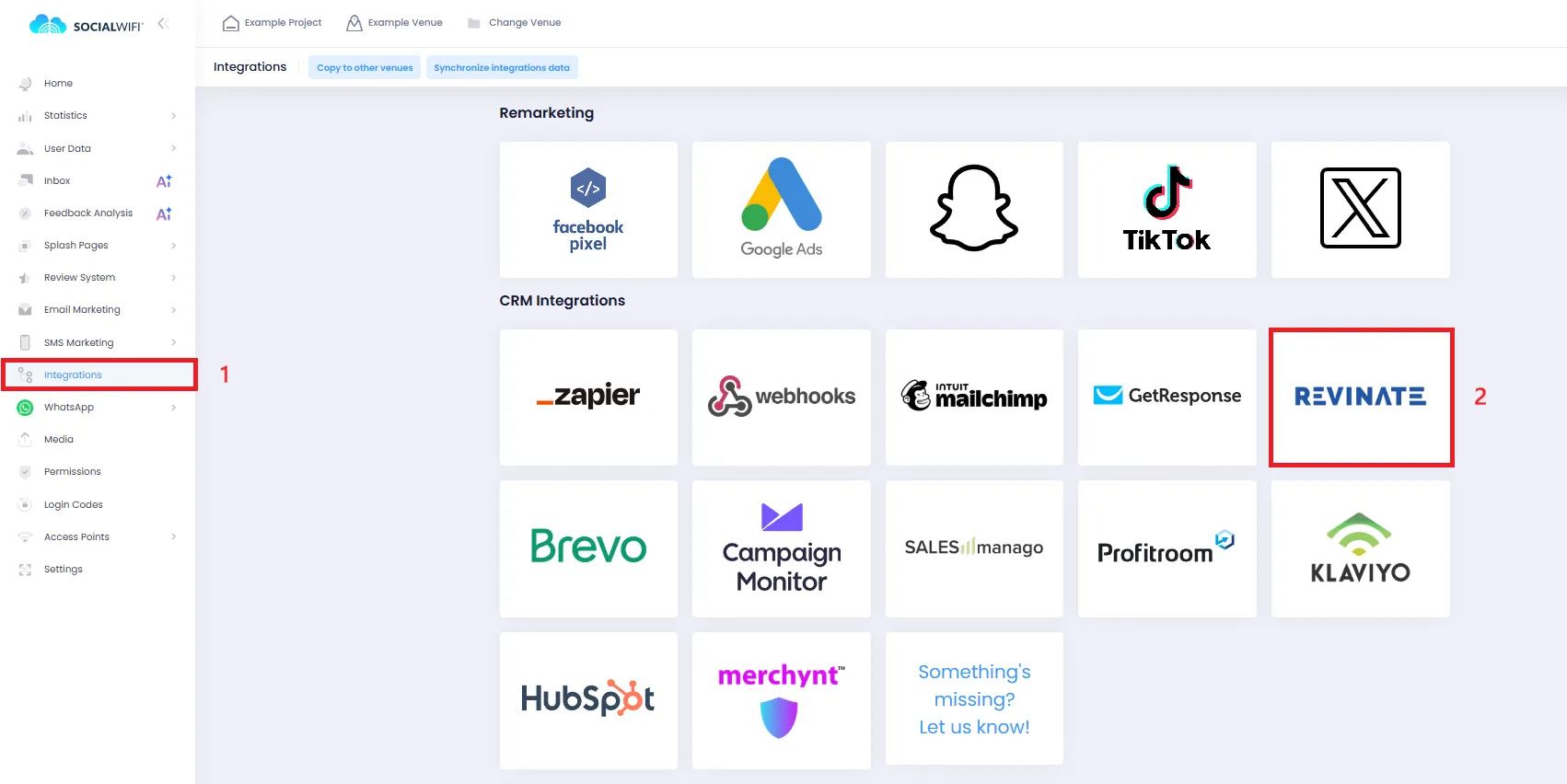
1) Select the Venue you would like to set up the integration for and go to the Integrations tab (1).
2) Click the Revinate icon (2).
3) Press Add in the top left corner.
4) Fill in the Integration name and Revinate contact list token fields with the relevant information.
5) Tick the Active checkbox and press Create.
If you followed these steps correctly, the integration will now start working.
Understanding the mechanics
Every time a user logs in to your WiFi network, the data will be sent to Revinate.
Within the Revinate module, you will be able to see additional information about the user, such as the language or any additional info collected from social media (age, gender, etc.). You can use those segments for targeting your marketing content.