
Enabling SSL on MikroTik Hotspot
This guide explains how to enable SSL (HTTPS) on the MikroTik Hotspot login page using a free ACME certificate issued through IP Cloud. Follow the steps below using either the graphical interface or the RouterOS CLI.
Compatibility
Social WiFi has been tested and proven to work on the following configurations:
- RouterOS version 7.19 and above
Preqe
Installation
-
Enable IP Cloud
Navigate to IP -> Cloud, and set DDNS Enabled to
yes.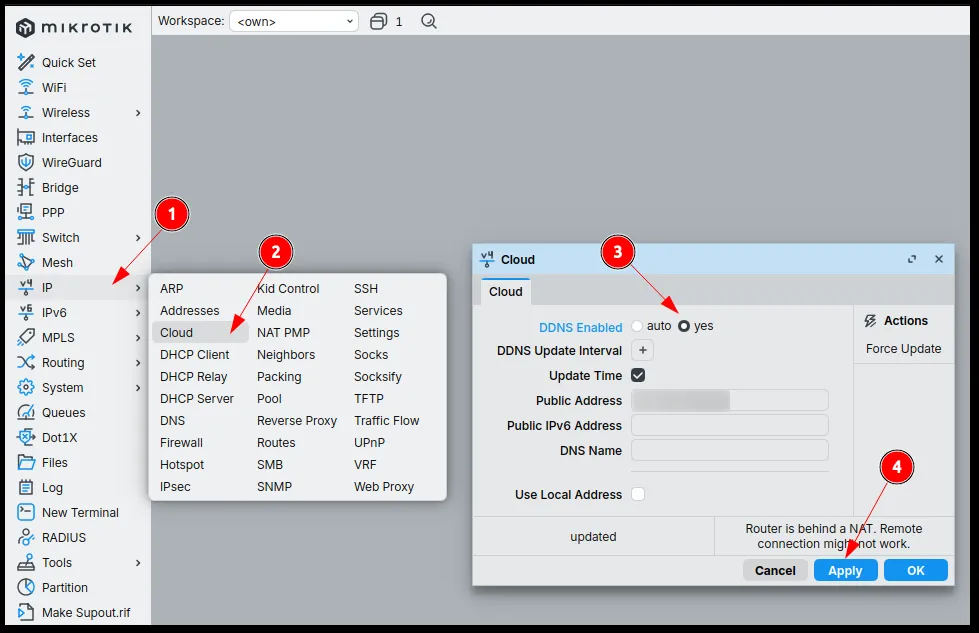
Wait until the DNS Name appears.
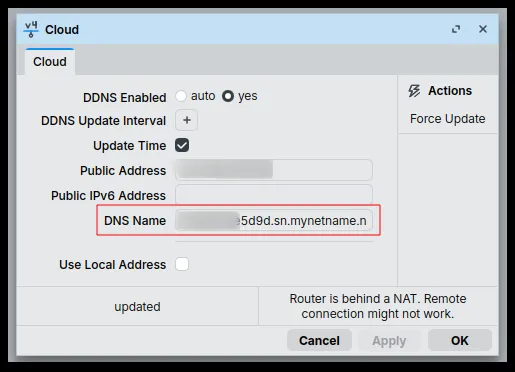
-
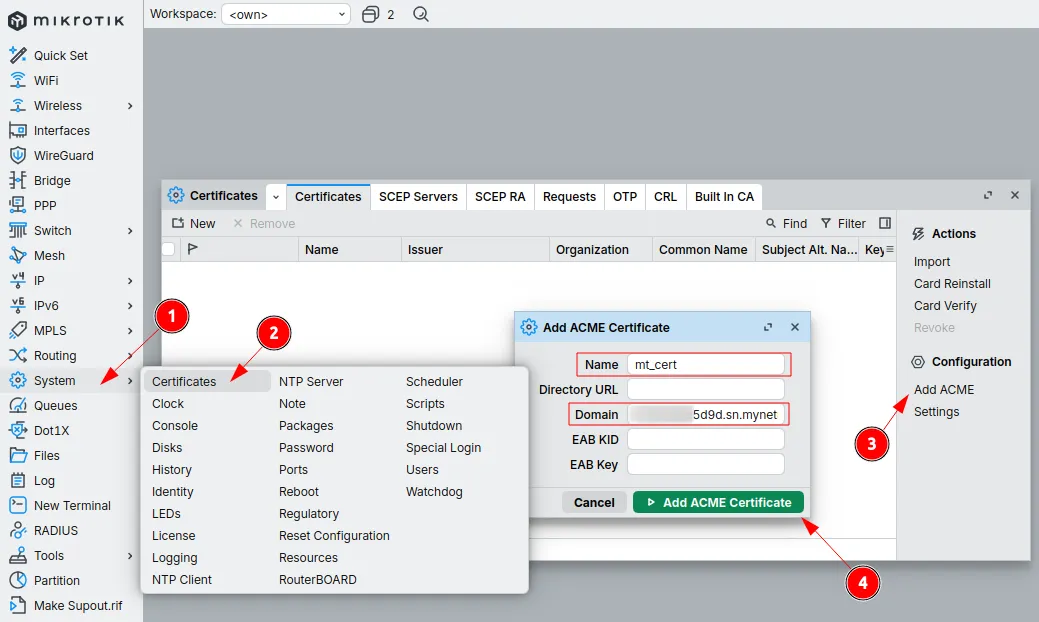
Request an ACME certificate
Navigate to System (1) -> Certificates (2), then click Add ACME (3). Enter any name in the Name field, for example
mt_cert, and enter the domain provided in IP -> Cloud -> DNS Name.After completing the fields, click Add ACME Certificate (4).
After adding the certificate, wait about a minute until the status changes from Ea to Ka.
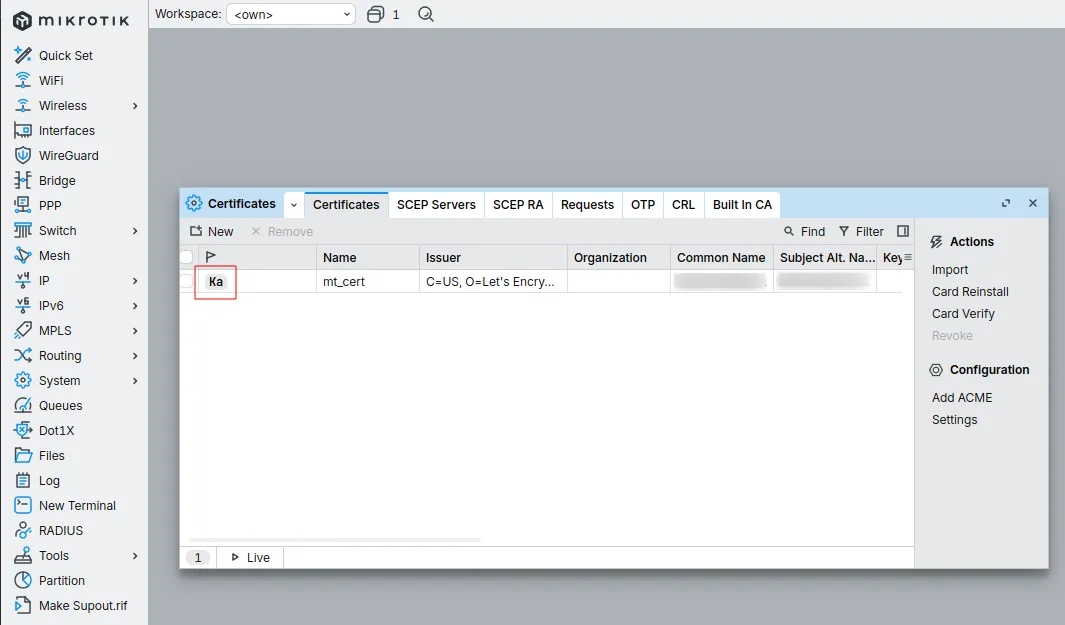
-
Add the certificate to the Hotspot
Navigate to IP (1) -> Hotspot (2) -> Server Profiles (3), then double-click the default profile (4). In the General tab, change DNS Name from
logging.sw.comto the domain provided in IP -> Cloud -> DNS Name.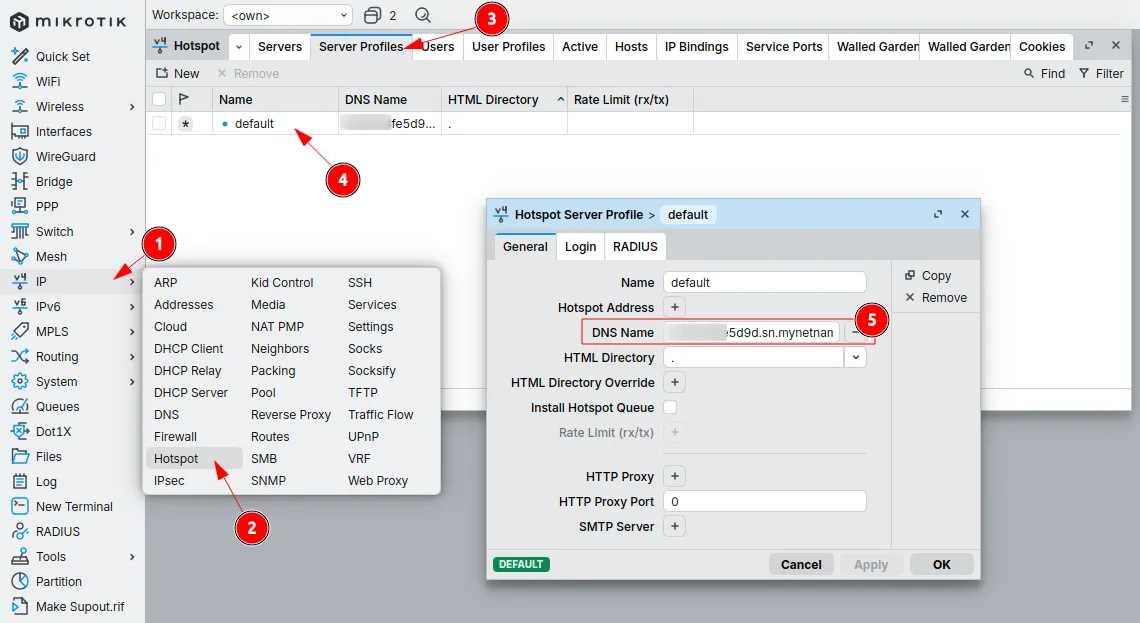
Go to the Login tab. In Login By, select HTTPS only, then below, in the SSL Certificate field, select the certificate generated in the previous step.
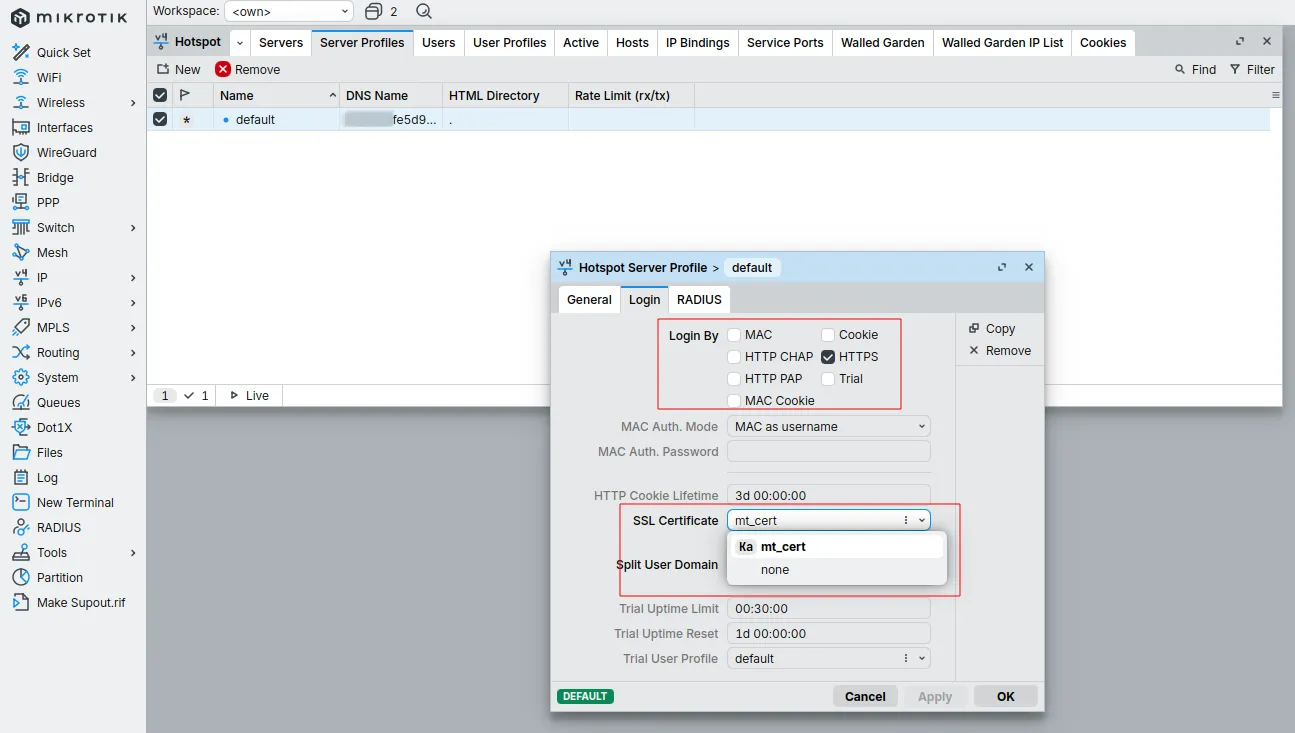
After completing the steps, click Apply.
Open the terminal and enter the following commands (copy including the curly brackets).
{:local minMajor 7:local minMinor 19:local pollInterval 5s:local maxPollAttempts 24:local acmeDirectoryUrl "https://acme-v02.api.letsencrypt.org/directory":local hotspotProfileName "default"
:local verStr [/system resource get version]:local verNum [:pick $verStr 0 [:find $verStr " "]]:local dot1 [:find $verNum "."]:local major [:tonum [:pick $verNum 0 $dot1]]:local rest [:pick $verNum ($dot1 + 1) [:len $verNum]]:local dot2 [:find $rest "."]:local minor 0:if ([:typeof $dot2] = "nil") do={    :set minor [:tonum $rest]} else={    :set minor [:tonum [:pick $rest 0 $dot2]]}
:if (($major < $minMajor) || (($major = $minMajor) && ($minor < $minMinor))) do={    :error "Unsupported RouterOS version: $verStr is below the required $minMajor.$minMinor"}
/ip cloud set ddns-enabled=yes update-time=yes:put "Waiting for DDNS domain assignment...":delay 15s
:local dnsName [/ip cloud get dns-name]:put "DDNS name: $dnsName"
:if ([:len $dnsName] = 0) do={    :error "No dns-name assigned in IP Cloud"}
/certificate add-acme directory-url=$acmeDirectoryUrl domain-names=$dnsName:put "Waiting for ACME certificate issuance..."
:local certId "":local i 0:while ([:len $certId] = 0 && $i < $maxPollAttempts) do={    :delay $pollInterval    :set certId [/certificate find where common-name=$dnsName]    :set i ($i + 1)}
:if ([:len $certId] = 0) do={    :error "ACME certificate request timed out"}
:local certName [/certificate get $certId name]:put "Certificate name: $certName"
/ip hotspot profile set [find name=$hotspotProfileName] dns-name=$dnsName ssl-certificate=$certName login-by=https
:put "SSL setup complete for domain: $dnsName"}
Re-download hotspot files
Run the following command in the terminal to download new versions of the hotspot files and overwrite the old ones.
{ :local downloadEndpoint "https://login.socialwifi.com/installation/mikrotik/download"; :local fileNames {"login.html"; "rlogin.html"; "alogin.html"; "flogin.html"; "md5.js"} :local destinationDirectory ""; :if ([:len [/file find name="flash" type="disk"]] > 0) do={ :set destinationDirectory "/flash/"; } :local ether1Mac ([/interface get [find name="ether1"]]->"mac-address"); :foreach fileName in=$fileNames do={ :put "Downloading file: $downloadEndpoint/$fileName\?mac=$ether1Mac" /tool fetch url="$downloadEndpoint/$fileName\?mac=$ether1Mac" dst-path="$destinationDirectory$fileName" }}Test the solution
Connect to the WiFi network and open the login page. The browser should show a valid certificate for the configured domain instead of a security warning.