
FortiGate / FortiWiFi
Compatibility
Social WiFi has been tested and proven to work on the following configurations:
FortiWiFi - wireless interfaces
- FortiOS version 5.6.0 and above (tested up to 7.6.3)
FortiGate hardware or virtual machine - wired interfaces
- recommended: FortiOS version 6.2.4 and above (tested up to 7.6.3)
- FortiOS version 5.6.0 and above work if the captive portal is enabled on a physical interface, VLAN interfaces are not supported below FortiOS 6.2.4
Access the device’s configuration panel
This guide uses the web-based management UI, accessible by entering the device’s IP address in a browser. Screenshots are based on firmware v5.6.2.
Alternatively, if your device is managed from FortiCloud, you can access the management UI from there.
RADIUS configuration
Go to User & Authentication → RADIUS Servers → Create New and use the following settings:
| Name | Social WiFi |
|---|---|
| Authentication Method | Specify |
| Method | PAP |
| NAS IP | Leave empty |
| Include in every user group | Unchecked |
| Primary Server IP/Name | 35.205.62.147 |
| Primary Server Secret | Radius Secret is available in Access Points tab of the Social WiFi Panel |
| Secondary Server IP/Name | Leave empty |
| Secondary Server Secret | Leave empty |
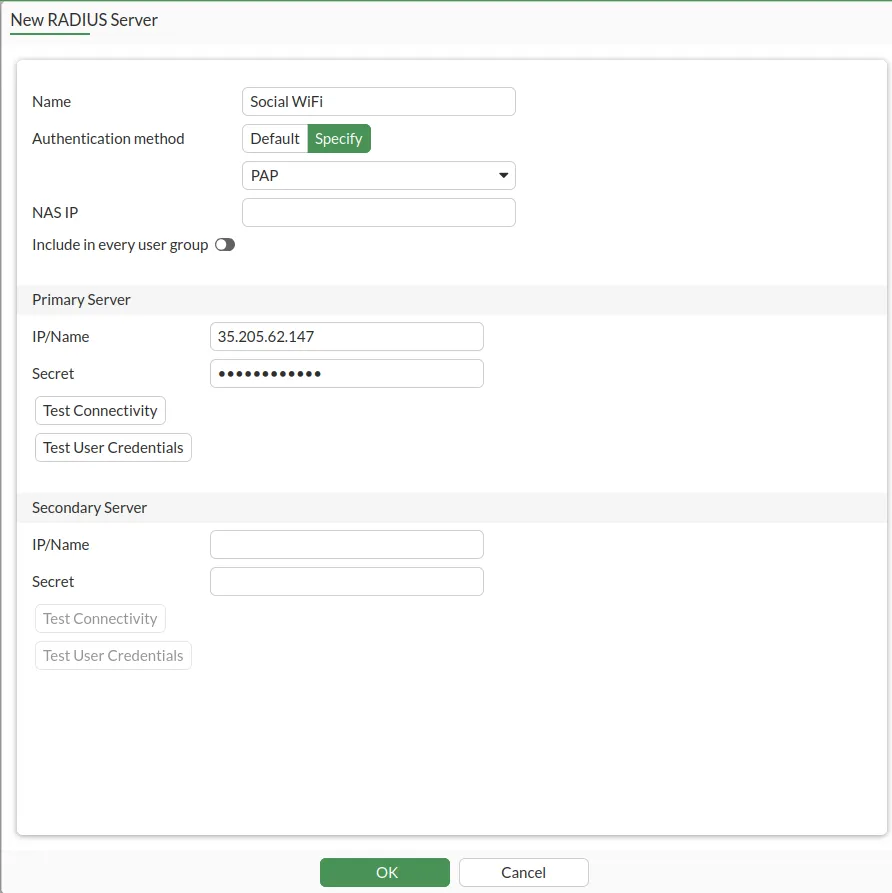
Click OK.
Change the RADIUS port to 31812. Open the CLI Console (top right corner, between Help and your username).
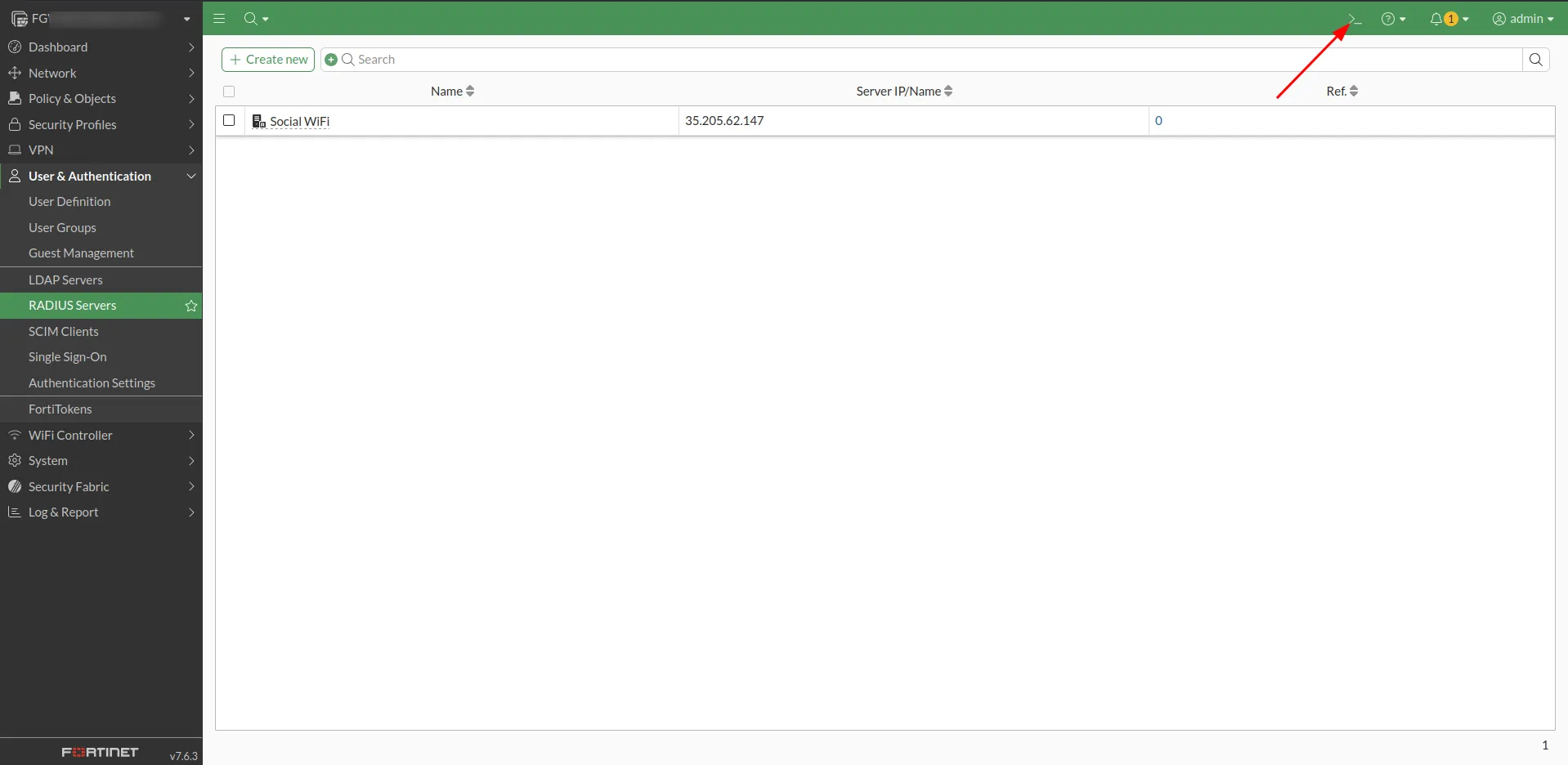
A terminal will appear. Copy and paste the following commands:
config user radius edit "Social WiFi" set radius-port 31812 nextendPress Enter, then paste the following:
config user radius edit "Social WiFi" config accounting-server edit 1 set status enable set server 35.205.62.147 set secret [*your radius secret from the panel*] set port 31813 next end end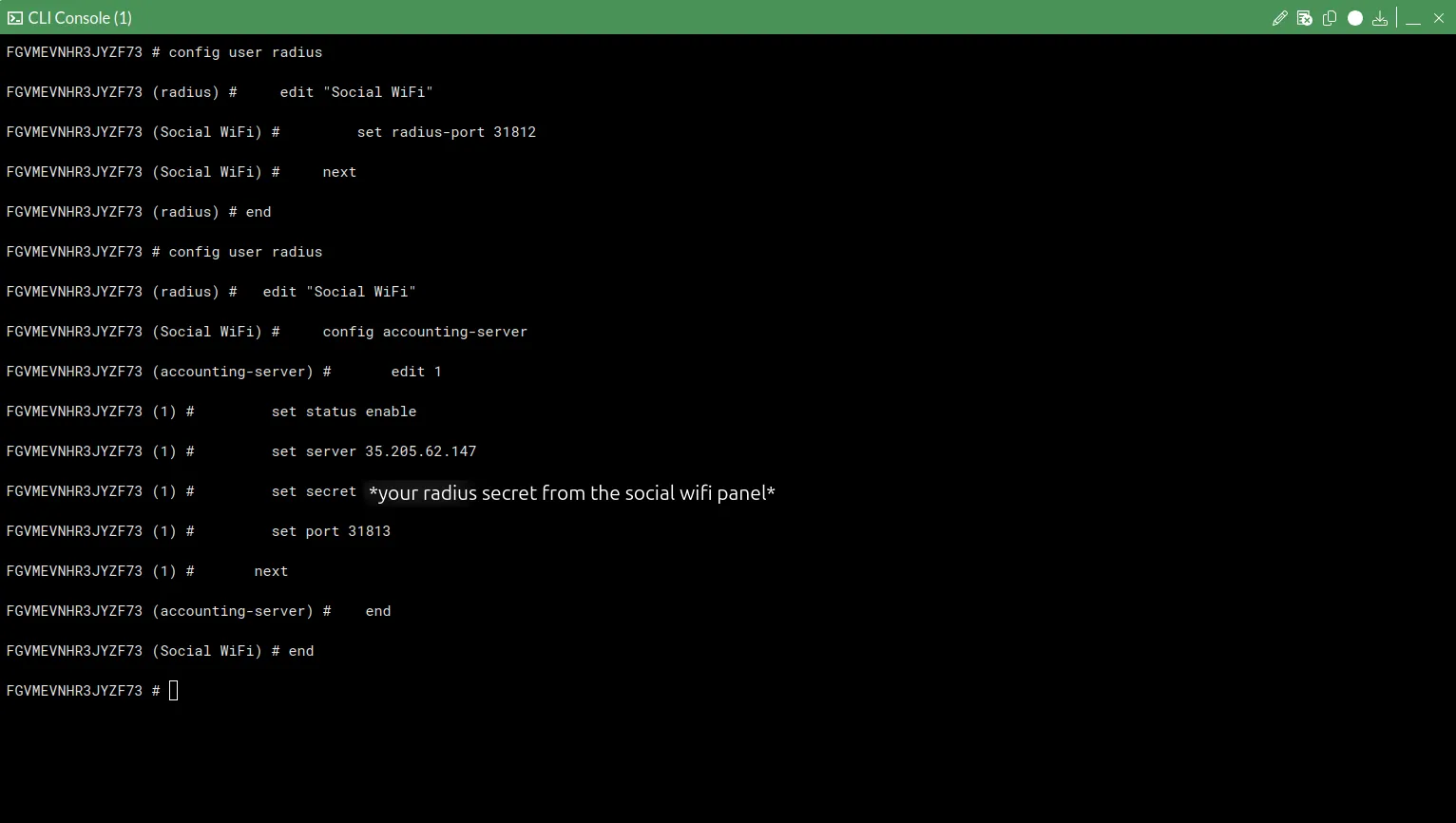
Close the CLI console by clicking x in the top right corner.
Remote Group configuration
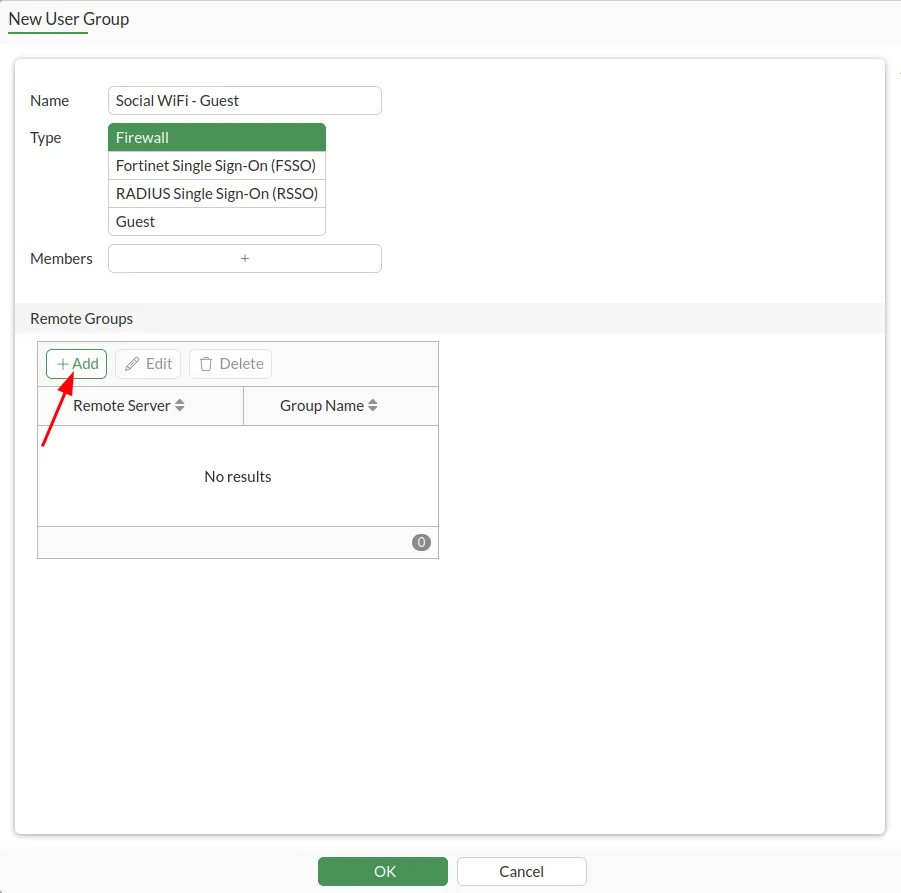
Go to User & Authentication → User Groups → Create New
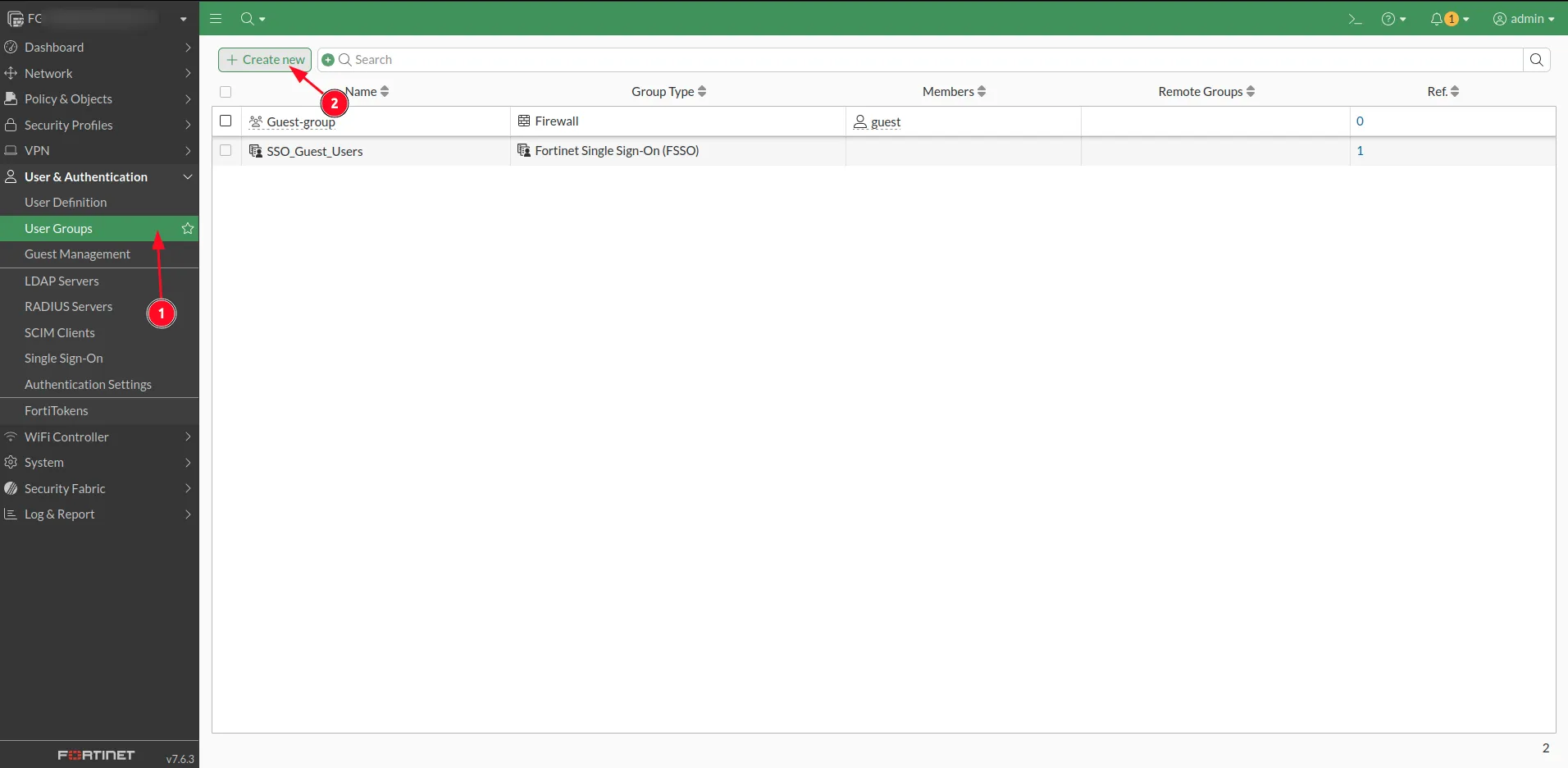
and use the following settings:
| Name | Social WiFi - Guest |
|---|---|
| Type | Firewall |
| Members | Leave empty |
Under Remote Groups, click +Add.
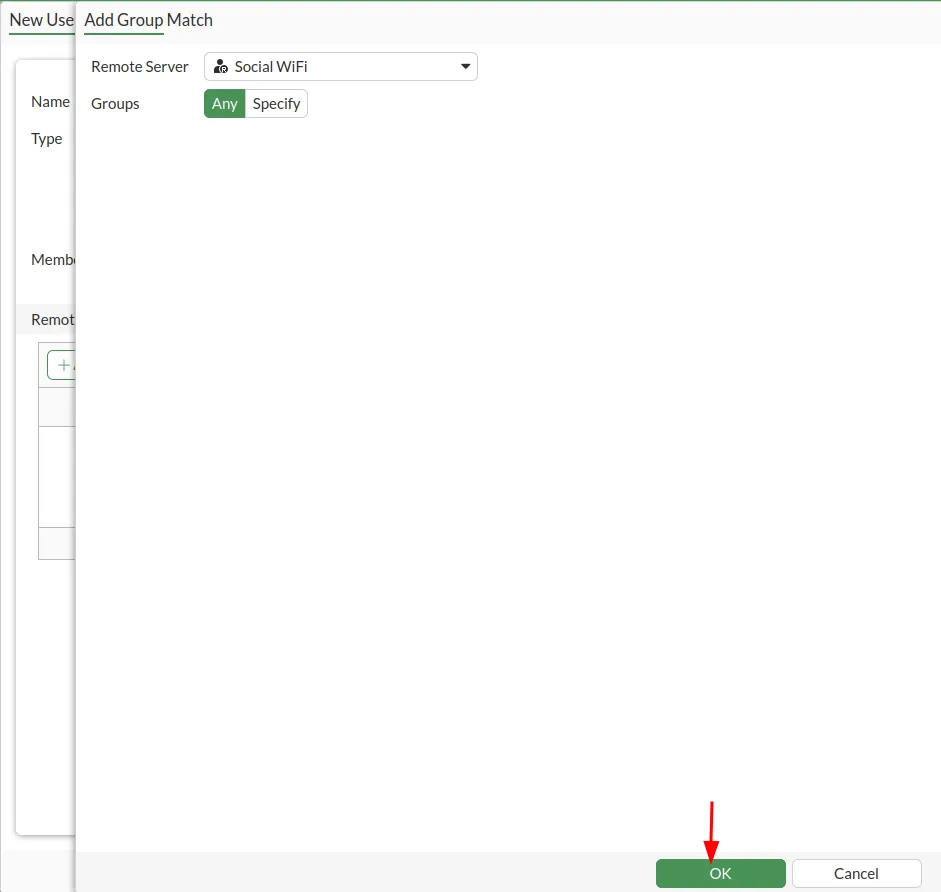
Select Social WiFi from the Remote Server dropdown list. Make sure Groups is set to Any. Click OK to proceed.
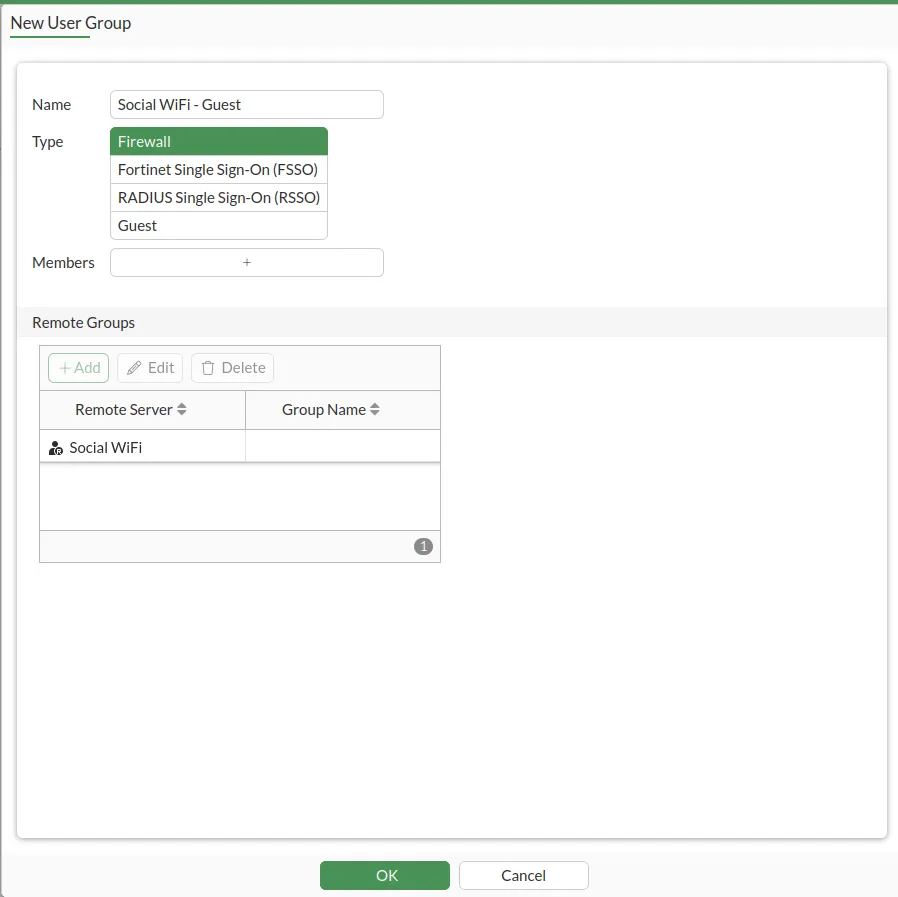
Click OK.
Setting the auth-timeout
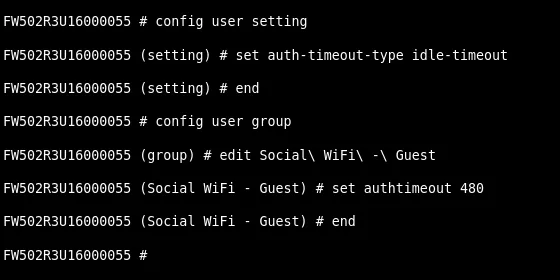
Open the console again and run the following commands:
config user settingset auth-timeout-type idle-timeoutendconfig user groupedit Social\ WiFi\ -\ Guestset authtimeout 480endThe set authtimeout 480 value is in minutes and can be adjusted freely. Users will be required to log in again after 8 hours of inactivity.
Walled Garden configuration
Add all services that will be available without logging in. This includes the Social WiFi login page and third-party social login services (such as Facebook).
The following assumes firmware version 6.2.2 or higher, which supports wildcard domains (e.g. “*.facebook.com”). If you have an older version, contact support at support@socialwifi.com.
The recommended approach is to paste the following scripts using the console.
Part 1:
# Social WiFi main serviceconfig firewall address    edit "Social WiFi - main 1"        set type fqdn        set fqdn "login.socialwifi.com"    next    edit "Social WiFi - main 2"        set type fqdn        set fqdn "sw-login.com"    nextendconfig firewall addrgrp    edit "Social WiFI - main"        set member "Social WiFi - main 1" "Social WiFi - main 2"    nextend
# Facebook remarketing pixelconfig firewall address    edit "Social WiFi - Facebook pixel 1"        set type fqdn        set fqdn "connect.facebook.net"    next    edit "Social WiFi - Facebook pixel 2"        set type fqdn        set fqdn "www.facebook.com"    nextendconfig firewall addrgrp    edit "Social WiFI - Facebook pixel"        set member "Social WiFi - Facebook pixel 1" "Social WiFi - Facebook pixel 2"    nextend
# Google remarketing tagconfig firewall address    edit "Social WiFi - Google tag 1"        set type fqdn        set fqdn "www.googletagmanager.com"    next    edit "Social WiFi - Google tag 2"        set type fqdn        set fqdn "www.googleadservices.com"    next    edit "Social WiFi - Google tag 3"        set type fqdn        set fqdn "googleads.g.doubleclick.net"    nextendconfig firewall addrgrp    edit "Social WiFI - Google tag"        set member "Social WiFi - Google tag 1" "Social WiFi - Google tag 2" "Social WiFi - Google tag 3"    nextend
# Facebook loginconfig firewall address    edit "Social WiFi - Facebook 1"        set type fqdn        set fqdn "facebook.com"    next    edit "Social WiFi - Facebook 2"        set type fqdn        set fqdn "*.facebook.com"    next    edit "Social WiFi - Facebook 3"        set type fqdn        set fqdn "*.fbcdn.net"    nextendconfig firewall addrgrp    edit "Social WiFi - Facebook"        set member "Social WiFi - Facebook 1" "Social WiFi - Facebook 2" "Social WiFi - Facebook 3"    nextend
Part 2:
# Twitter loginconfig firewall address    edit "Social WiFi - Twitter 1"        set type fqdn        set fqdn "twitter.com"    next    edit "Social WiFi - Twitter 2"        set type fqdn        set fqdn "api.twitter.com"    next    edit "Social WiFi - Twitter 3"        set type fqdn        set fqdn "x.com"    next    edit "Social WiFi - Twitter 4"        set type fqdn        set fqdn "api.x.com"    next    edit "Social WiFi - Twitter 5"        set type fqdn        set fqdn "*.twimg.com"    nextendconfig firewall addrgrp    edit "Social WiFi - Twitter"        set member "Social WiFi - Twitter 1" "Social WiFi - Twitter 2" "Social WiFi - Twitter 3" "Social WiFi - Twitter 4" "Social WiFi - Twitter 5"    nextend
# LinkedIn loginconfig firewall address    edit "Social WiFi - LinkedIn 1"        set type fqdn        set fqdn "linkedin.com"    next    edit "Social WiFi - LinkedIn 2"        set type fqdn        set fqdn "*.linkedin.com"    next    edit "Social WiFi - LinkedIn 3"        set type fqdn        set fqdn "*.licdn.com"    nextendconfig firewall addrgrp    edit "Social WiFi - LinkedIn"        set member "Social WiFi - LinkedIn 1" "Social WiFi - LinkedIn 2" "Social WiFi - LinkedIn 3"    nextend
# WhatsApp loginconfig firewall address    edit "Social WiFi - WhatsApp 1"        set type fqdn        set fqdn "whatsapp.com"    next    edit "Social WiFi - WhatsApp 2"        set type fqdn        set fqdn "*.whatsapp.com"    next    edit "Social WiFi - WhatsApp 3"        set type fqdn        set fqdn "*.whatsapp.net"    nextendconfig firewall addrgrp    edit "Social WiFi - WhatsApp"        set member "Social WiFi - WhatsApp 1" "Social WiFi - WhatsApp 2" "Social WiFi - WhatsApp 3"    nextend
# YouTube loginconfig firewall address    edit "Social WiFi - YouTube 1"        set type fqdn        set fqdn "*.youtube.com"    next    edit "Social WiFi - YouTube 2"        set type fqdn        set fqdn "*.ytimg.com"    next    edit "Social WiFi - YouTube 3"        set type fqdn        set fqdn "*.googlevideo.com"    next    edit "Social WiFi - YouTube 4"        set type fqdn        set fqdn "yt3.ggpht.com"    nextendconfig firewall addrgrp    edit "Social WiFi - YouTube"        set member "Social WiFi - YouTube 1" "Social WiFi - YouTube 2" "Social WiFi - YouTube 3" "Social WiFi - YouTube 4"    nextend
# Group everything in one groupconfig firewall addrgrp    edit "Social WiFi"        set member "Social WiFI - main" "Social WiFI - Facebook pixel" "Social WiFI - Google tag" "Social WiFi - Facebook" "Social WiFi - Twitter" "Social WiFi - LinkedIn" "Social WiFi - WhatsApp" "Social WiFi - YouTube"    nextend
Interface or WiFi interface configuration
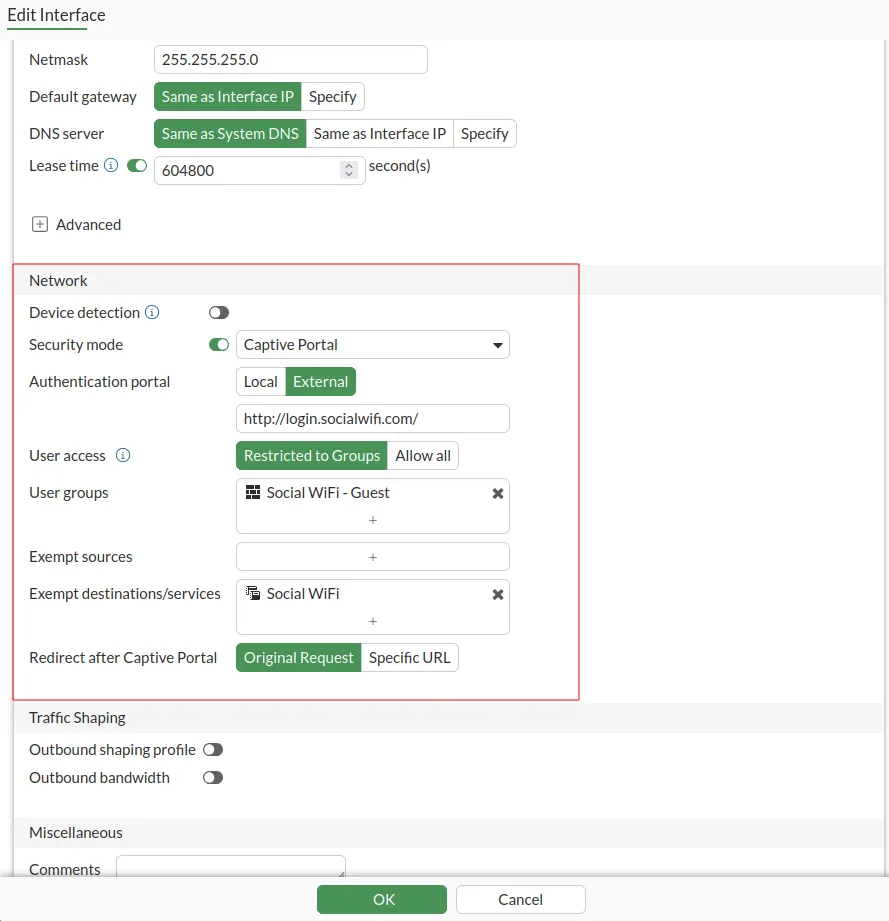
Go to Network → Interfaces and edit the interface where Social WiFi should be active. The example below uses a VLAN, but this also works on a physical interface.
Configure the Network section of the interface as follows:
| Security Mode | Enabled: Captive Portal |
|---|---|
| Authentication Portal | External: http://login.socialwifi.com/ |
| User Access | Restricted to Groups |
| User Groups | Social WiFi - Guest |
| Exempt Sources | Leave empty |
| Exempt Destinations/Services | Social WiFi |
| Redirect after Captive Portal | Specific URL: https://login.socialwifi.com/redirect/ |
Click OK.
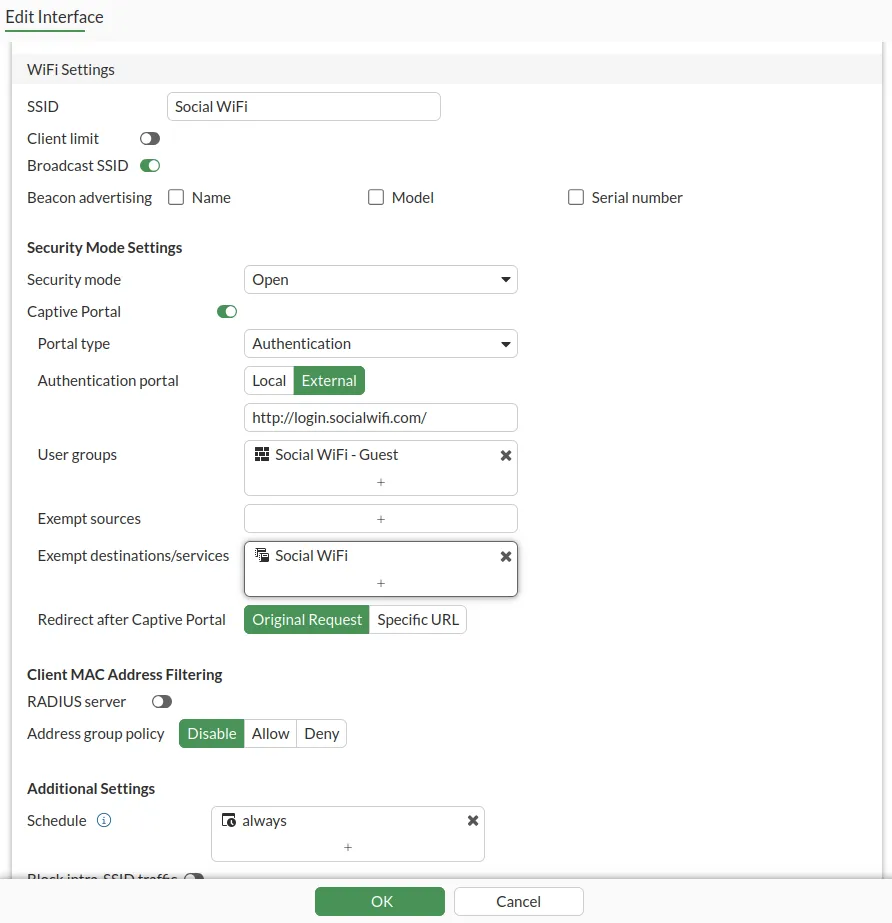
Go to WiFi Controller → SSIDs and edit your Guest SSID.
Configure as follows:
| SSID | Social WiFi (or any name that you prefer) |
|---|---|
| Security Mode | Open (Recommended, only available after enabling Captive Portal) |
| Captive Portal | Captive Portal |
| Portal Type | Authentication |
| Authentication Portal | External: http://login.socialwifi.com/ |
| User Groups | Social WiFi - Guest |
| Exempt Sources | Leave empty |
| Exempt Destinations/Services | Social WiFi |
| Redirect after Captive Portal | Specific URL: https://login.socialwifi.com/redirect/ |
Click OK.
Firewall configuration
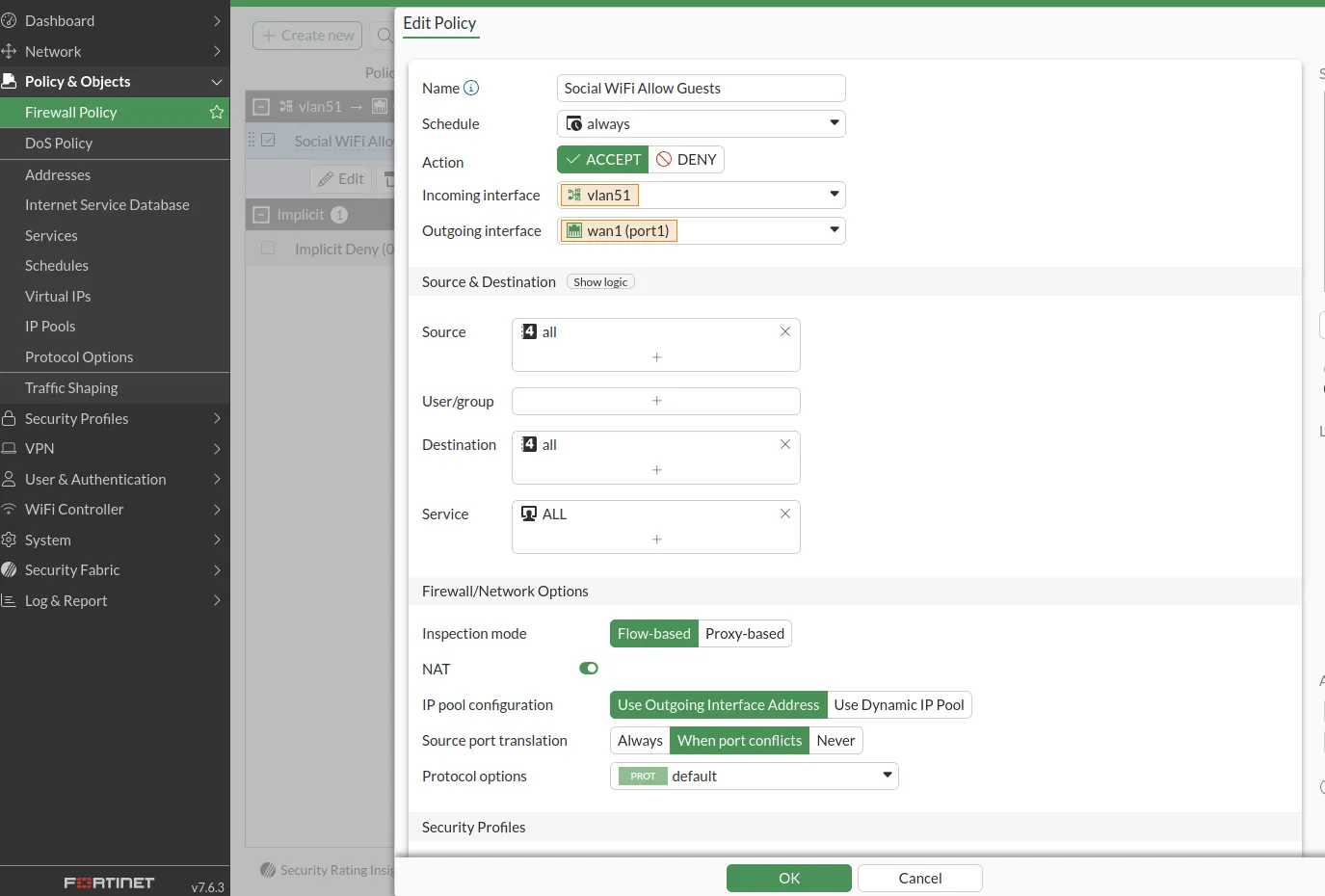
By default, all traffic is denied. Create a policy to allow guest traffic.
Go to Policy & Objects → Firewall Policy → +Create New.
Configure as follows:
| Name | Social WiFi Allow Guests |
|---|---|
| Incoming Interface | The interface that has Social WiFi configured |
| Outgoing Interface | Your WAN interface |
| Source | all |
| User/group | Empty |
| Destination | all |
| Service | ALL |
| Action | ACCEPT |
Click OK.
Add the device to Social WiFi Panel
The FortiGate setup is complete. The last step is to add the MAC address(es) to the Social WiFi platform.
If Social WiFi is configured on an interface, add only that interface.
If Social WiFi is configured on an SSID, add all MAC addresses of the access points. The MAC address is usually printed on a label on the device and should also be visible in the GUI on the edit interface screen. If the MAC address is unknown, contact Social WiFi Support.
Switch to the Social WiFi Panel, go to the Access Points tab, click Add, and paste the MAC address(es). Click Create.
Test the solution
Connect to the WiFi network. A login page should appear. Complete the login process - internet access should be granted. The first connections and authorizations will appear in the statistics section of the Social WiFi Panel.
Troubleshooting
If there is an external firewall behind the FortiGate device, ensure the following ports are open:
- TCP/8080 (Captive Portal (http redirection))
- TCP/8081 (Captive Portal (https redirection)
- UDP/9177, 337008 (AP Communication (Capture Packets subsystem))