
Ruckus Virtual SmartZone
Compatibility
Social WiFi has been tested and works on the following configurations:
Controller versions:
- 5.x
- 6.x
Accessing the device’s administration panel
To configure the controller through the GUI, open any web browser and enter the controller’s IP address in the address bar.
- login: an account with root permissions
- password: the password for that account
Device configuration
Configure the Wireless LANs group:
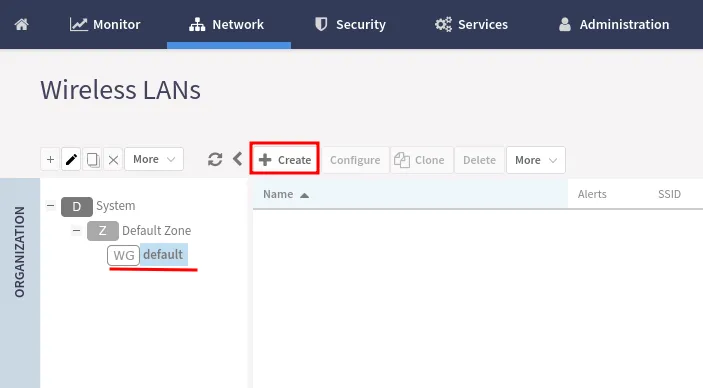
In the panel, go to Network → Wireless LANs → Create.
In the pop-up window, enter the following:
| Name | Your network name |
|---|---|
| SSID | Your network name |
| WLAN Group | default |
| Authentication Type | Hotspot (WISPr) |
| Authentication Method | Open |
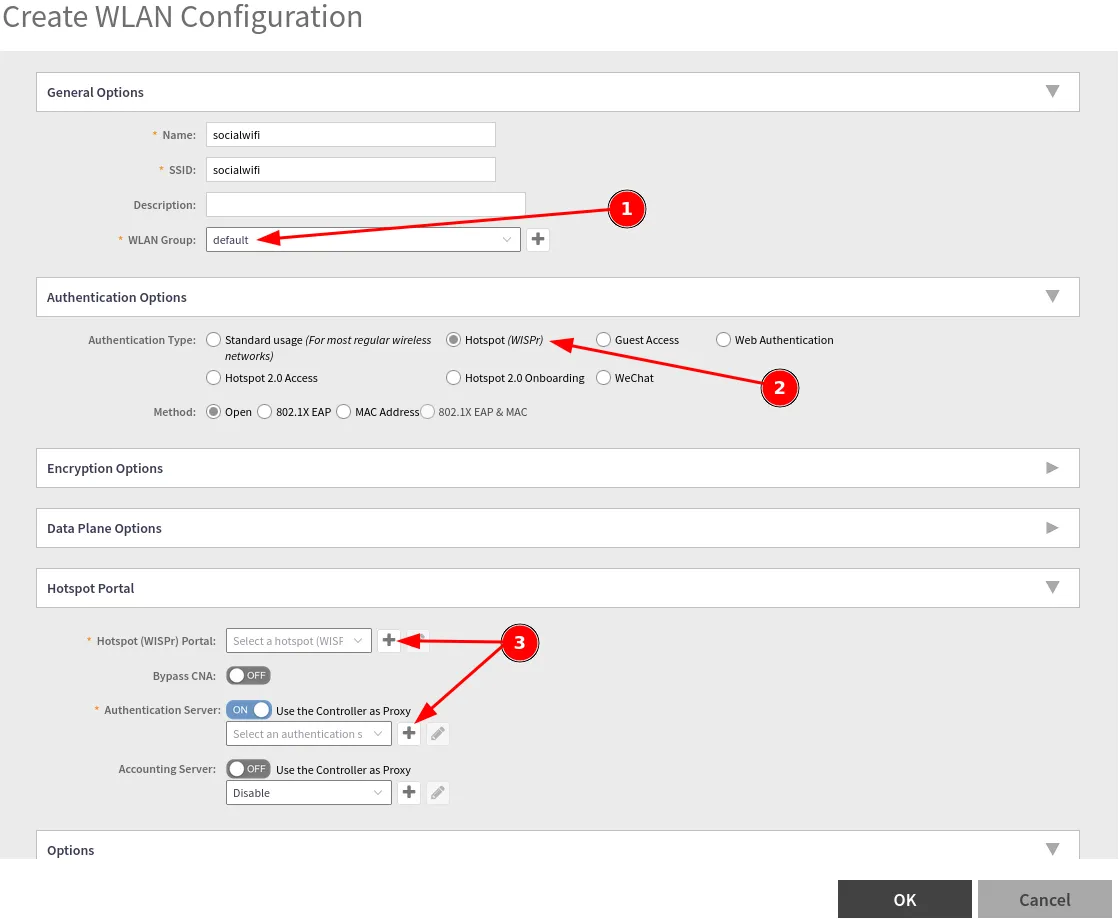
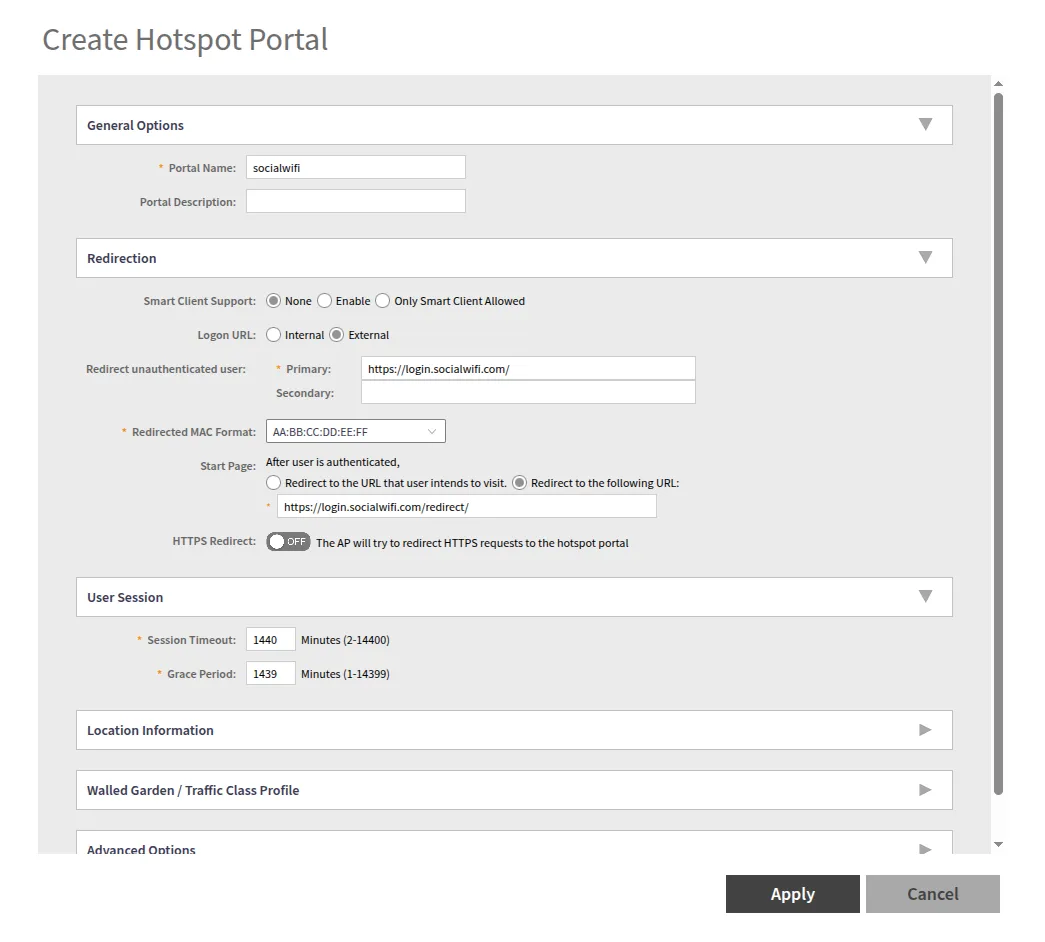
In the Hotspot (WISPr) Portal field, create a new profile by clicking +.
| Portal Name | socialwifi |
|---|---|
| Logon URL | External |
| Redirect unauthenticated user | Primary: https://login.socialwifi.com/, Secondary: empty |
| Redirected MAC Format | AA:BB:CC:DD:EE:FF |
| Start Page | redirect to the following URL:https://login.socialwifi.com/redirect/ |
| HTTPS Redirect | Disabled |
| Session Timeout | 1440 |
| Grace Period | 1440 |
Then scroll down and add the Walled Garden / Traffic Class Profile configuration:
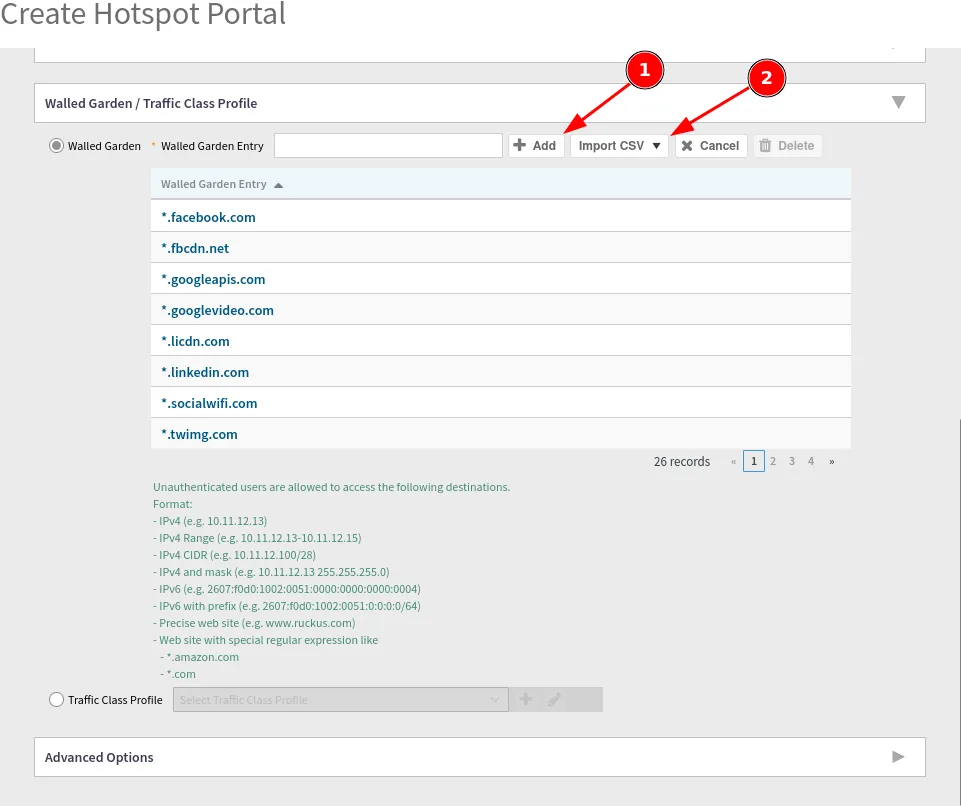
Add the domains manually, or import the CSV file linked below:
Ruckus_vSZ_walled_garden_entries.csv
*.socialwifi.comsw-login.comfacebook.com*.facebook.com*.fbcdn.netlinkedin.com*.linkedin.com*.licdn.comtwitter.comapi.twitter.comx.comapi.x.com*.twimg.comwhatsapp.com*.whatsapp.net*.whatsapp.comconnect.facebook.netwww.facebook.comwww.googletagmanager.comwww.googleadservices.comgoogleads.g.doubleclick.net*.youtube.com*.ytimg.com*.googlevideo.comyt3.ggpht.comAfter setting up the socialwifi hotspot, make sure that Bypass CNA is disabled, then click + and add an Authentication Server profile:
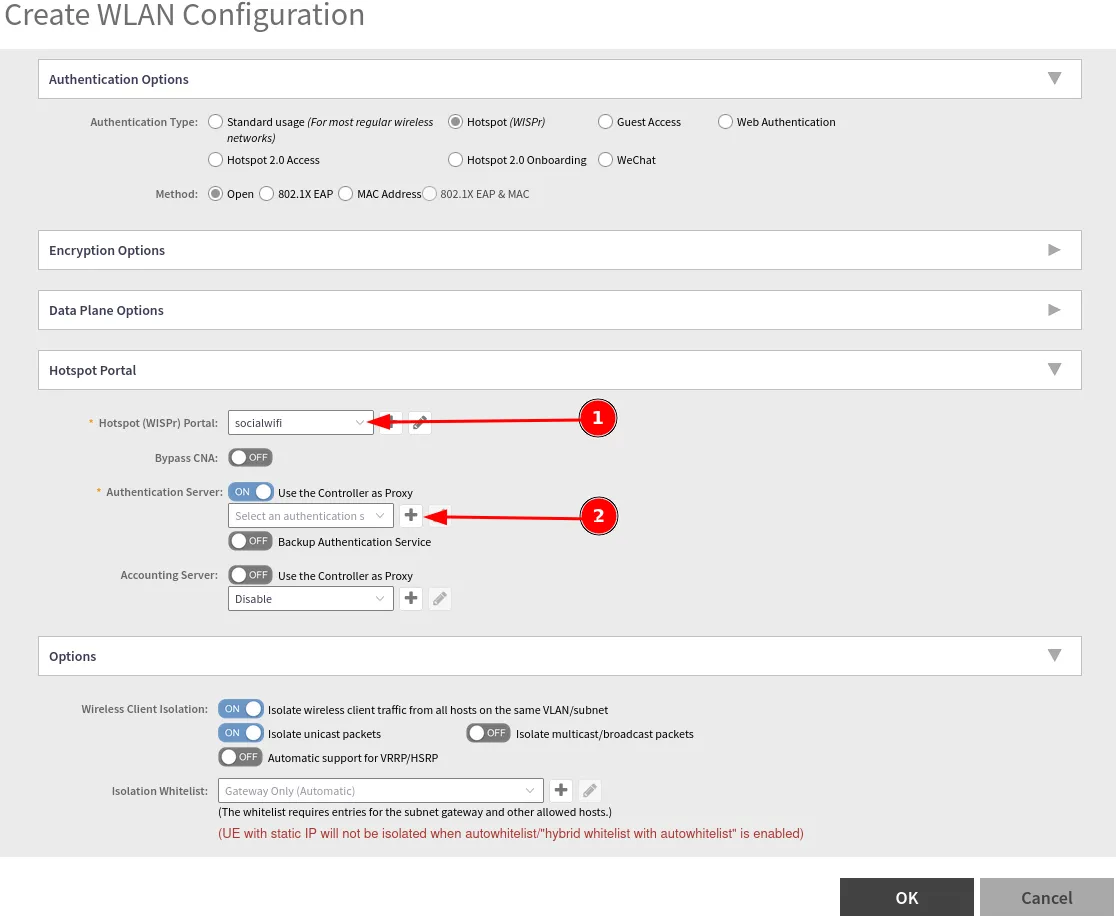
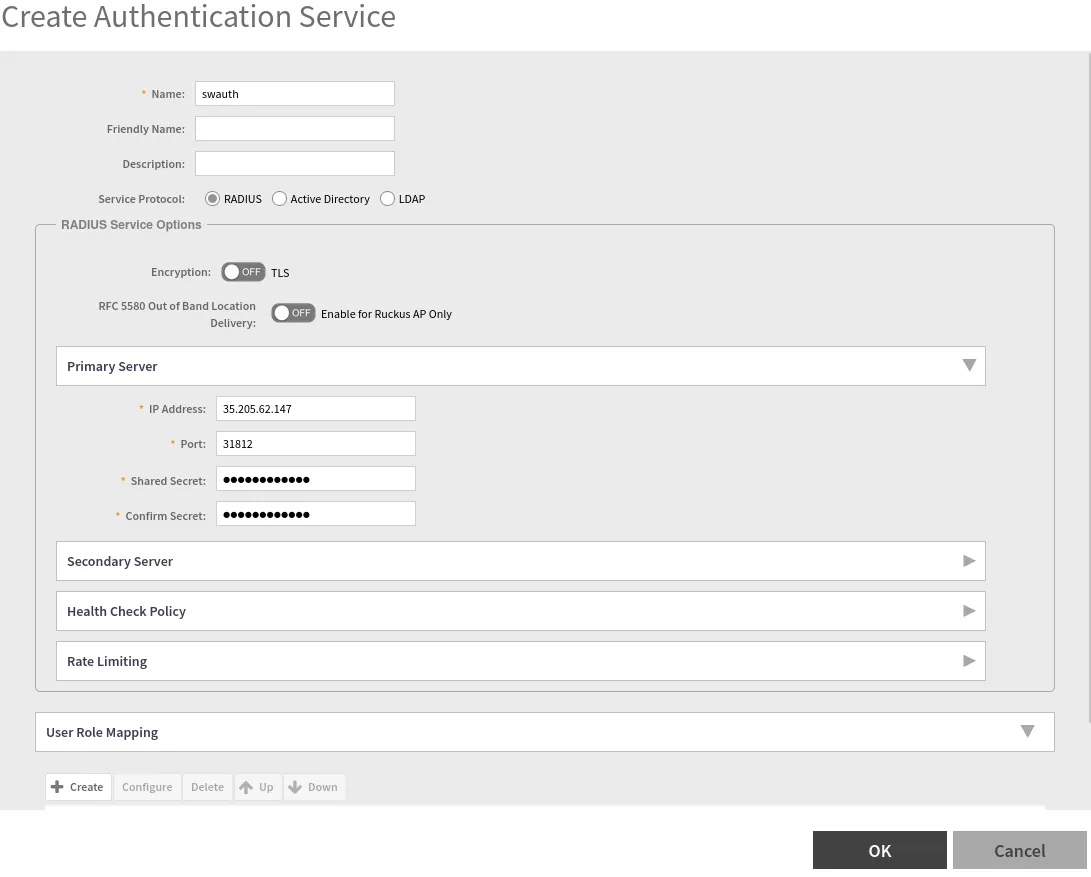
In the pop-up window, enter the following:
| Name | swauth |
|---|---|
| Type | RADIUS |
| IP Address | 35.205.62.147 |
| Port | 31812 |
| Shared Secret | Radius Secret available in the Access Points tab of the Social WiFi Panel |
| Confirm Secret | Copy the value above |
When finished, press OK.
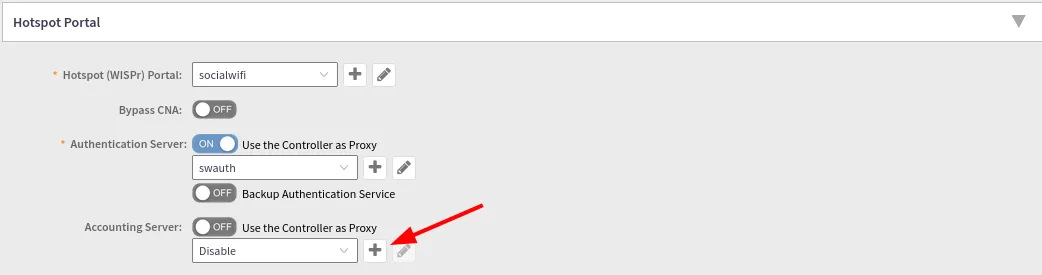
Next, add an Accounting Server by clicking +.
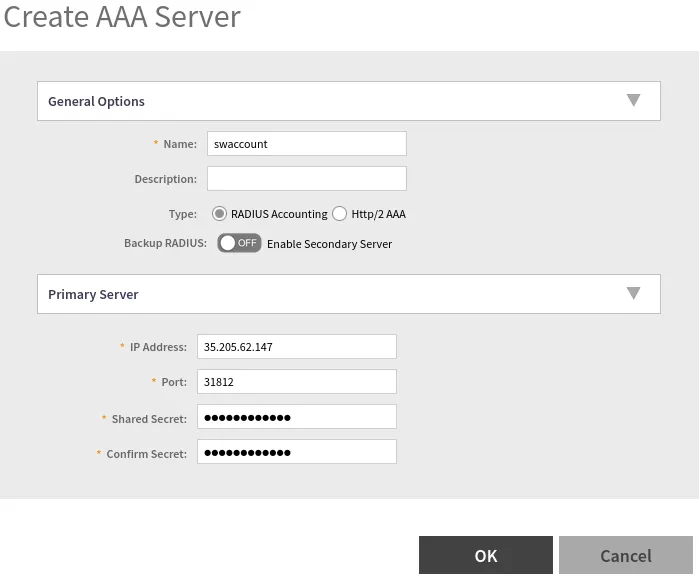
In the pop-up window, enter the following:
| Name | swaccount |
|---|---|
| Type | RADIUS Accounting |
| IP Address | 35.205.62.147 |
| Port | 31813 |
| Shared Secret | Radius Secret available in the Access Points tab of the Social WiFi Panel |
| Confirm Secret | Copy the value above |
When finished, press OK.
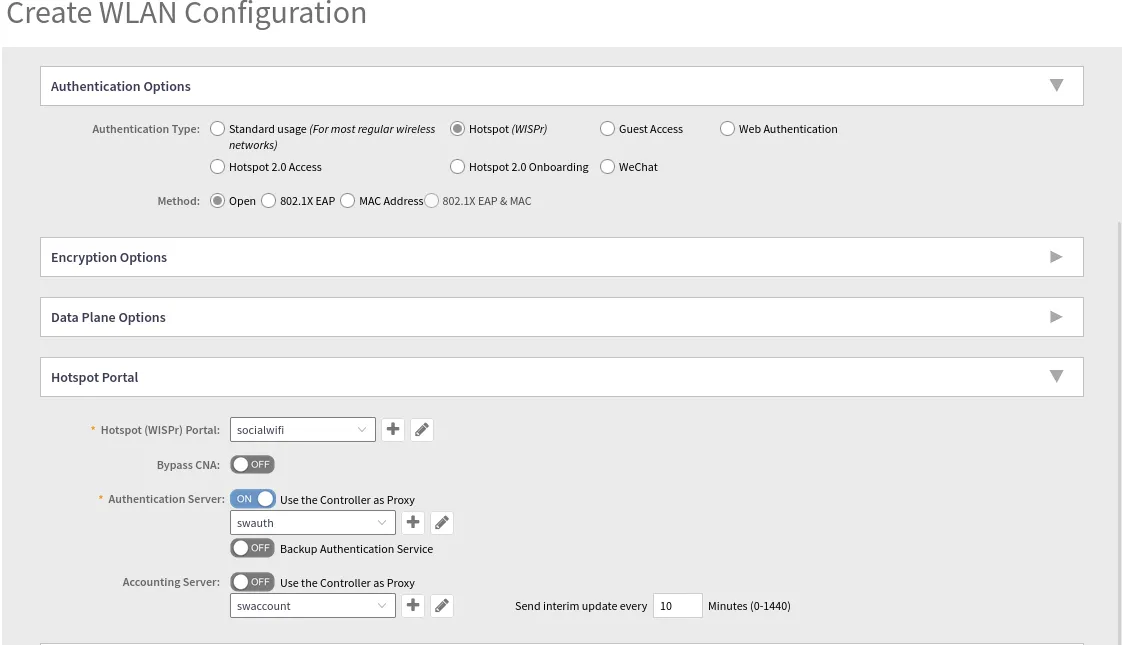
After completing the configuration, the Hotspot Portal should look like this:
Save the changes.
Disabling MAC address encryption
By default, MAC address encryption is enabled on Ruckus SZ devices and will cause Social WiFi to malfunction. To disable it, access the controller CLI via SSH, enable privileged commands, enter config mode, then run no encrypt-mac-ip:
Example:
ruckus> enableruckus# configruckus(config)# no encrypt-mac-ip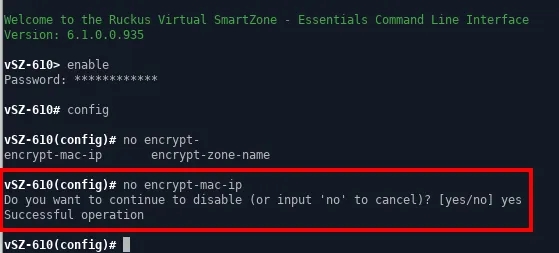
Adding the device to the Social WiFi platform
To add the device to the Social WiFi platform:
- In the Network → Access Points menu, click the AP to be added, then copy its MAC addresses from the AP MAC address field and the BSSID column.
- Go to the Social WiFi Panel.
- Select the place where the device should be added.
- In the Access Points tab, press Add (upper right corner), paste the copied MAC address into the form (adding a name is optional), and click Create.
Troubleshooting
Symptom: after connecting to the WiFi network, no login pop-up appears and the internet does not work.
Solution: a firewall may be blocking traffic between the WiFi device and the controller. This can be caused by explicit blocking rules, or by guests and the controller being on separate VLANs with traffic blocked between them. In this case, specific ports must be unlocked. For example:
- 8090 TCP
- 8099 TCP
- 9997 TCP
- 9998 TCP
More details on firewall configuration are available here: https://support.ruckuswireless.com/documents/1335-smartzone-firewall-ports-configuration-guide/download