
Integrate with GoHighLevel
Introduction
Social WiFi’s integration with GoHighLevel automates and instantly exports gathered data.
Every time a user logs in to the WiFi network, the data is sent to GoHighLevel. Whenever a Social WiFi user is removed in the User Data tab, the user is also deleted from GoHighLevel.
Create a Private Integration in GoHighLevel
A Private Integration Token is required to connect Social WiFi with GoHighLevel. To create one:
- Log in to the GoHighLevel sub-account (Location) to integrate.
- Go to Settings, then find Private Integrations under the “Other Settings” section of the left-hand menu.
- Click Create New Integration.
- On the Basic info tab, name it “Social WiFi” (or similar).
- Switch to the Scopes tab and add the following scopes:
- View Contacts (
contacts.readonly) - Edit Contacts (
contacts.write)
- View Contacts (
- Click Update (or Create, depending on the account) to save.
- Copy the generated Private Integration Token - it is only shown once, so store it somewhere safe. It is required in the next step.
For more information about Private Integration tokens, consult the GoHighLevel documentation.
Finding the Location ID
Social WiFi also needs to know which GoHighLevel sub-account (Location) to push contacts into.
The quickest way to find it is to look at the browser address bar while inside the sub-account - the URL contains a /location/ segment followed by the Location ID. Alternatively, it is shown on the sub-account’s Business Profile settings page.
Adding the integration in the Social WiFi dashboard
1) Visit the Social WiFi dashboard and go to the venue to integrate.
2) Go to the Integrations tab and select GoHighLevel.
3) Click the Add button in the top left corner.
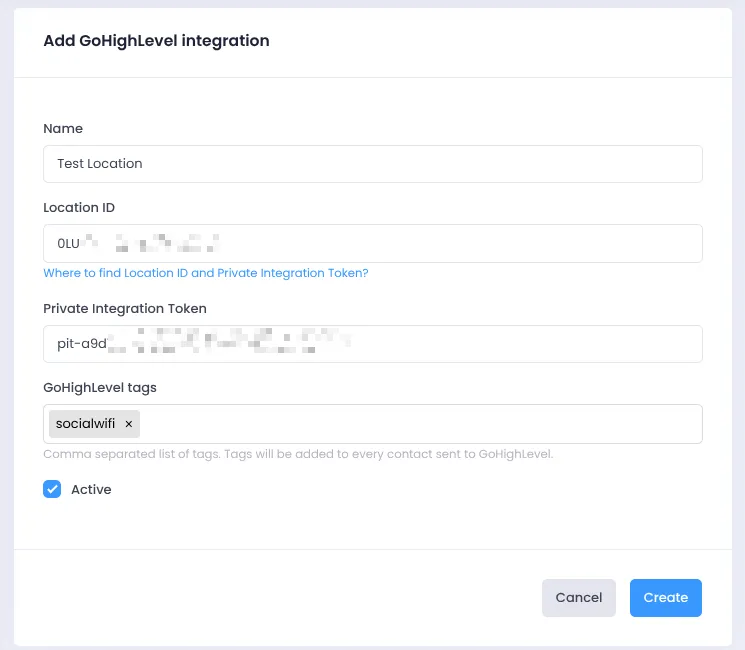
Filling in the data
Name: Name the integration as needed. Mentioning the specific Location that the contacts will be going to is recommended.
Location ID: The Location ID found in the previous step.
Private Integration Token: Use the token generated in the previous step.
GoHighLevel tags: GoHighLevel tags can be added directly from the Social WiFi dashboard when setting up the integration. Tags are labels used to classify user data into groups - for example, to identify which GoHighLevel contacts originated from Social WiFi, add a “socialwifi” or a “WiFi User” tag. Tags can then be used as filters when creating marketing campaigns and segmenting contacts. Separate multiple tags with commas.
Active: Make sure this field is checked for the integration to work.
Click Create - new users are now sent to the GoHighLevel Location automatically.
API maintenance and troubleshooting
Token scope errors
The Private Integration Token must have both the View Contacts (contacts.readonly) and Edit Contacts (contacts.write) scopes. A token missing the View Contacts scope can still add new contacts, but deleting a user’s data will fail, since GoHighLevel requires a contact lookup before it can be removed.
If a scope is missing, edit the Private Integration in GoHighLevel to add it - no new token needs to be generated, and the integration does not need to be recreated in Social WiFi.
Token revoked or deleted
If the Private Integration Token is revoked or the integration is deleted on the GoHighLevel side, Social WiFi will mark the integration as broken and stop sending data, and you will receive a notification email. Generate a new Private Integration Token in GoHighLevel and update the integration in the Social WiFi dashboard with the new token to reactivate it.