
Integrate with MailerLite
Introduction
The Social WiFi integration with MailerLite automatically exports gathered data in real time.
Every time a user logs in to the WiFi network, the data is sent to MailerLite as a subscriber. When a Social WiFi user is removed in the User Data tab, the user is also deleted from MailerLite.
Generate an API token in MailerLite
An API token is required to connect Social WiFi with MailerLite. To generate one:
- Log in to the MailerLite dashboard.
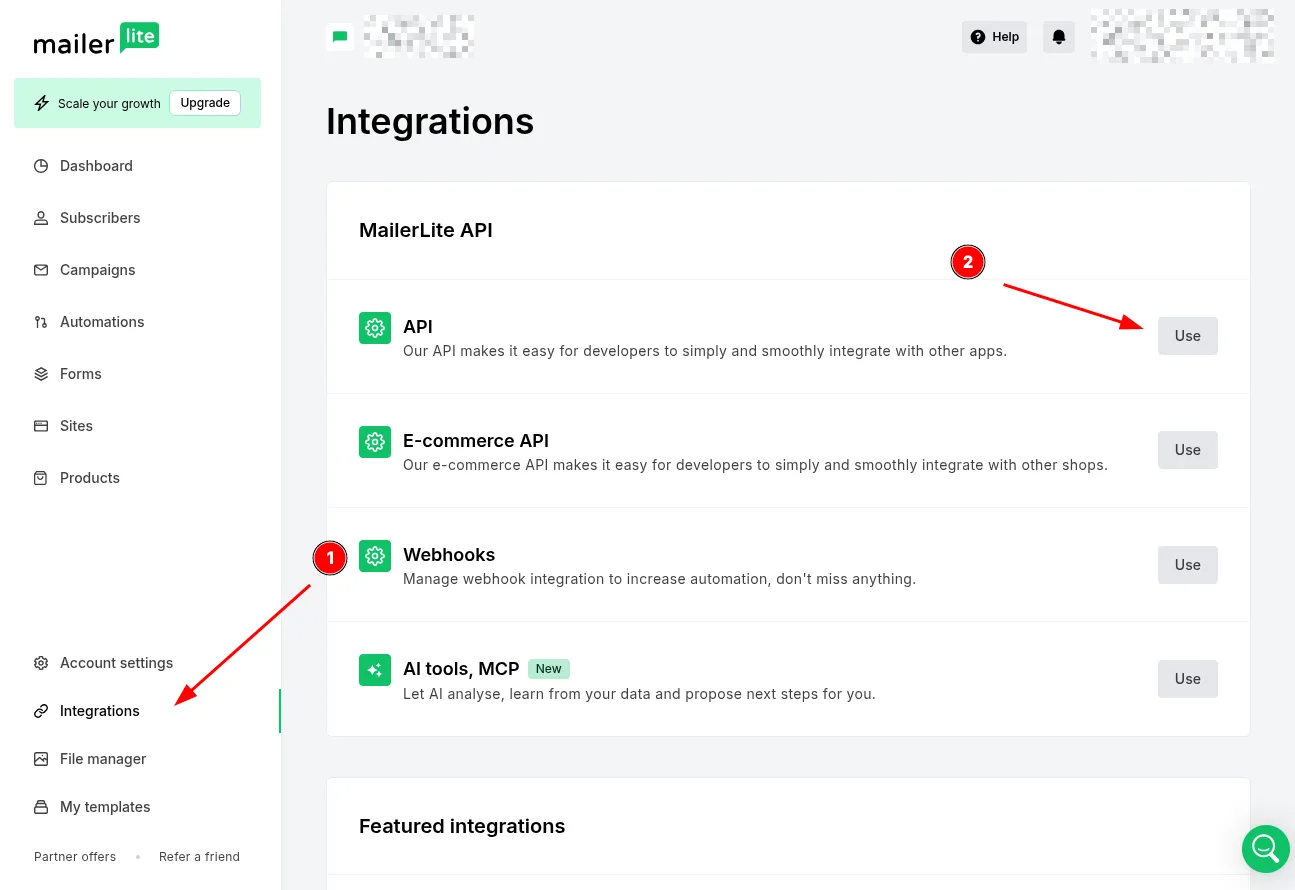
- Go to Integrations, find MailerLite API -> API and click the Use button.
- Click Generate new token.
- Give the token a name, e.g. “Social WiFi”, select All IPs allowed and click Create token.
- Copy the generated token immediately. MailerLite shows it only once and does not store the plaintext. If the token is lost, a new one has to be generated. The token is required in the next step.
For more information, see MailerLite’s developer documentation.
Adding the integration in the Social WiFi dashboard
1) Visit the Social WiFi dashboard and go to the venue to integrate.
2) Go to the Integrations tab and select MailerLite.
3) Click the Add button in the top left corner.
Filling in the data
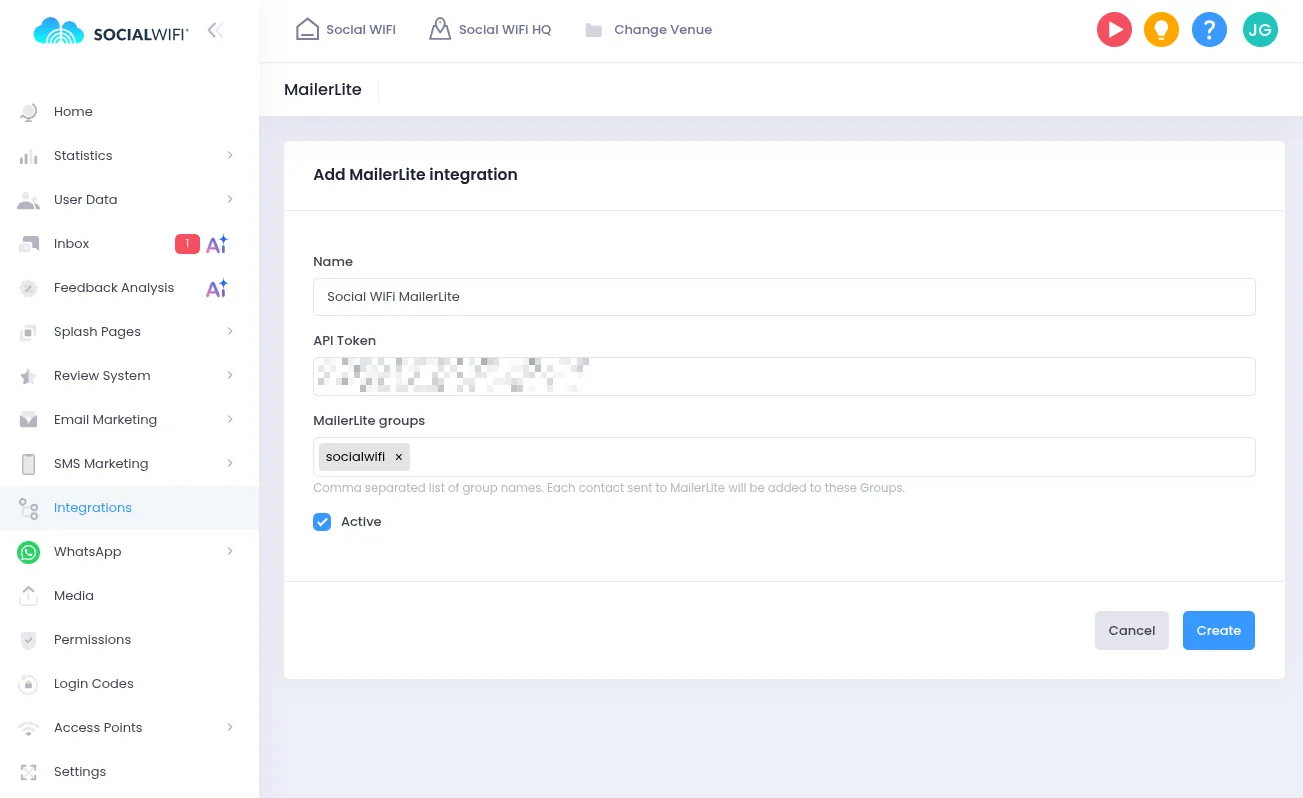
Name: Name the integration as needed.
API Token: Paste the API token generated in the previous step.
MailerLite groups: Every contact sent to MailerLite is added to these groups. Groups that do not exist yet are created automatically. For example, adding a “socialwifi” group creates (or reuses) a “socialwifi” group in MailerLite and adds every synced subscriber to it. Groups can be used to filter and segment subscribers when creating campaigns. Separate multiple groups with commas.
Active: Make sure this field is checked for the integration to work.
Click Create. New users are now sent to MailerLite as subscribers automatically.
What data is synced
Every WiFi login is pushed to MailerLite as a subscriber, matched by email address only. A user with no email address is not sent to MailerLite. Along with the email address, Social WiFi pushes:
- first name, last name and phone number, into MailerLite’s default subscriber fields
- subscription consent, into the subscriber’s MailerLite status (active or unsubscribed)
When a Social WiFi user is removed in the User Data tab, Social WiFi looks up the subscriber by email address and deletes it from MailerLite. As with sending, removal works only when the user’s email address is known, because MailerLite has no phone-based lookup for subscribers.
API maintenance and troubleshooting
A previously unsubscribed subscriber is not reactivated
MailerLite refuses to move a subscriber back to “active” status through the API if that subscriber previously unsubscribed, bounced, or was marked as spam (“junk”). This is a MailerLite anti-abuse rule, not a Social WiFi limitation. If a returning WiFi user was previously unsubscribed in MailerLite, their fields and groups are still updated, but MailerLite keeps their subscription status unchanged. Reactivating such a subscriber has to be done directly in MailerLite, through a signup form, a landing page or the app.
Token revoked or deleted
If the API token is revoked or regenerated in MailerLite, Social WiFi marks the integration as broken, stops sending data and sends a notification email. To reactivate the integration, generate a new API token in MailerLite and update the integration in the Social WiFi dashboard with the new token.