
Integrate with Constant Contact
Introduction
Social WiFi’s integration with Constant Contact automates and instantly exports gathered data.
Every time a user who has agreed to receive marketing communication logs in to the WiFi network, the data is sent to a selected Constant Contact list. Whenever a Social WiFi user is removed in the User Data tab, the contact is also deleted in Constant Contact.
No API key or token has to be copied - the Social WiFi dashboard connects to Constant Contact directly after you sign in and approve access.
Adding the integration in the Social WiFi dashboard
1) Visit the Social WiFi dashboard and go to the venue to integrate.
2) Go to the Integrations tab and select Constant Contact.
3) Click the Add button in the top left corner.
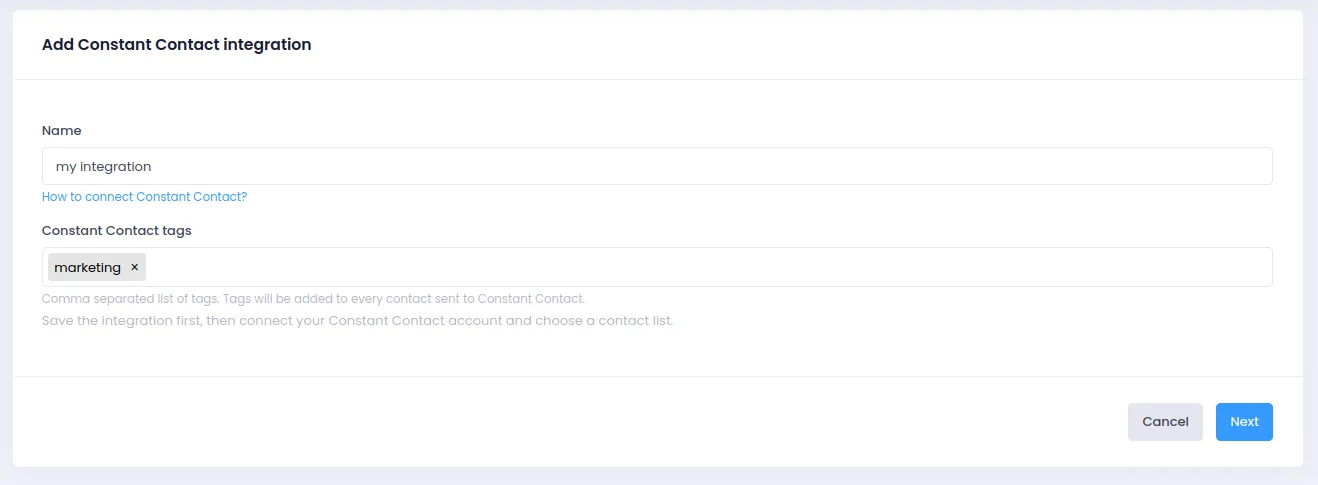
Filling in the data
Name: Name the integration as needed. Mentioning the Constant Contact list that the contacts will be going to is recommended.
Tags: Constant Contact tags can be added directly from the Social WiFi dashboard. Tags are labels used to classify contacts into groups - for example, to identify which Constant Contact contacts originated from Social WiFi, add a “socialwifi” or a “WiFi User” tag. Tags can then be used to segment contacts and target campaigns. Separate multiple tags with commas. Tags that do not exist in Constant Contact yet are created automatically.
Click Next. The integration is saved as inactive - it has to be connected to Constant Contact before it can send data.
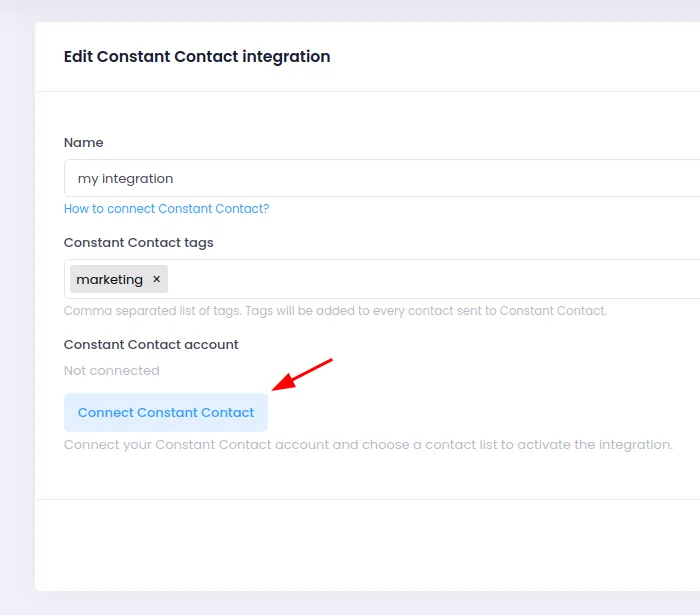
Connecting Constant Contact
1) Click Connect Constant Contact. The browser is redirected to the Constant Contact sign-in page.
2) Sign in to the Constant Contact account to integrate and approve the access requested by Social WiFi.
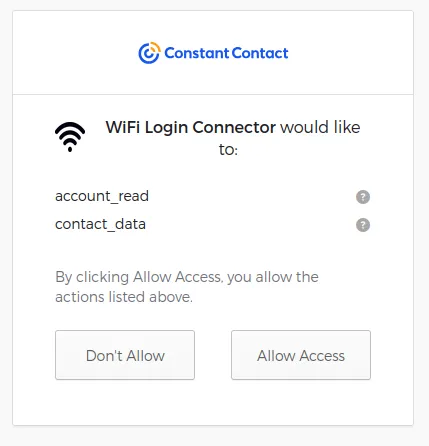
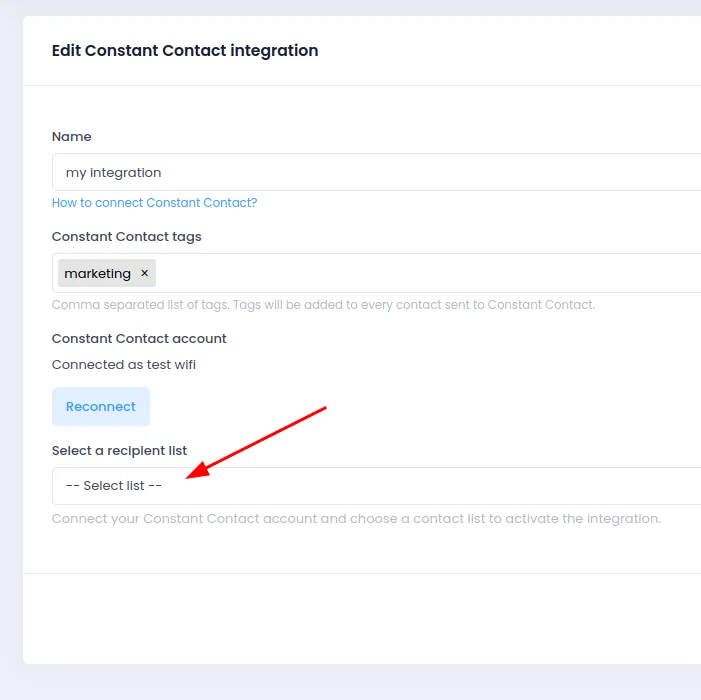
3) After approval, the browser returns to the Social WiFi dashboard and a confirmation message is shown. The integration now displays Connected as followed by the name of the Constant Contact account.
Choosing the list and activating the integration
List: Select the Constant Contact list that new contacts will be added to. The dropdown shows the lists available in the connected Constant Contact account.
Active: Make sure this field is checked for the integration to work. The integration can only be activated once it is connected and a list is selected.
Save the changes - new users who agreed to marketing communication are now sent to the Constant Contact list automatically.
Data sent to Constant Contact
Only users who agreed to receive marketing communication are sent to Constant Contact. Constant Contact treats every contact added this way as having given explicit permission to be emailed, so users without marketing consent are never pushed. A user also needs an email address - users who logged in with a phone number only are not sent.
The following data is sent for each user, when available:
- email address
- first name and last name
- phone number
- birthday - month and day only (Constant Contact does not store the year)
- membership of the selected list
- the tags configured in the integration
If the contact already exists in Constant Contact, it is updated and added to the selected list. Existing list memberships and tags are kept.
Deleting users
When a user is removed in the User Data tab of the Social WiFi dashboard, the matching contact (found by email address) is deleted in Constant Contact.
If a contact has to be removed permanently, for example to fulfil a data erasure request, delete it manually in Constant Contact as well:
- Go to the Contacts page and search for the contact’s email address.
- Select the contact with the checkbox.
- Click Actions > Delete.
- Type
PERMANENTLY DELETEin the confirmation field and click Permanently Delete.
For more information, consult the Constant Contact documentation.
API maintenance and troubleshooting
Connection failed
If the connection is cancelled or access is not approved in Constant Contact, the dashboard shows an error message after returning from Constant Contact and the integration stays disconnected. Click Connect Constant Contact again and approve the access.
Integration marked as broken
If Constant Contact rejects the connection - for example because access for Social WiFi was revoked, the Constant Contact user lost its permissions, or the connection was not used for about six months - Social WiFi marks the integration as broken and stops sending data, and you receive a notification email. Open the integration in the Social WiFi dashboard, click Reconnect, sign in to Constant Contact again and reactivate the integration.
The integration is also marked as broken when the selected list no longer exists in Constant Contact. Select another list in the Social WiFi dashboard and reactivate the integration.