
Ask additional questions on WiFi login
In the User Data tab, you will find Custom Questions. This function allows you to create additional questions to be asked on the Login Page.
There are two types of questions you can add: “Yes/No” - closed questions, and “Text Input” - open questions.
To create a new question, go to the Custom Questions tab (1) and press Add Question (2).

You will now see this menu:
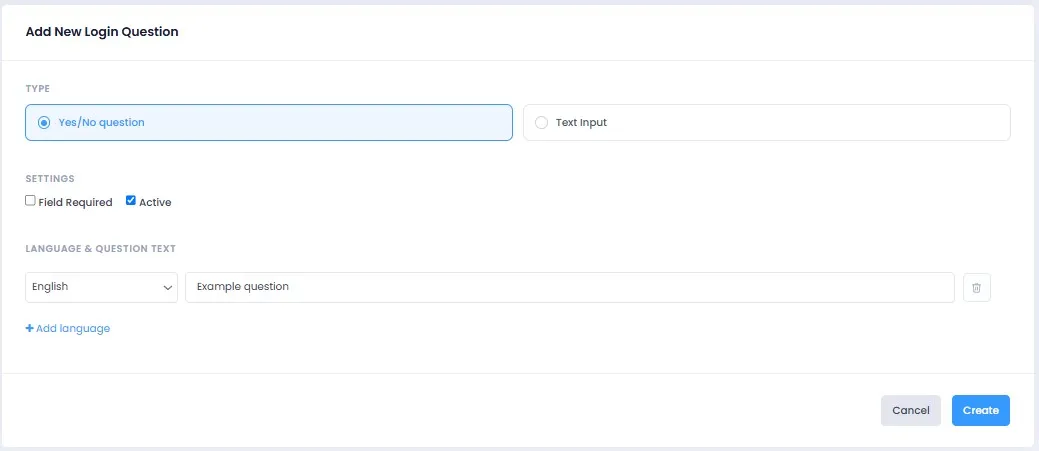
Select the type of question you’d like to ask, choose the languages you want it to be displayed in and add text in the relevant language.
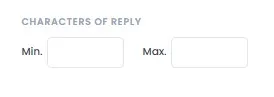
If you’re creating a Text Input question, you will also be able to set up the minimum and maximum length of replies.
When you’re happy, press Create. Make sure the Active tab is ticked if you’d like to add the question to the login process right away.
Now that you’ve created the question, all that’s left is to add it to the login process.
Go to the Login Page, press on the icons of the login options and tick Add survey questions in the menu of the right side of the page.
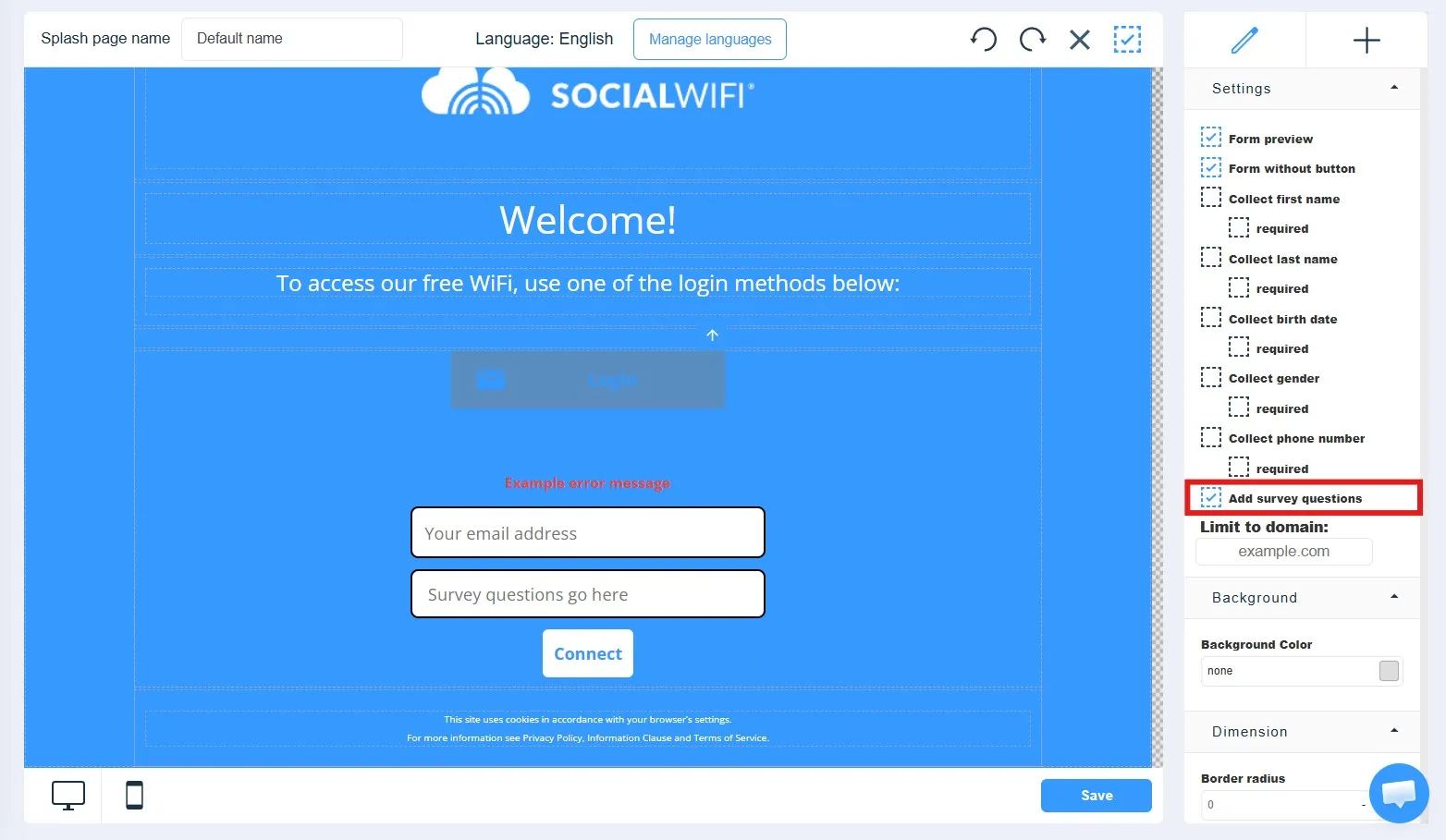
After you Save your changes, your question will be displayed as a part of the login process.
You can also add questions to the Prelogin Page. Navigate to the page you’d like to add the questions to, press the + icon (1) and find Questions in the Other Widgets tab (2).
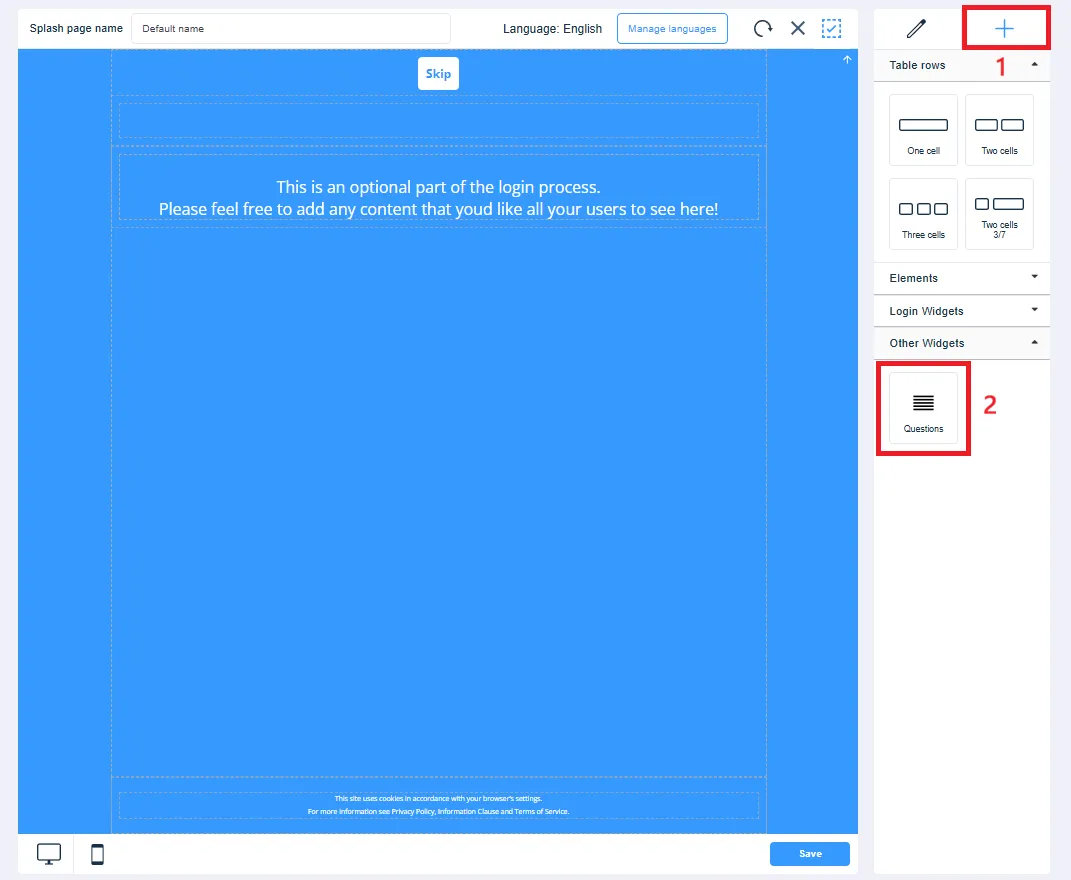
Drag the widget onto the page and choose its position in the layout.
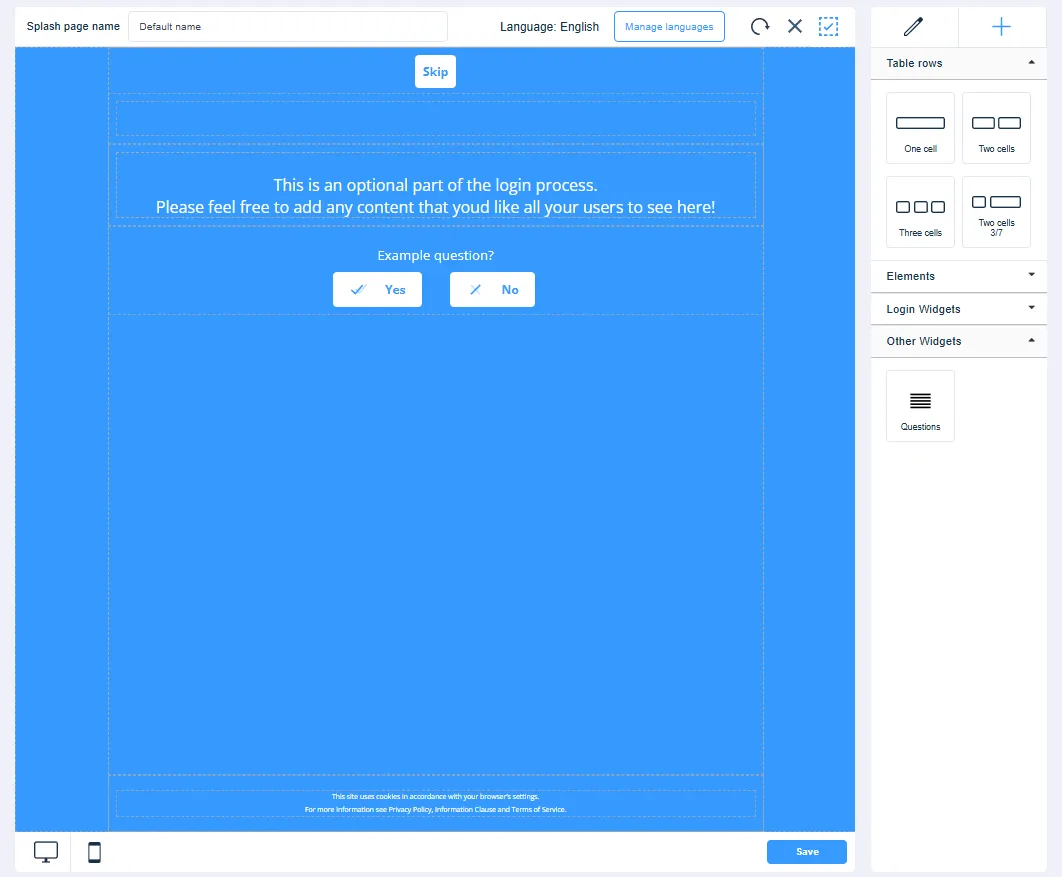
All active questions will now show up on the Prelogin Page.