
Integrate with ActiveCampaign
Introduction
The Social WiFi integration with ActiveCampaign automatically exports gathered data in real time.
Every time a user logs in to the WiFi network, the data is sent to ActiveCampaign as a contact. When a Social WiFi user is removed in the User Data tab, the contact is also deleted from ActiveCampaign.
Get the API URL and API key in ActiveCampaign
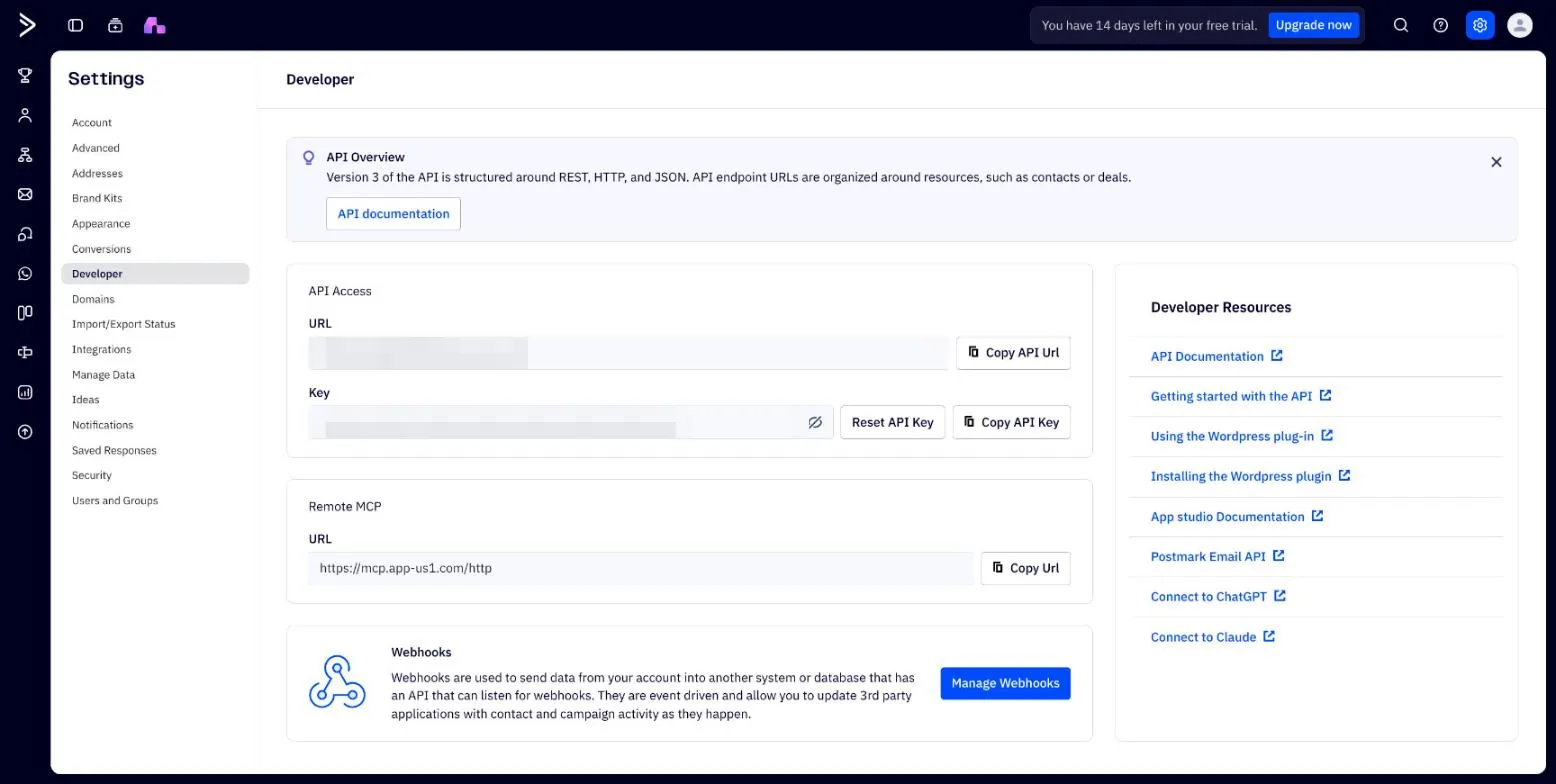
An API URL and an API key are required to connect Social WiFi with ActiveCampaign. To find them:
- Log in to ActiveCampaign.
- Open Settings (the gear icon in the top right corner) and go to Developer.
- In the API Access section, copy the URL (this is the API URL) and the Key (this is the API key). Both are required in the next steps.
The API URL is specific to the ActiveCampaign account and looks like https://youraccount.api-us1.com.
Each ActiveCampaign user has their own API key, and the key carries that user’s permissions. Use the API key of a user in the Admin group. The integration needs permission to add, edit and delete contacts, and to manage tags if the integration adds tags that do not exist yet. A key of a user with fewer permissions may send contacts but fail to delete them or to add tags.
For more information, see ActiveCampaign’s developer documentation.
Find the list ID in ActiveCampaign
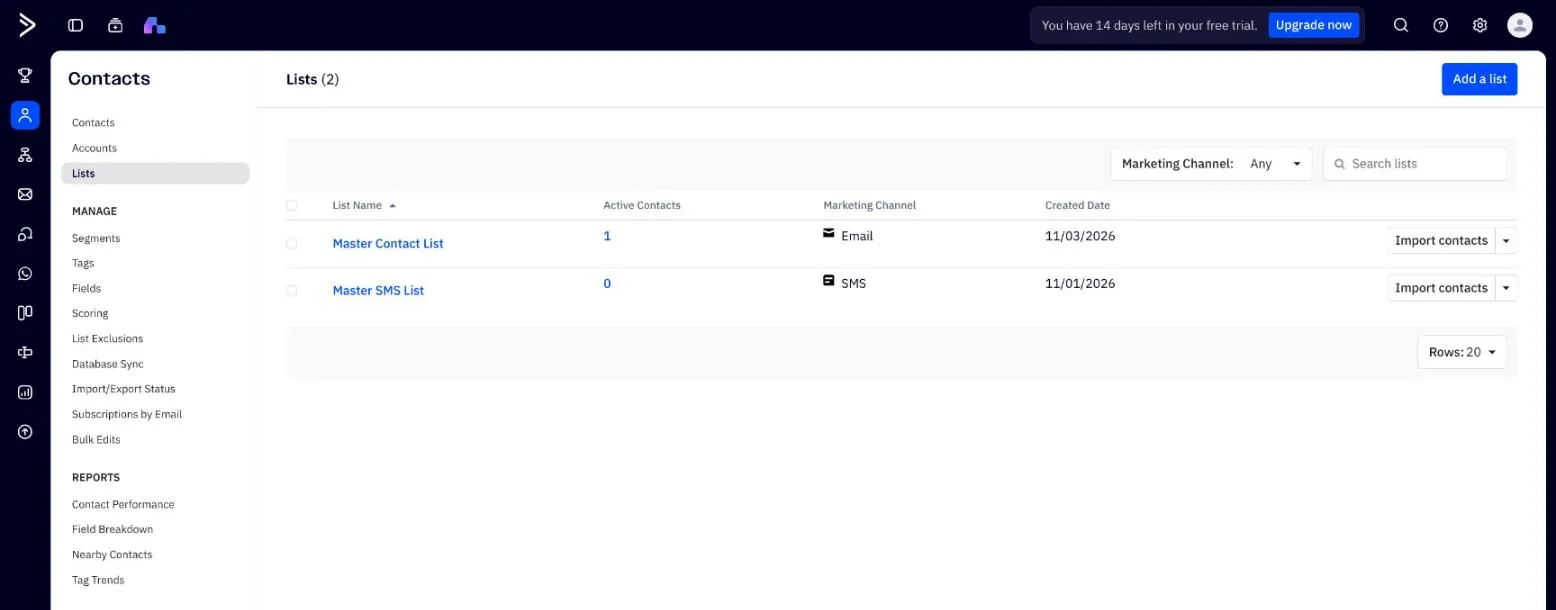
Social WiFi adds contacts to one ActiveCampaign list. The list is identified by its numeric ID.
- Go to Contacts -> Lists in ActiveCampaign.
- Click the name of the list that WiFi users should be added to.
- The list ID is the number after
listid=in the browser address bar, for example3in.../app/contacts?listid=3&status=1.
Adding the integration in the Social WiFi dashboard
1) Visit the Social WiFi dashboard and go to the venue to integrate.
2) Go to the Integrations tab and select ActiveCampaign.
3) Click the Add button in the top left corner.
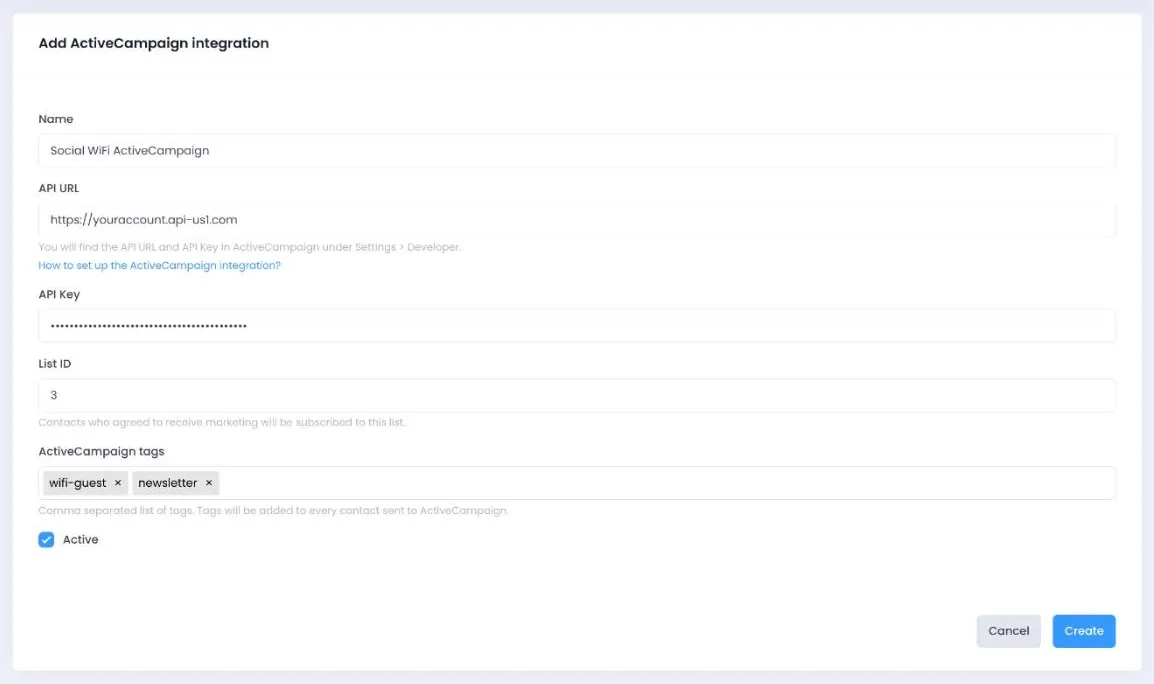
Filling in the data
Name: Name the integration as needed. Mentioning the list that the contacts will be going to is recommended.
API URL: Paste the API URL from the Settings -> Developer page.
API key: Paste the API key from the same page.
List ID: The list ID found in the previous step.
Tags: Every contact sent to ActiveCampaign gets these tags. Tags that do not exist yet are created automatically, which requires the tag management permission. Users in the Admin group have it. For example, a “socialwifi” tag identifies which contacts originated from Social WiFi. Tags can be used to filter and segment contacts when creating campaigns and automations. Separate multiple tags with commas.
Active: Make sure this field is checked for the integration to work.
Click Create. New users are now sent to ActiveCampaign as contacts automatically.
What data is synced
Every WiFi login with an email address is pushed to ActiveCampaign as a contact, matched by email address. A user with only a phone number is sent as a phone-only contact, matched by phone number, if the ActiveCampaign account supports phone-only contacts (Settings -> Advanced -> Phone only contacts); otherwise that user is skipped. Phone-only contacts get the tags but are never subscribed to the list, because ActiveCampaign email lists require an email address. Along with the email address, Social WiFi pushes the first name, last name and phone number into ActiveCampaign’s standard contact fields. Fields the user did not provide are left unchanged in ActiveCampaign.
Every user with an email address becomes a contact, but only users who gave marketing consent are subscribed to the selected list. ActiveCampaign sends campaigns to list subscribers, so contacts without marketing consent do not receive campaigns sent to that list.
Data deletion
When a Social WiFi user is removed in the User Data tab, Social WiFi looks up the contact by email address and deletes it from ActiveCampaign, together with any phone-only contact with the same phone number. If no contact matches the email address, every contact with that phone number is deleted.
ActiveCampaign does not erase a deleted contact immediately. It keeps a copy in its contact archive for 360 days, where an ActiveCampaign admin can restore it or remove it permanently.
API maintenance and troubleshooting
Integration turned off automatically
Social WiFi marks the integration as broken, stops sending data and sends a notification email when:
- the API key is deleted or regenerated, or the API URL no longer points to the account,
- the list with the configured list ID no longer exists,
- ActiveCampaign refuses requests because of a payment issue on the account.
To reactivate the integration, fix the cause in ActiveCampaign and update the integration in the Social WiFi dashboard, for example with a new API key or a new list ID.
Contacts are not deleted or tags are not added
Deleting contacts and creating new tags depend on the permissions of the user whose API key is used. If contacts are sent but not deleted, or tags are missing, update the integration with the API key of a user in the Admin group. ActiveCampaign may also limit how many contacts can be deleted in one billing period.
API URL is not accepted
The Social WiFi dashboard accepts API URLs ending in .api-us1.com. If the API URL on the ActiveCampaign Developer page has a different ending, contact Social WiFi support.