
Zyxel Nebula
Compatibility
Social WiFi works on access points running firmware version V6.10(ABDF.8) or newer.
This guide assumes the device is already connected to the Zyxel Nebula Control Center.
Verification
- Sign in to your Zyxel Nebula Account.
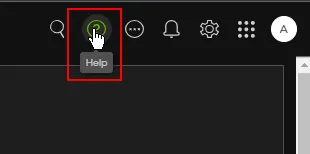
- Navigate to Help Center (the question mark icon in the top-right corner).
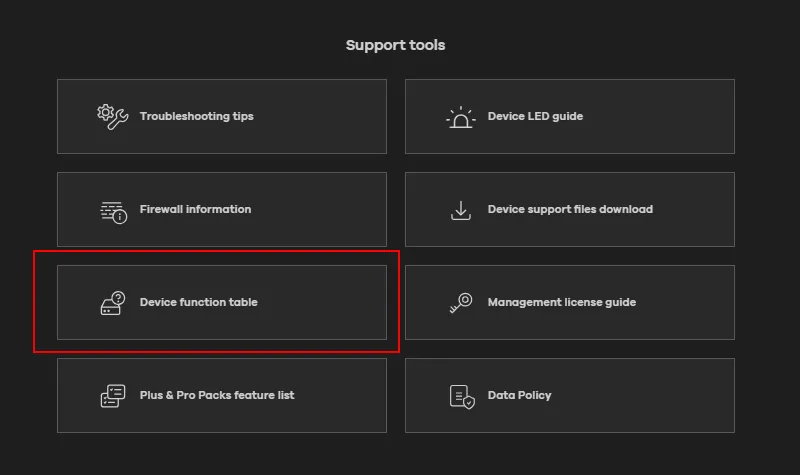
- In the Support tools section, select Device function table.
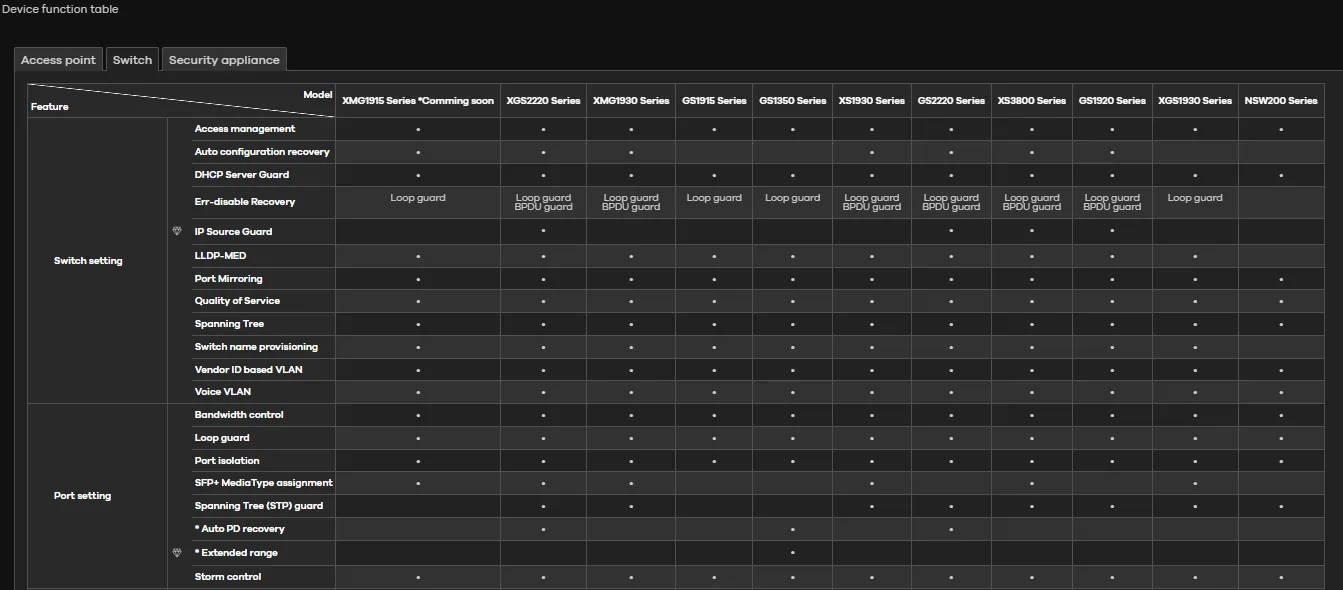
- Find your access points (scroll horizontally) and check if they support the Captive Portal feature.
Configuration
Step 1 - Create a WiFi network
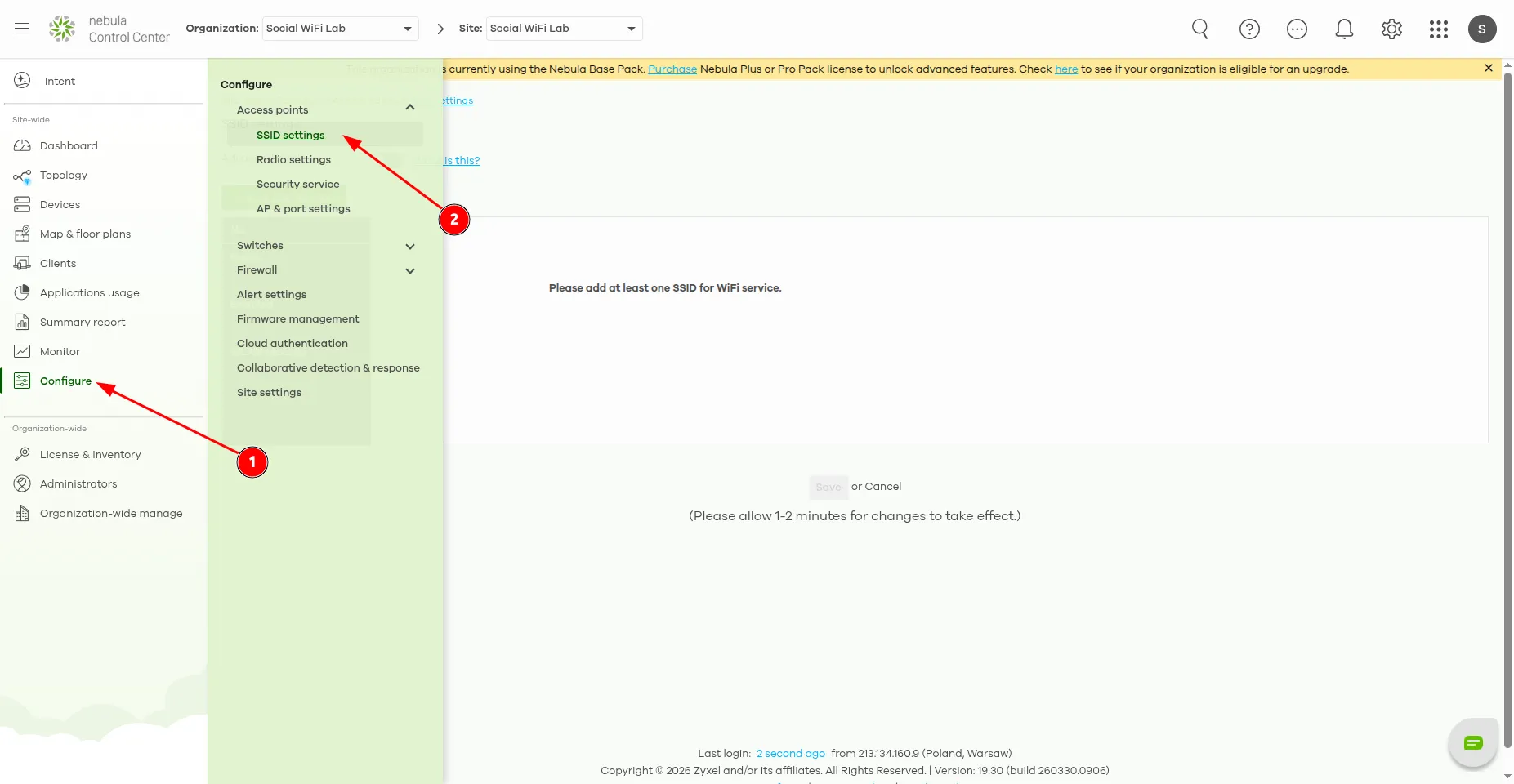
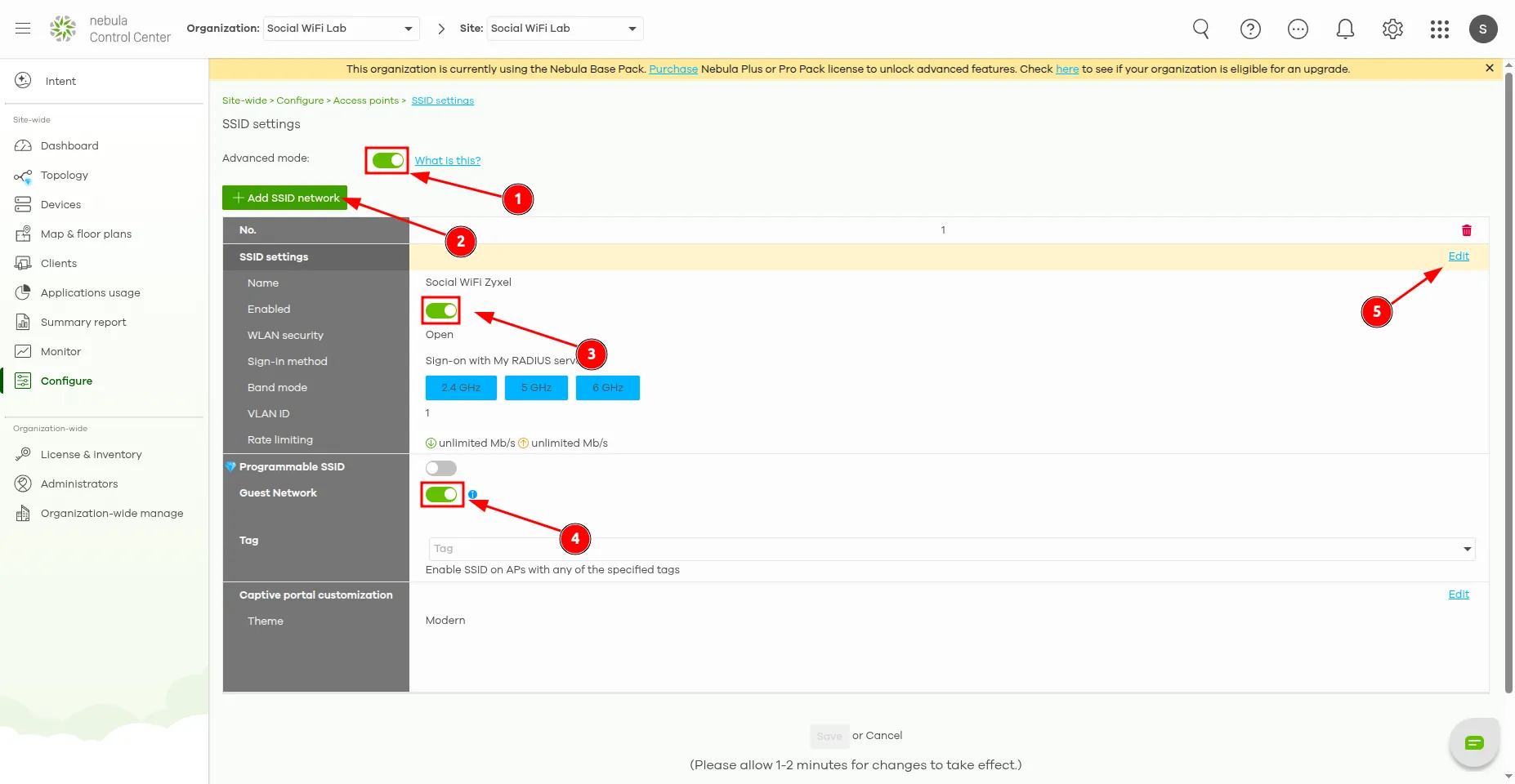
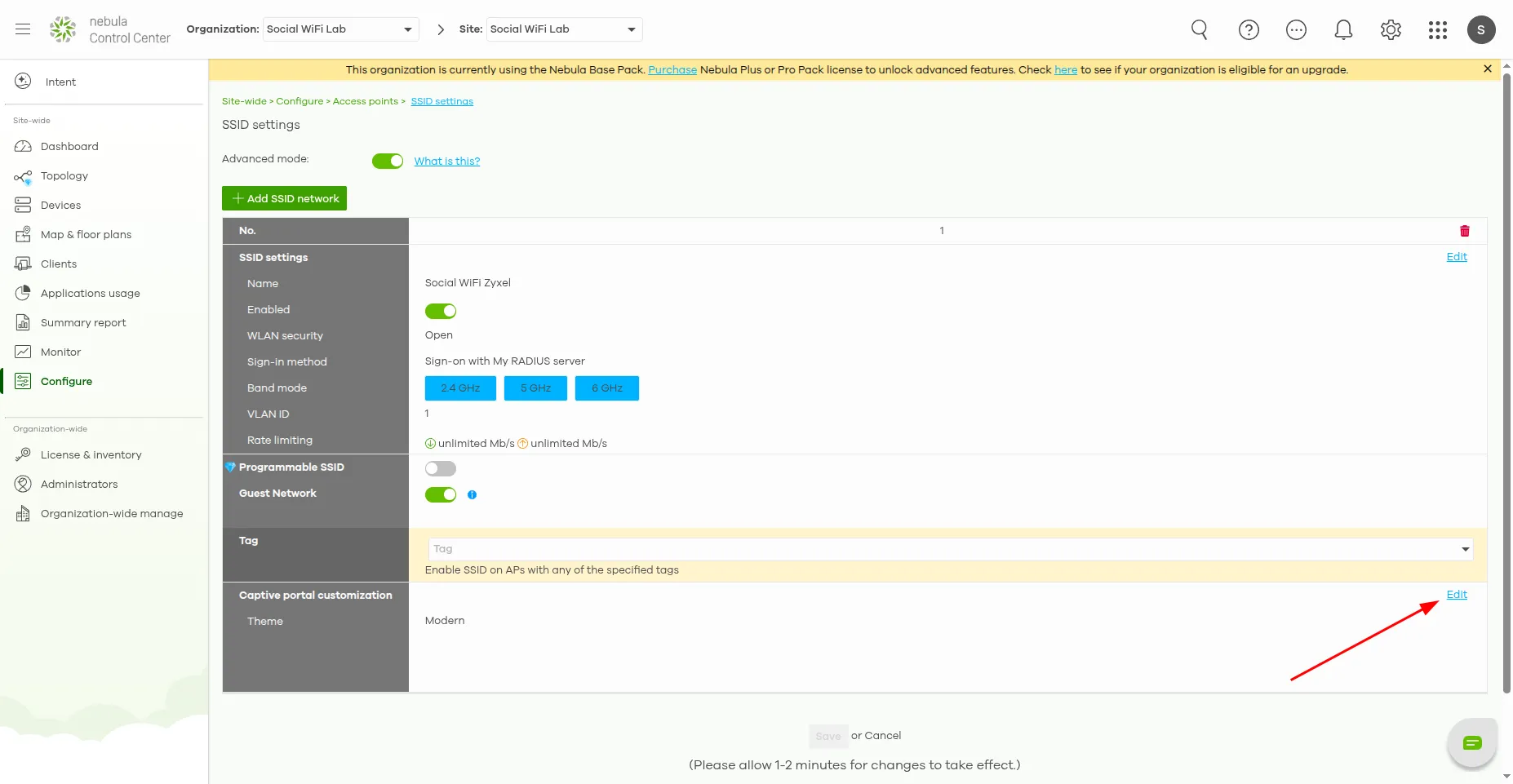
Navigate to Configure -> Access points -> SSID settings.
- Enable Advanced mode.
- Click + Add SSID network.
- Enable the network.
- Enable Guest Network settings.
- Click Edit on the network.
Step 2 - Edit WiFi configuration
In the Basic Info section, set the SSID name (the visible name of your guest network).

In the Network access section, set Security options to Open so the network has no password. Alternatively, use WPA Personal/Enterprise with at least WPA2 (WPA3 is recommended for stronger encryption).
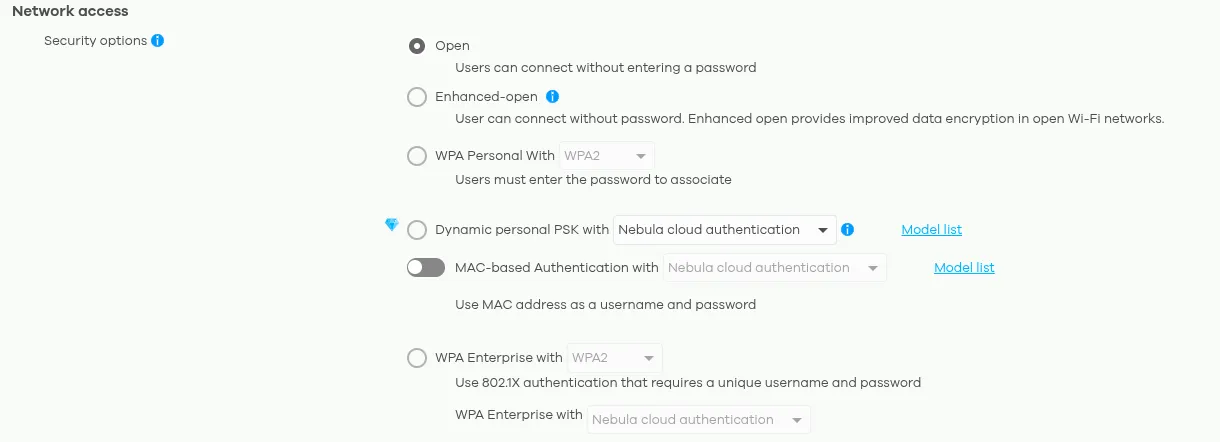
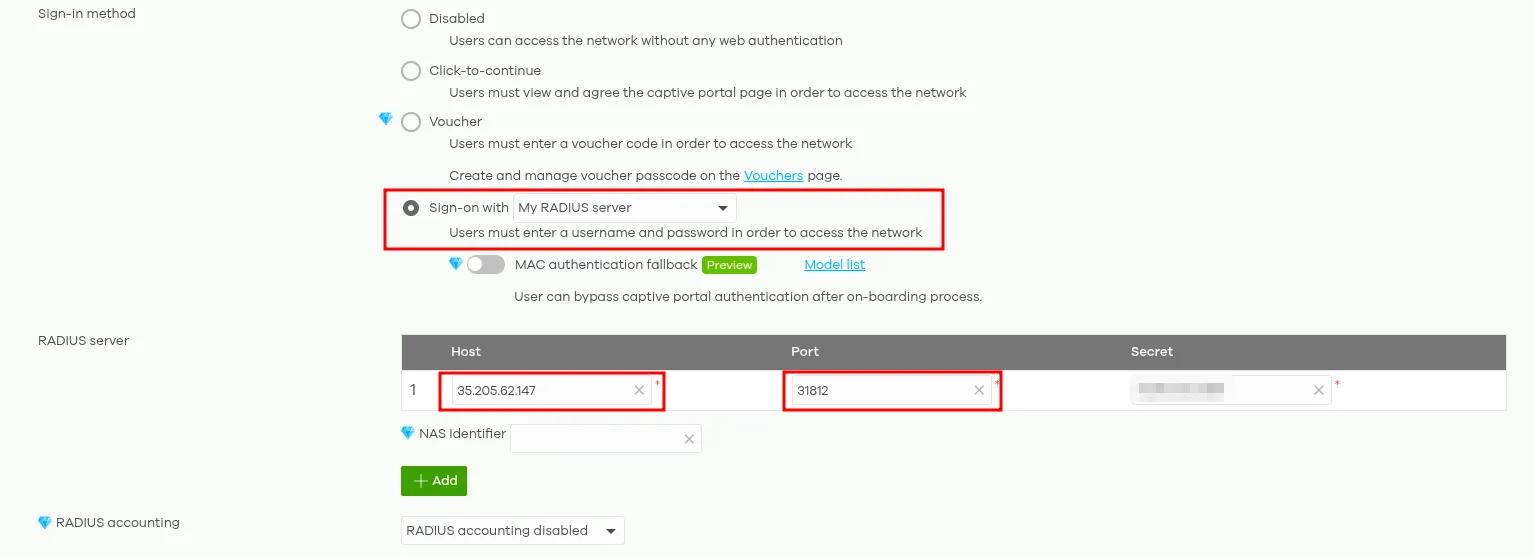
In the Network access section, set Sign-In method to My RADIUS server. A new RADIUS server section will appear. Configure it as follows:
| Host | 35.205.62.147 |
|---|---|
| Port | 31812 |
| Secret | Copy from the Access Points section in panel.socialwifi.com using the blue Reveal and copy button |
In the Captive portal advance setting section, use the following settings:
| Walled garden | Switched on |
|---|---|
| Walled garden ranges | copy below |
| Simultaneous login limit | Unlimited |
| Strict Policy | Block all access until sign-on |
| Reauth time | Follow site-wide settings (you can set your preferred forced guest logout time here) |
*.socialwifi.comsw-login.com*.facebook.com*.fbcdn.net*.twitter.com*.twimg.com*.linkedin.com*.licdn.com*.x.comwhatsapp.com*.whatsapp.com*.whatsapp.net*.googleapis.comapis.google.comwww.googletagmanager.comwww.googleadservices.comgoogleads.g.doubleclick.net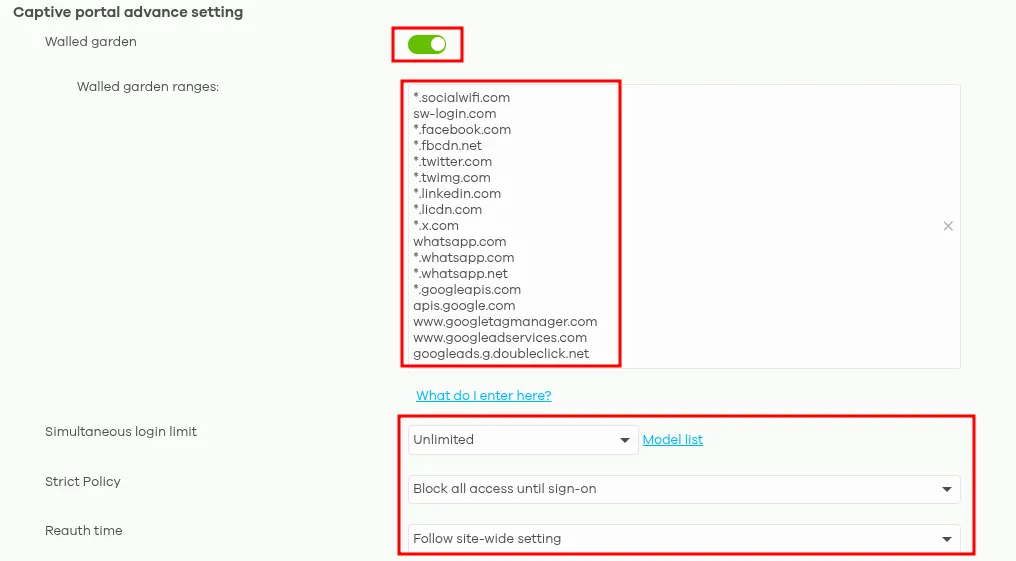
Leave the Traffic options and Advanced settings sections as they are.
Click the green Back button at the bottom of the page to return to the SSID settings screen.
Step 3 - Customize the captive portal
In Access points -> SSID settings, click Edit next to Captive portal customization.
In the External captive portal URL section, use the following settings:
| Use URL | https://login.socialwifi.com |
|---|

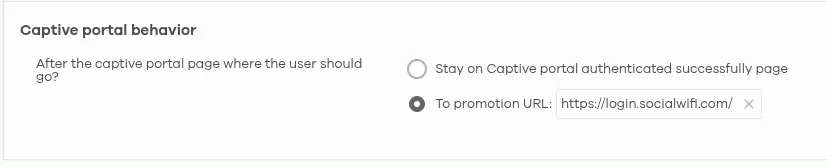
In the Captive portal behavior section, use the following settings:
| After the captive portal page, where should the user go? | To promotion URL: https://login.socialwifi.com/redirect/ |
|---|
Click the green Back button at the bottom of the page to return to the SSID settings screen.
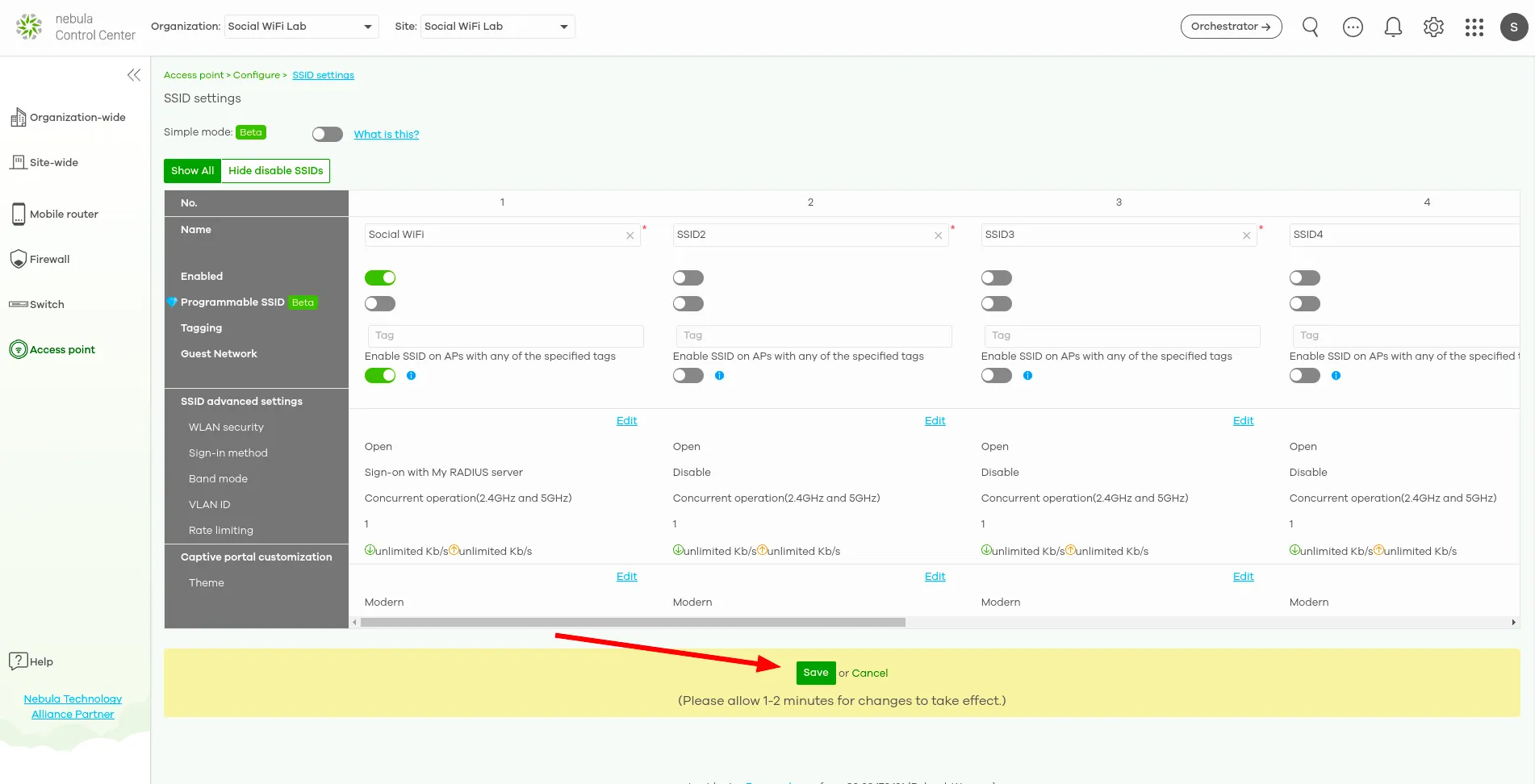
Back in Access points -> SSID settings, click the green Save button at the bottom of the page.
Step 4 - Add access points to the Social WiFi Panel
The controller setup is complete. The final step is to add all access points to the Social WiFi platform.
Go to Devices -> Access points in the left-hand menu and locate the MAC address column. These MAC addresses are needed in the next step.
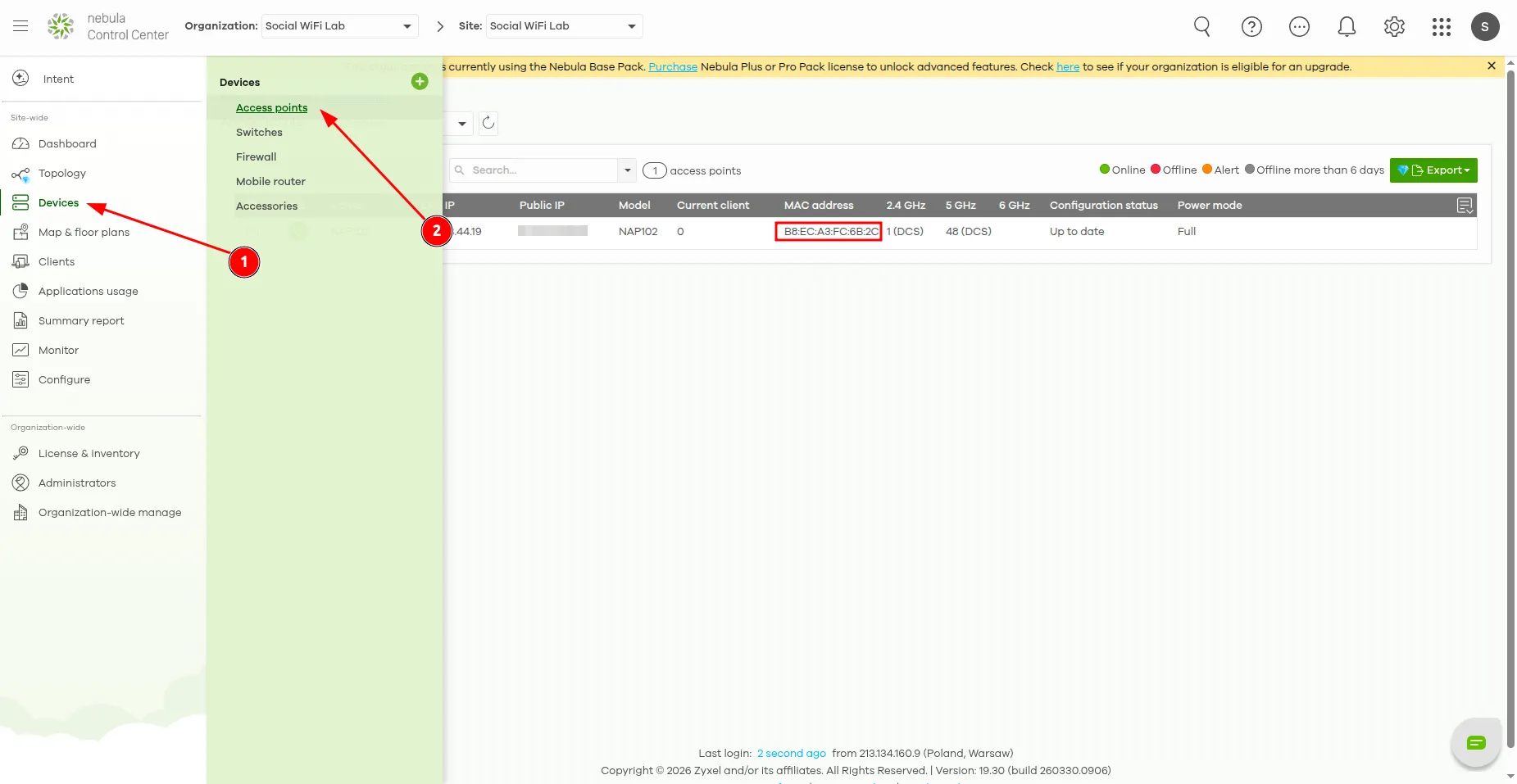
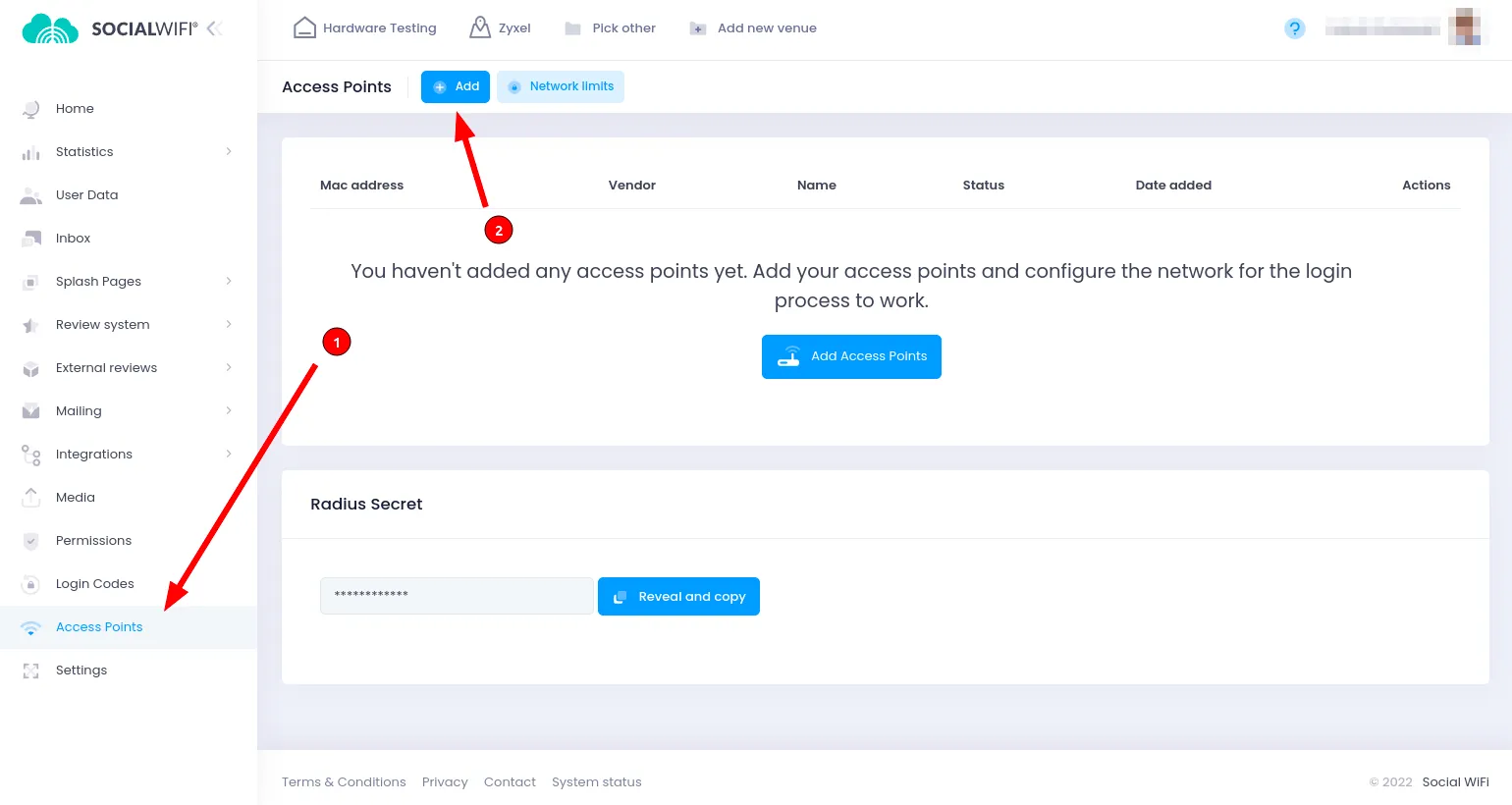
Switch to the Social WiFi Panel, go to the Access Points tab, click Add, and paste the MAC addresses of all access points managed by Zyxel Nebula. Click Create.
Test the solution
Connect to the WiFi network. A login page should appear. Complete the login process to gain internet access.
The first connections and authorizations should appear in the statistics section of the Social WiFi Panel.
Firewall
If a firewall sits behind the Zyxel access point, make sure the following ports are open:
- 443 and 6667 (TCP, used for Nebula Cloud Management)
- 123 (UDP, used for Network Time Protocol / NTP)