
Integrate with GetResponse
Accessing GetResponse info
To get the data required for the integration, you’re going to need to log in to your GetResponse account.
1) Visit your GetResponse dashboard.
2) Select the Contacts tab.
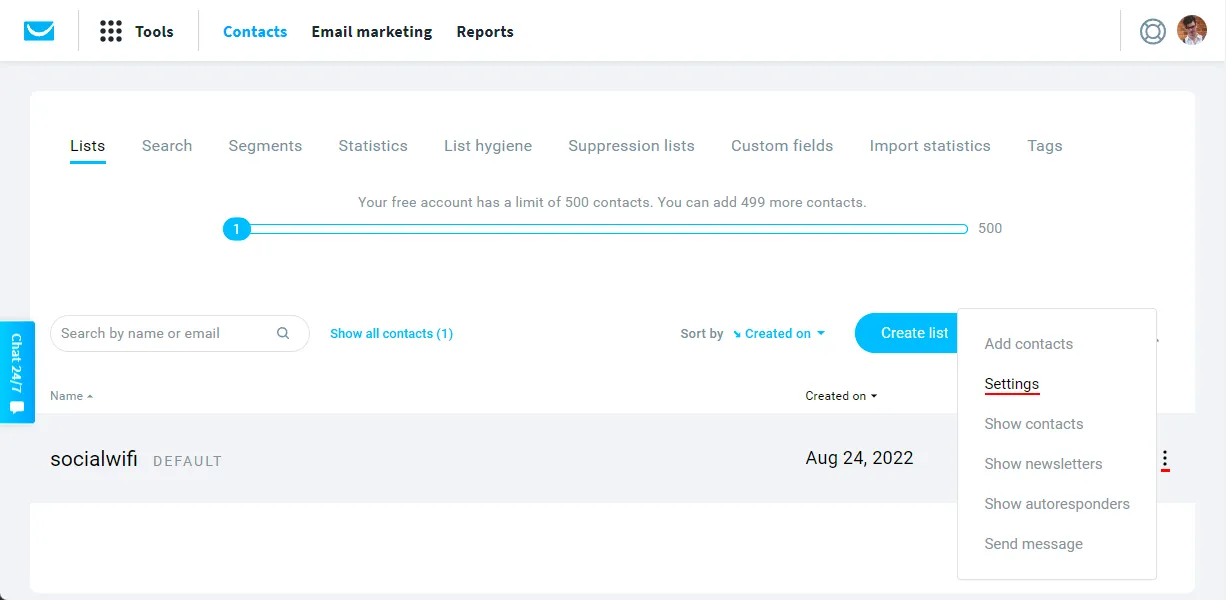
3) Select the contact list you’d like to sync Social WiFi data to by clicking the 3 dots and clicking on Settings.
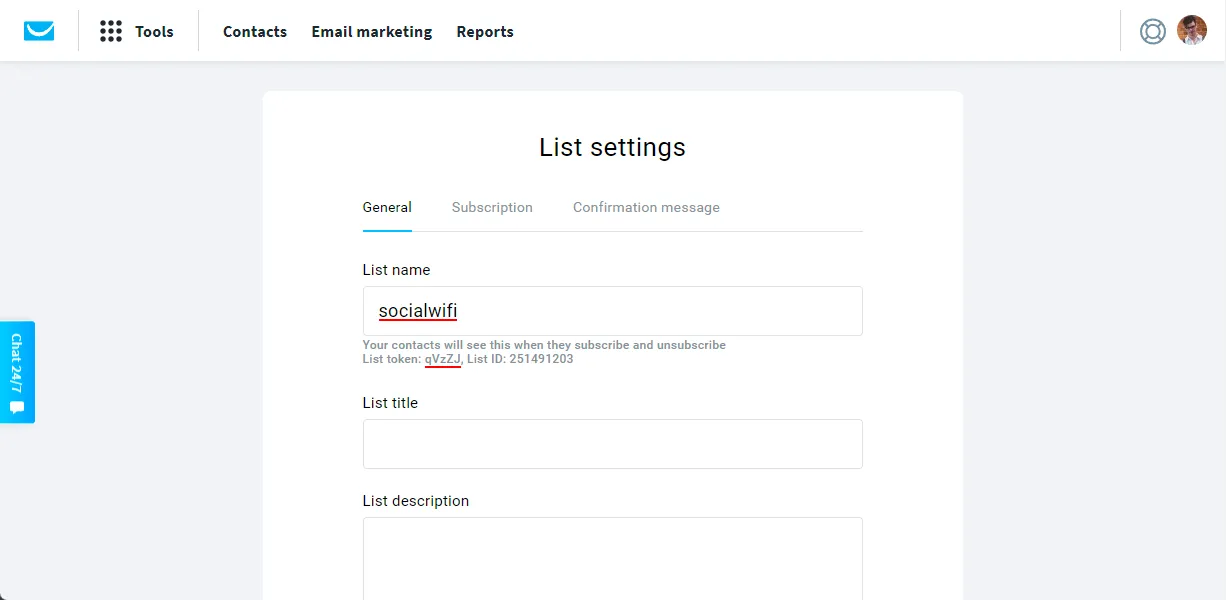
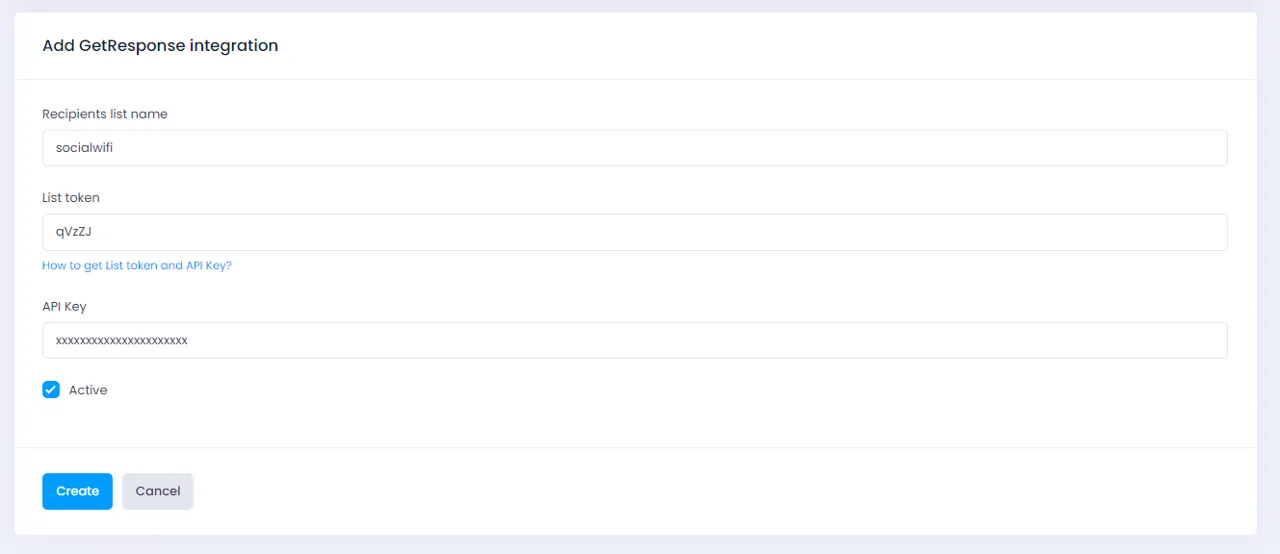
4) Copy both the list name and the list token and paste them into relevant fields of the Social WiFi Dashboard by adding a new GetResponse integration in the Integrations tab.
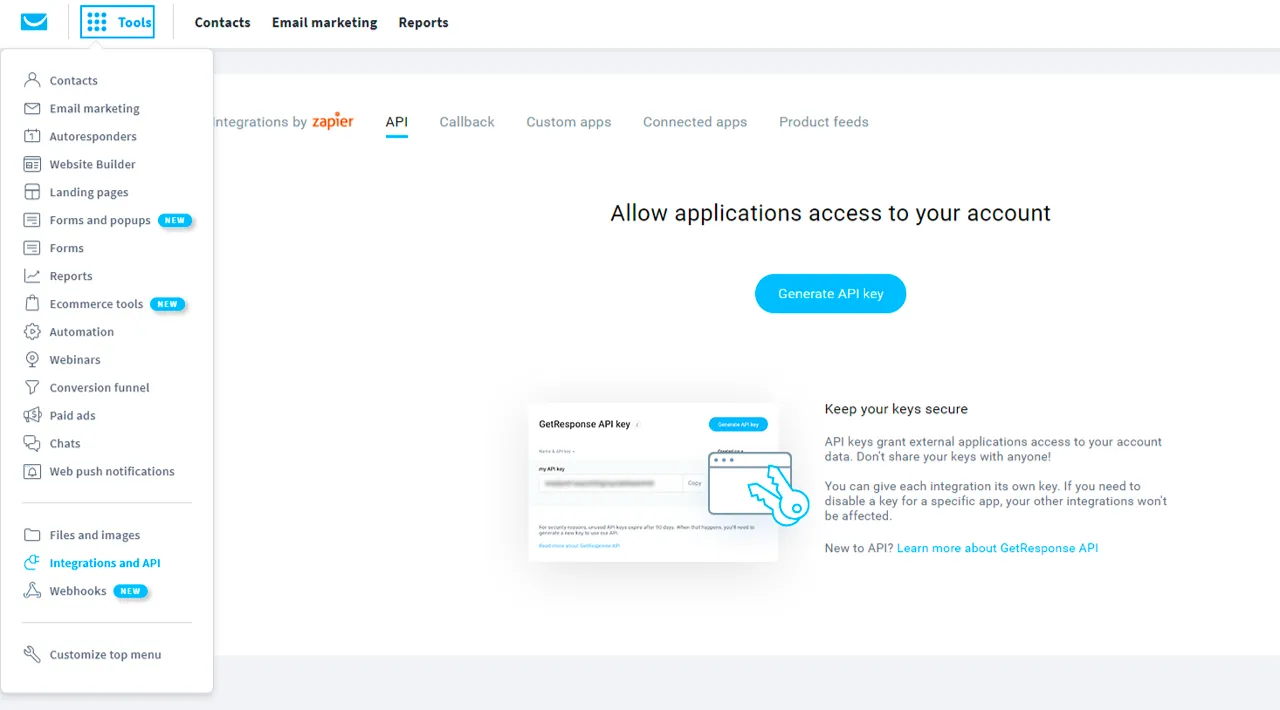
5) Go to the Integrations and API tab of the Tools section of your GetResponse dashboard.
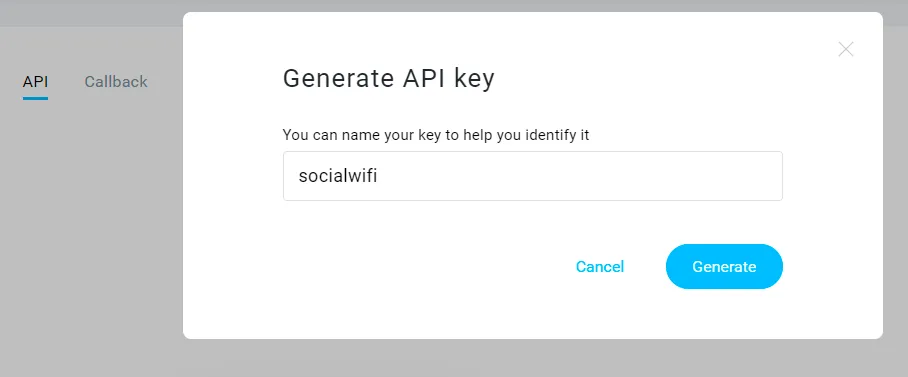
6) Click Generate API key. The name can be anything you’d like.
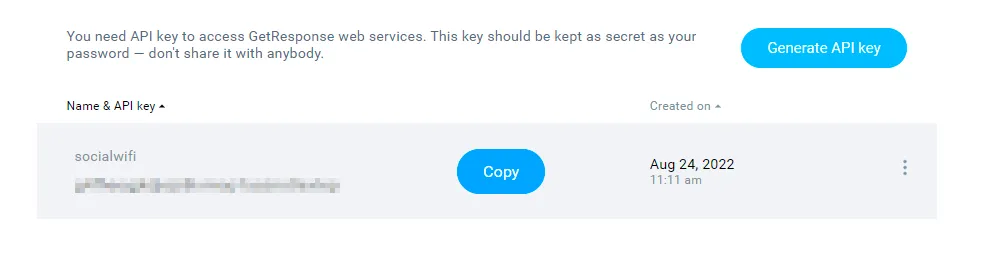
7) After saving, click Copy and paste it into the relevant field of the Social WiFi Dashboard.
8) Make sure you select Active in the Social WiFi dashboard and hit Save – it’s ready!
Understanding the mechanics
Every time a user logs in to your WiFi network, the data will be sent to GetResponse. Whenever you remove a Social WiFi user in the User Data tab, the user will also be deleted from GetResponse.