
Invite Social WiFi Support
To allow Social WiFi to configure the integration remotely, invite the support team to your UniFi controller by creating an admin account using the steps below.
Prerequisites
- access to the controller, for example through https://unifi.ui.com
- Owner role on the controller
Invite Social WiFi to Your UniFi Controller
- Open your UniFi controller in a web browser.
- Go to the People tab in the left-hand navigation menu.
- Click Create New to open the new user form.
- Fill in the fields using the values from the table below.
| First Name | Social WiFi |
|---|---|
| Last Name | leave blank |
| support@socialwifi.com | |
| Admin | Checked |
| Restrict to Local Access Only | Unchecked |
| Use a Predefined Role | Checked |
| Role | Super Admin |
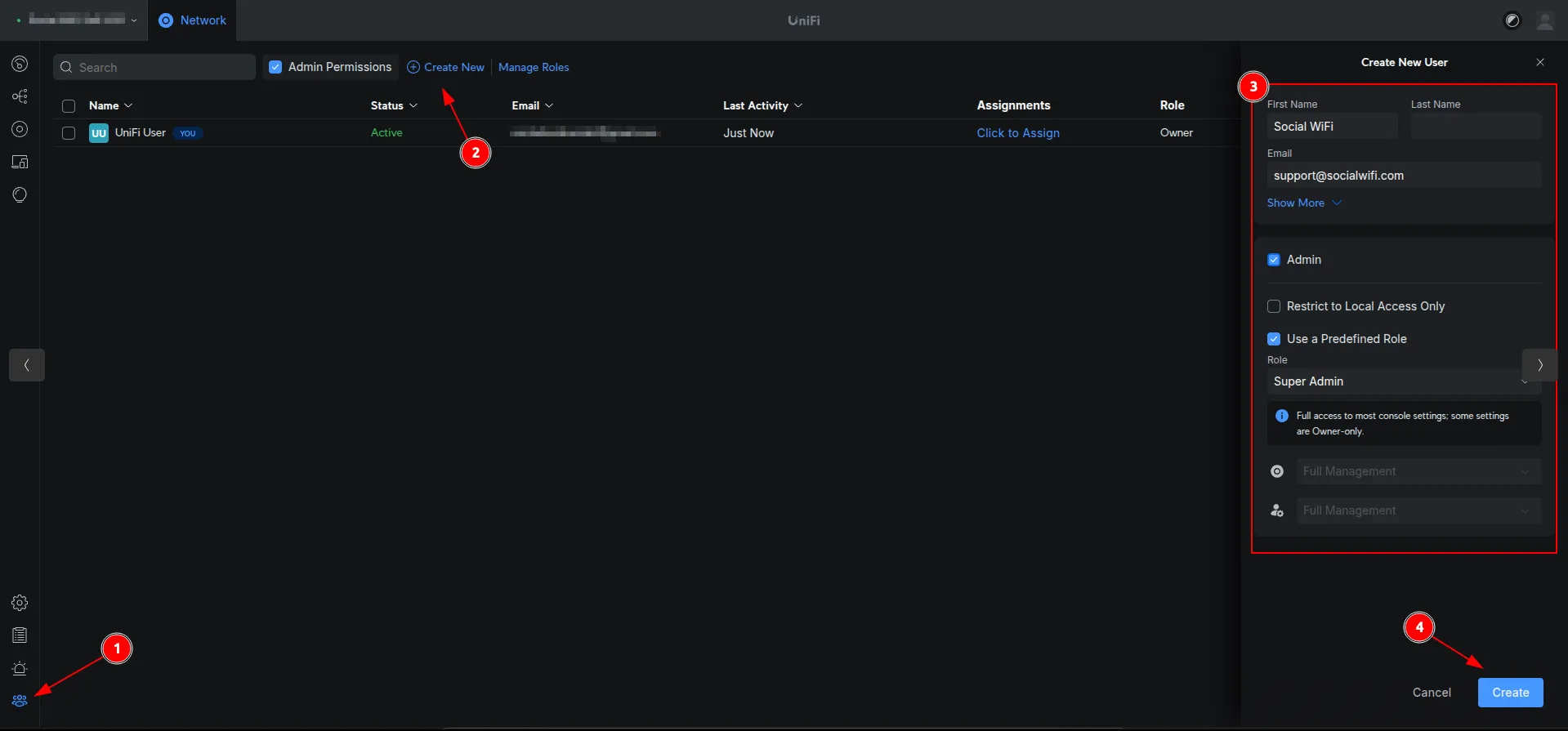
Social WiFi Support requires the Super Admin role to create a secondary API account (see Controller Access for Social WiFi).
Only accounts with the Owner role can create a Super Admin account. If your account has the Super Admin role instead, ask the controller owner to send the invite on your behalf.
- Click Create to send the invitation.
After sending the invitation, email support@socialwifi.com. Include the venue name from the Social WiFi Panel.