Integrate with Brevo
Introduction
Social WiFi’s integration with Brevo makes the exporting of your gathered data instant and automated.
Every time a user logs in to your WiFi network, the data will be sent to Brevo. Whenever you remove a Social WiFi user in the User Data tab, the user will also be deleted from Brevo.
Adding the integration in Social WiFi dashboard
1) Visit the Social WiFi dashboard and go to the venue you’d like to integrate.
2) Go to the Integrations tab and select Brevo.
3) Click the Add button in the top left corner.
Filling in the data
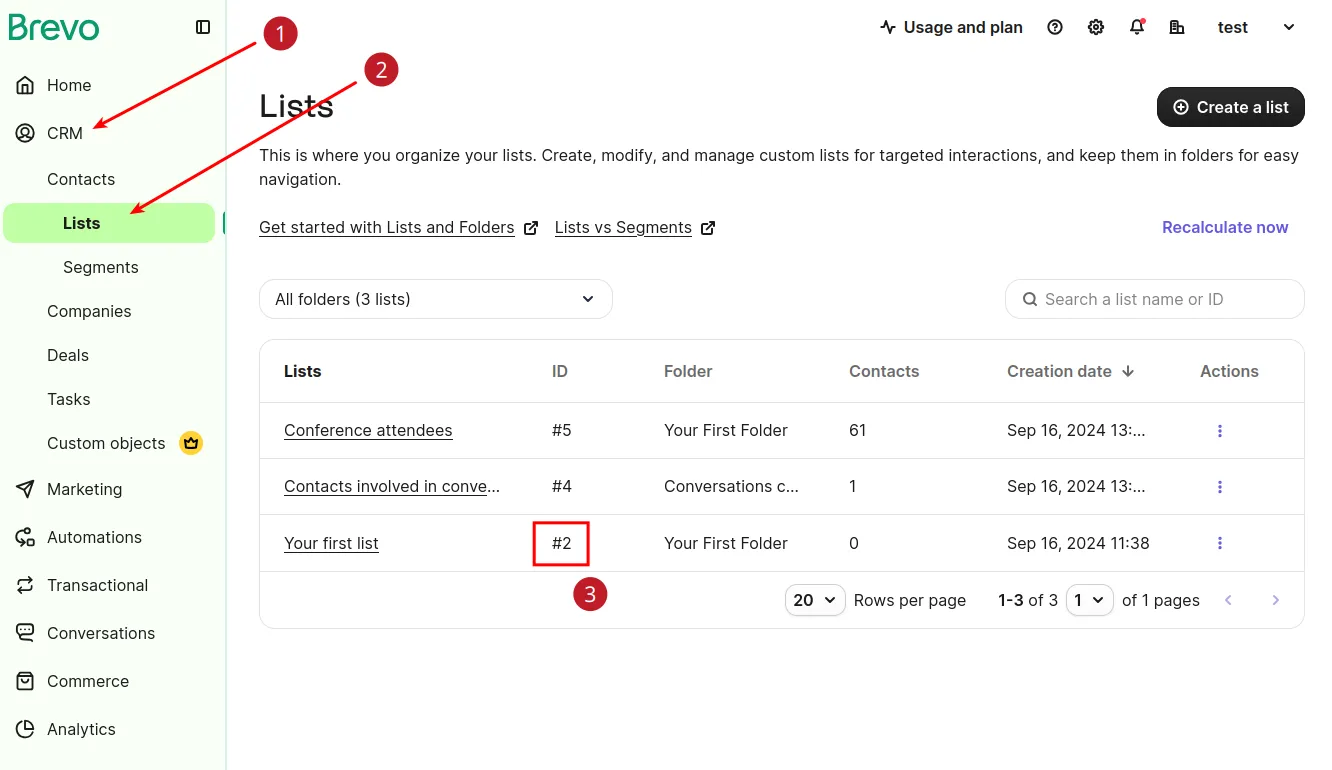
Contact list: Log in to Brevo dashboard and go to “CRM” -> “Lists”. Find the list that you want to integrate with Social WiFi. The “ID” column contains the value that needs to be copied and pasted. E.g. if the ID in Brevo is “#2” use “2” for the form field in Social WiFi panel.
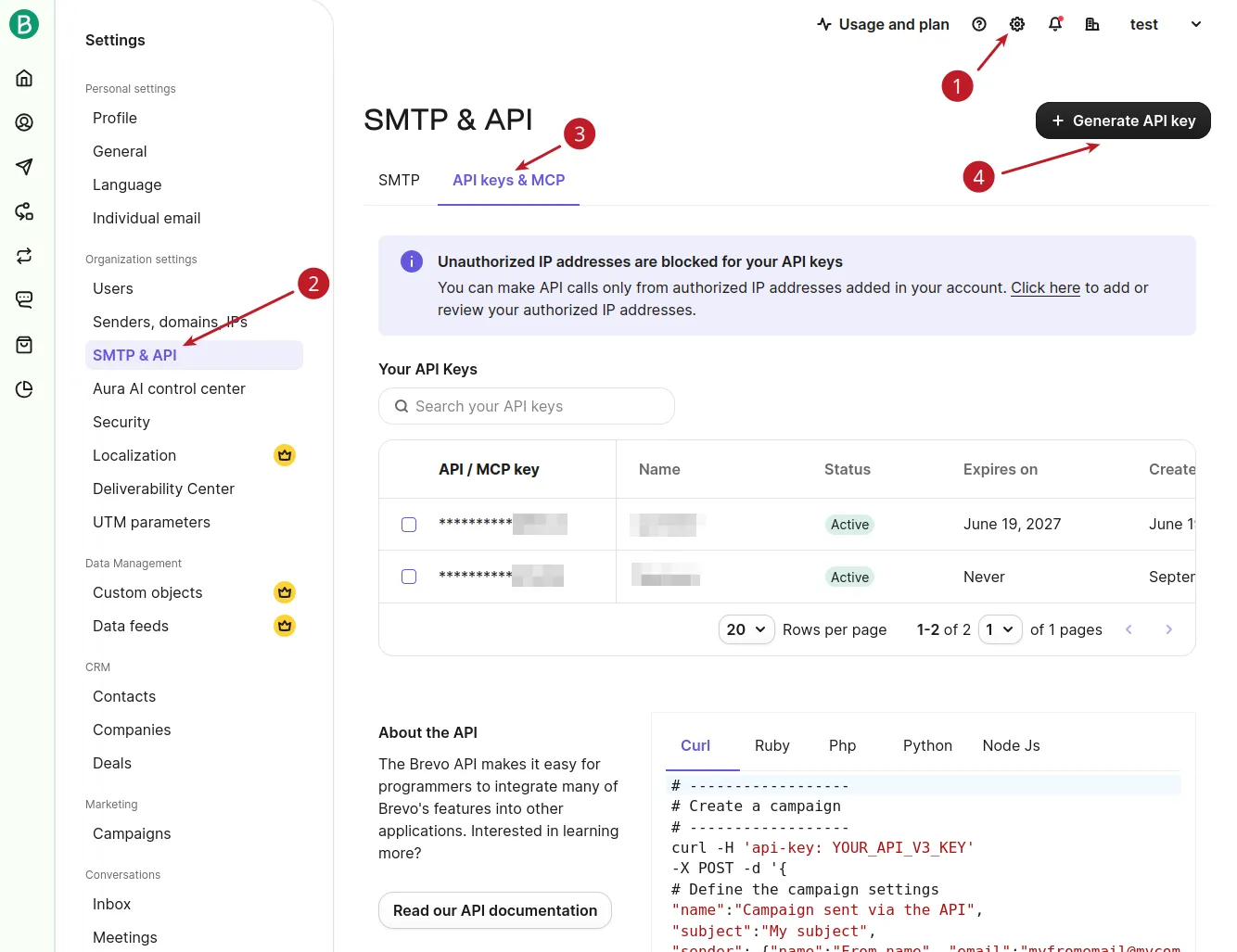
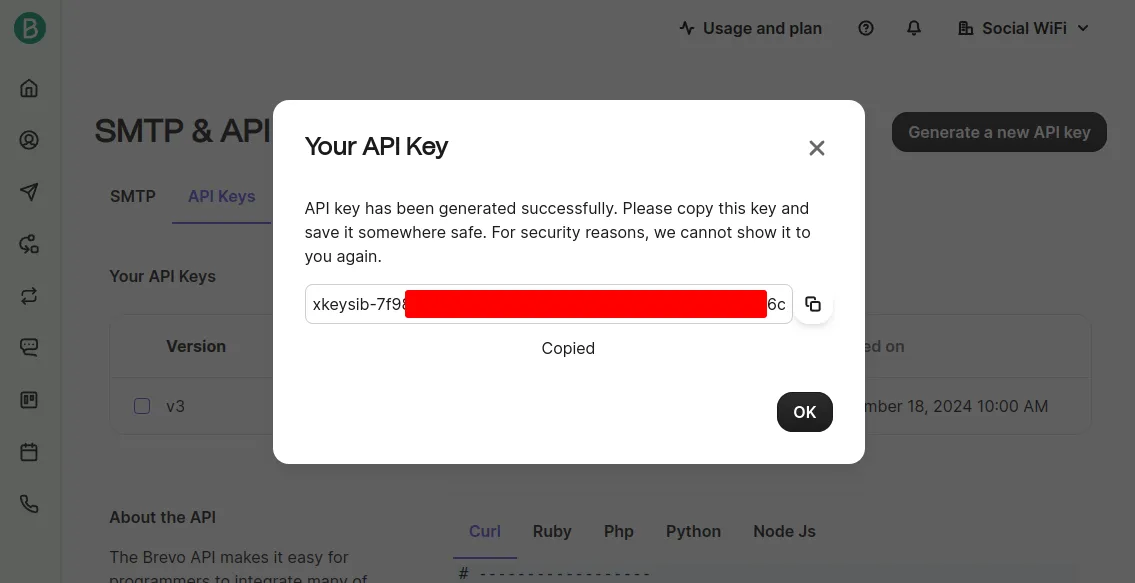
API Key: Click the settings icon and select “SMTP & API” in the menu. Click the “API Keys tab”. Click “Generate API key” to generate the API key. Enter “Social WiFi” (or similar) as API key name, select no expiration date, and click “Generate”. The key will be displayed - copy that value and paste it into the form field in Social WiFi panel.
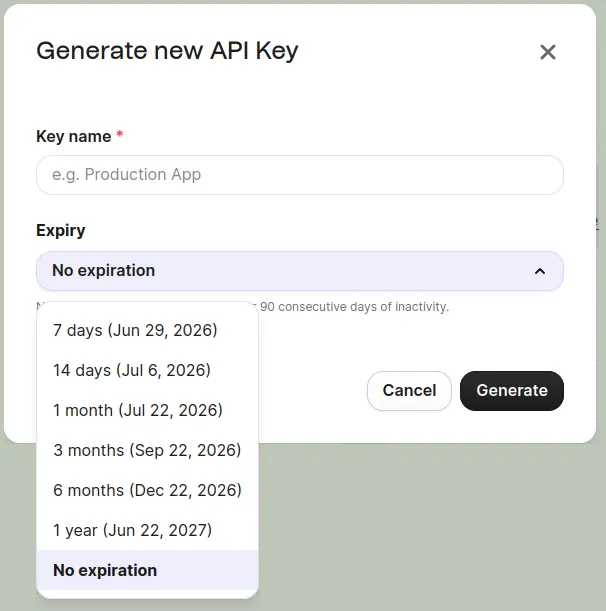
Be sure to select
No expiration
on the API key to avoid the need to generate new keys over time:
Copy your API key:
Active: Please make sure this field is checked for the integration to work.
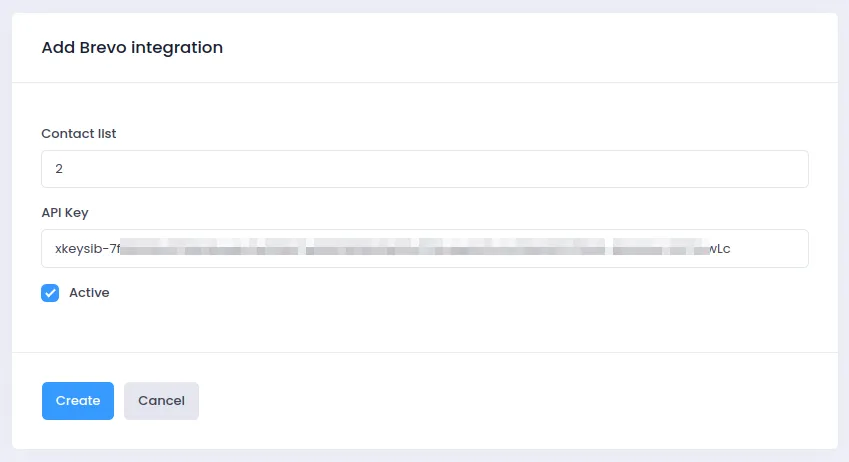
Click Create – your new users should now be sent to your Brevo list automatically.
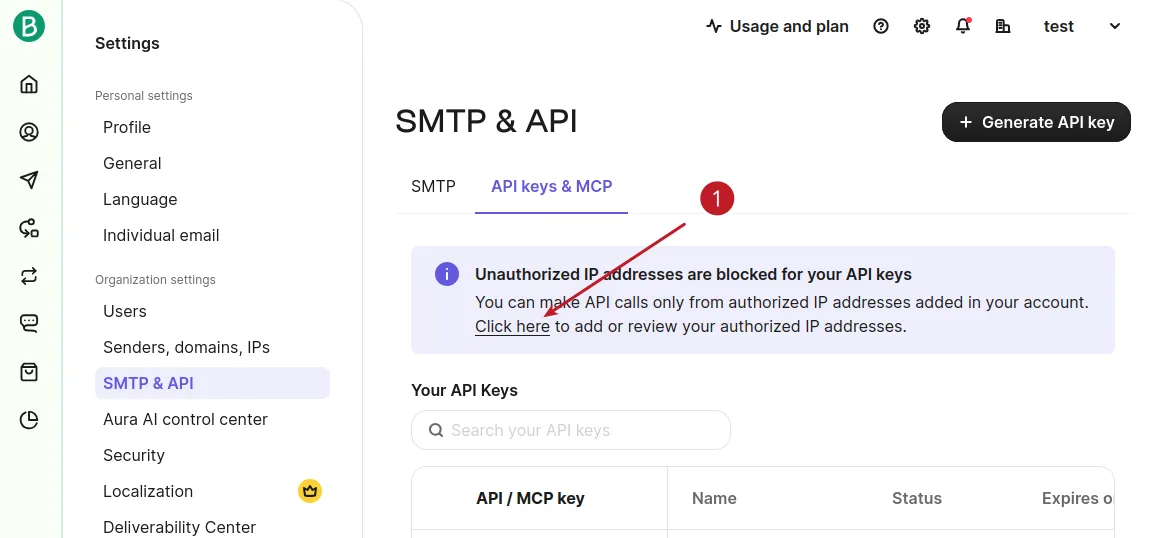
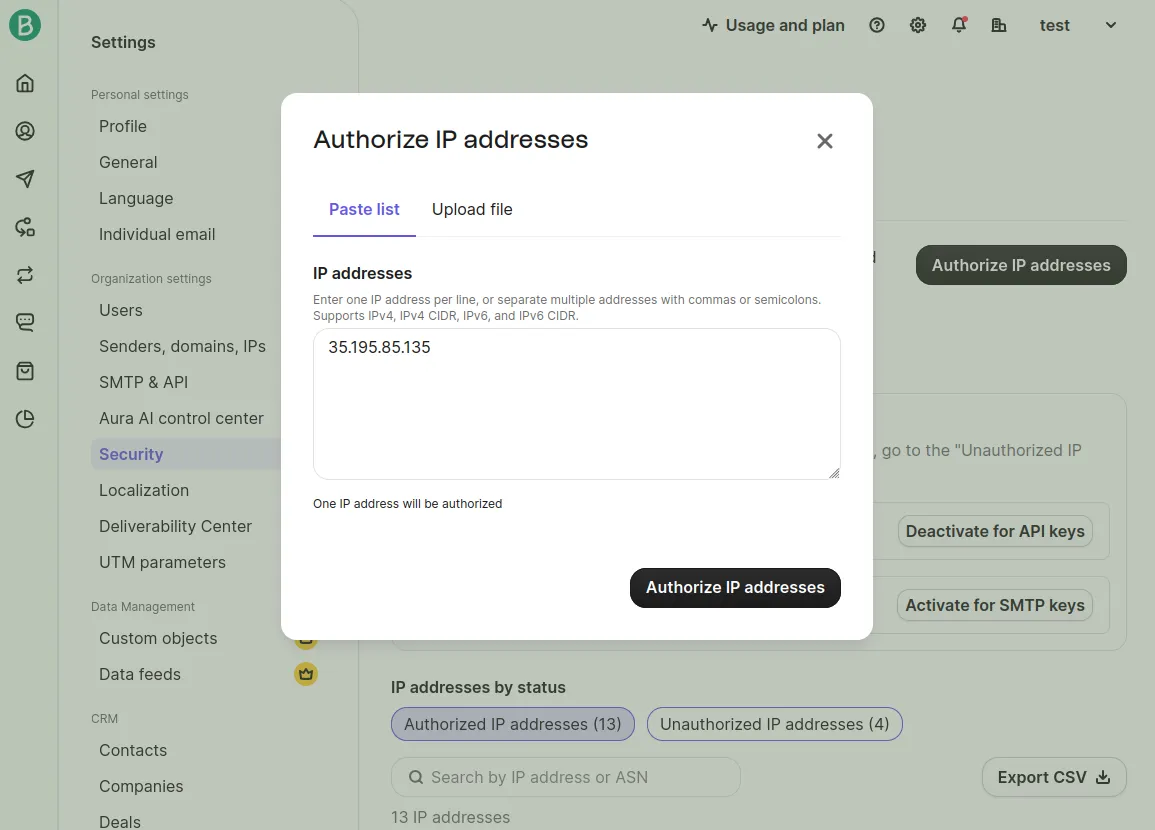
Then in the Brevo dashboard on the API Key page in the
Unauthorized IP
notification click the link to authorize Social WiFi IP:
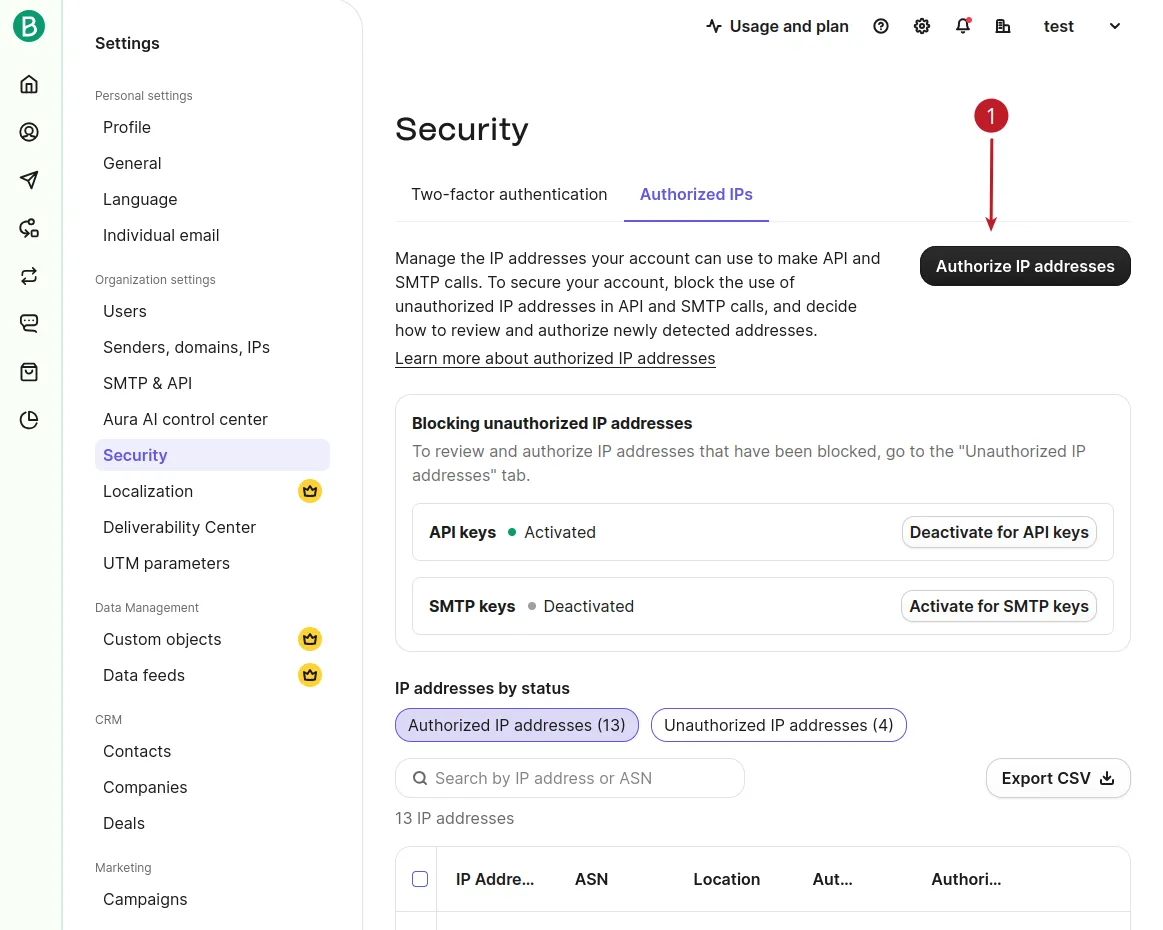
Add 35.195.85.135 to whitelist Social WiFi server and allow the integration to work:
API maintenance and troubleshooting
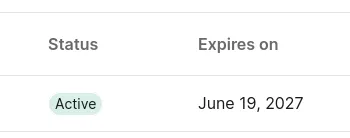
API Key expiration
Brevo by default selects an expiration date for API keys (can’t be changed later), which will require creating a new one when that happens:
API usage by authorized IPs
Brevo allows only whitelisted IPs to use the API, which can be managed at https://app.brevo.com/security/authorised\_ips. Usually, for a freshly created API key, the service will collect and save IPs that start using it, but after a while, it will stop and reject any new IP address trying to make an API request.
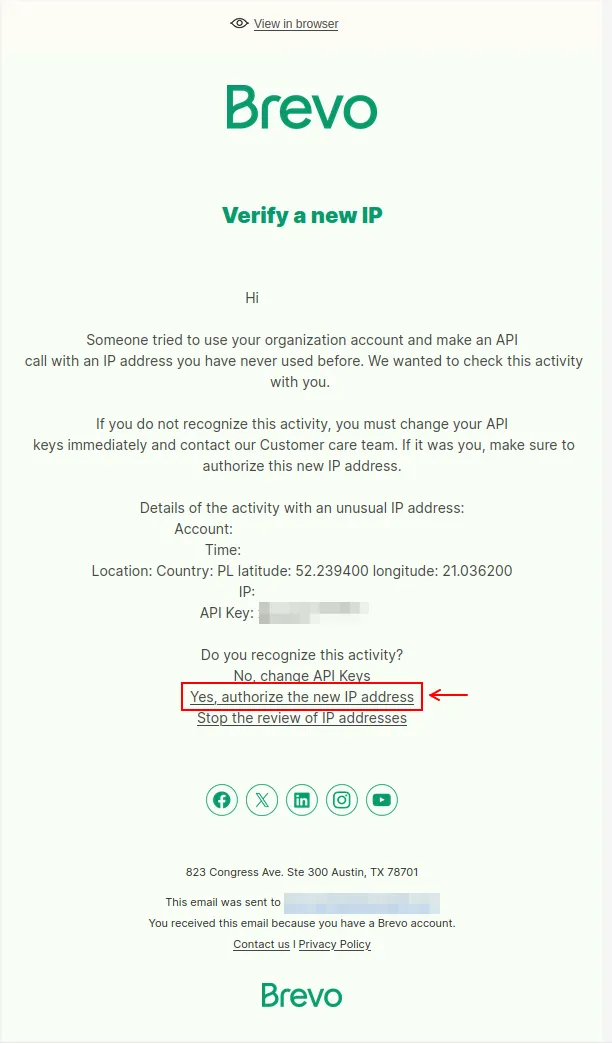
After testing the integration in Social WiFi, its IP address should be automatically added for fresh integrations, but if it’s not, then the integration will be disabled, and you will receive a notification email. You will have to add our IP 35.195.85.135 to the authorized IPs list and reactivate the integration in our dashboard.
Brevo may also send an email with a direct link to add the IP to the list: