
How do I update my card on file?
If your automatic card payment fails (for example, because your card has expired, been replaced or has insufficient funds), you can pay the outstanding invoice with a new card. The new card will then be saved and used for your future recurring payments.
Step 1: Open your invoice
Open the invoice link we sent you by email. It takes you to the invoice page, where you’ll see:
- the invoice number and amount due
- how many days the payment is overdue
- the issue date, due date and billing frequency (for example, monthly)
From here you can also Download invoice or Show invoice details.
Step 2: Click “Pay now with a new payment method”
On the right-hand side of the invoice page, click Pay now with a new payment method.
Step 3: Enter your new payment details
Choose how you’d like to pay:
- Card – enter your card number, expiry date (MM / YY), security code (CVC) and country/territory.
- Google Pay – select Google Pay and follow the prompts.
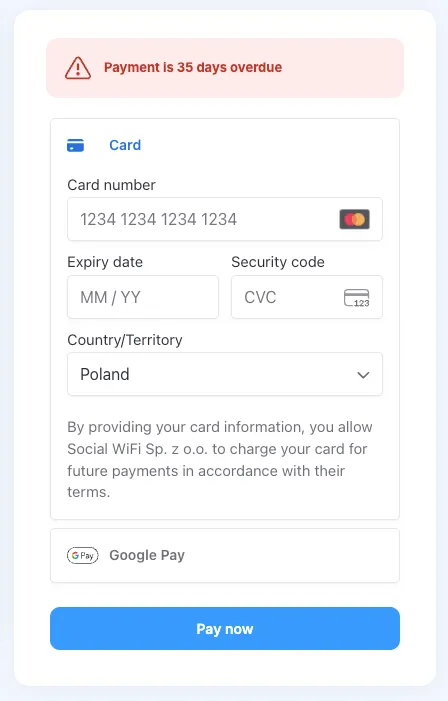
Step 4: Click “Pay now”
Click Pay now to pay the invoice. Once the payment goes through, the invoice is marked as paid.
What happens next?
By entering your card details, you authorise Social WiFi Sp. z o.o. to charge this card for future payments. Your new card replaces the old one, so your next recurring invoices will be paid automatically and you don’t need to do anything else.
Good to know
- Pay as soon as you can. If an invoice stays overdue, your service may be suspended. Paying with a new payment method straight away avoids any interruption.
- Can’t find the invoice email? Check your spam folder or contact us at accounts@socialwifi.com and we’ll send you the link again.
- Need help? Reply to any of our billing emails and our team will be happy to assist.