
Copy emails to other Venues
It is possible to copy all email campaigns from one Venue to another when then are in the same Project. This will save you a lot of time when updating the communications for multiple Venues.
You can do this on all pages under the Mailing section of the dashboard.
It’s a quick job so let’s have a look.
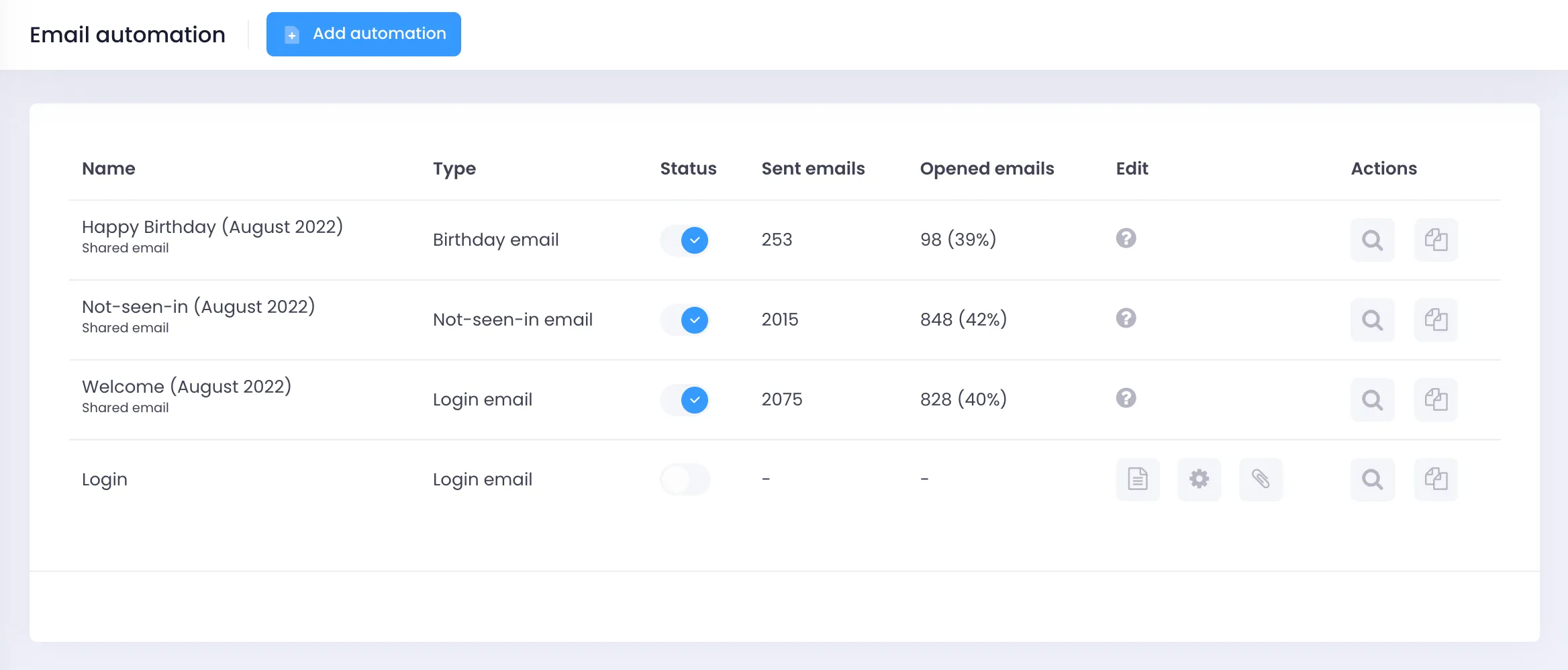
From any of the Mailing sub options (excluding settings), you will get a list of all your Active and Inactive email campaigns. In the right column there is the option Copy to other venues. Click this.
You will now see a list of other Venues within your Project and three options. Let’s check what these options mean,
- No action – Nothing will change on this Venue.
- Add – The Venue will receive the campaign and it will be activated immediately on their network.
- Add inactive – The Venue will receive the campaign, but it will not be activated. You can then go to this venue and edit it further before activating it onto the network.
Simply select the actions that you want to happen on each Venue row and click EXECUTE.
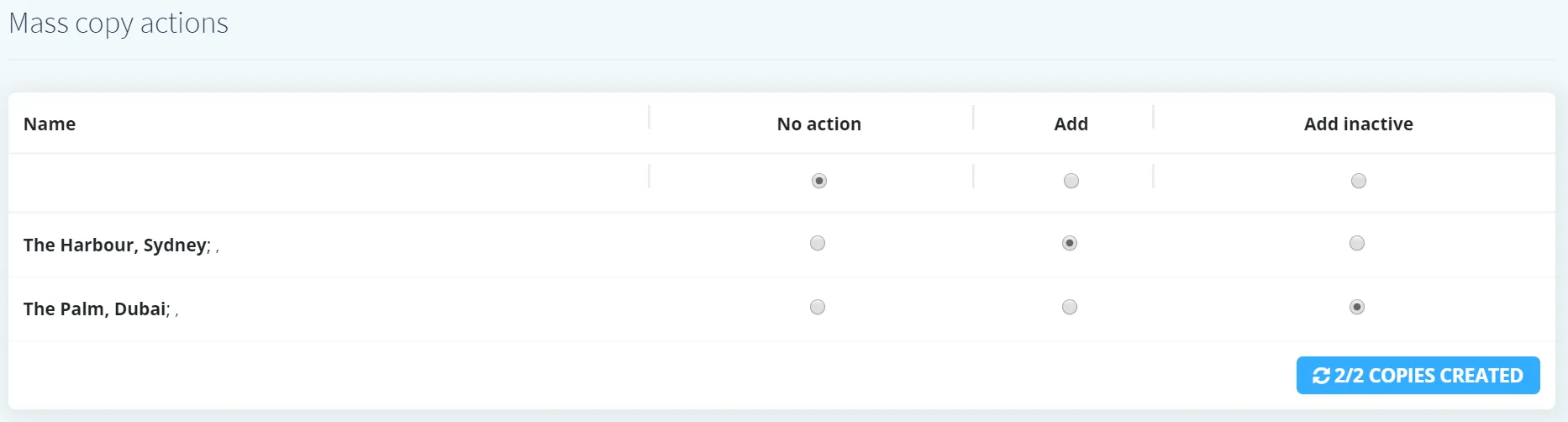
Once complete, you will see the message COPIES CREATED.