
Ubiquiti UniFi known issues
Captive portal does not appear
Symptom: After connecting to the guest WiFi network, the captive portal login page does not appear.
Solution: UniFi can occasionally fail to apply the new configuration after changes are made. If the captive portal is not showing up, try the following steps in order.
1. Disable and re-enable the Hotspot
Turn the Hotspot off, wait 30 seconds, then turn it back on. This forces the access points to pull the new configuration without requiring a full reboot.
2. Reboot the Access Point
Access points can sometimes fail to provision immediately after a configuration change is made. Rebooting the AP forces it to reload the configuration and can resolve the issue immediately.
3. Reset Hotspot settings to default and re-apply manually
Go to Clients and open the Hotspot tab. Navigate to Landing Page Settings, change any value, and the Restore Default Settings button will appear at the bottom of the page near the Save and Cancel buttons.
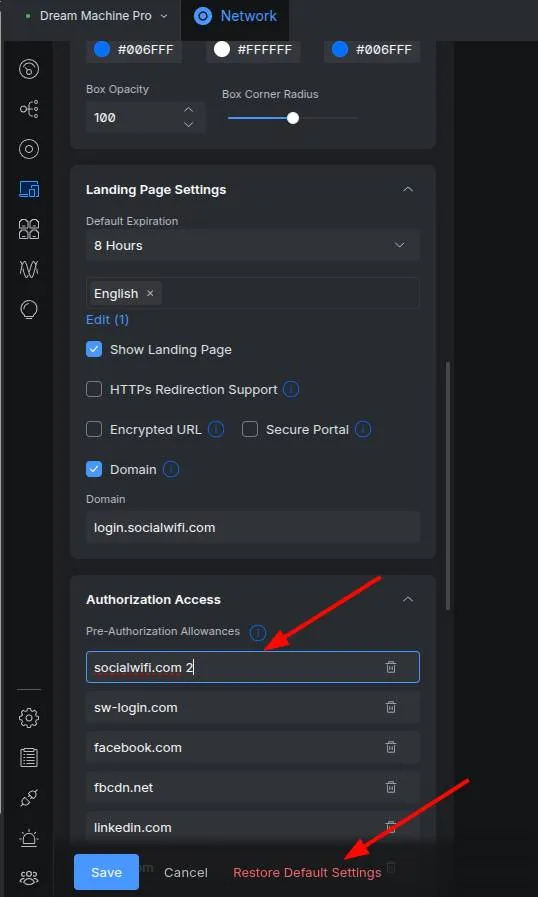
Click Restore Default Settings, then manually re-apply the correct configuration by following the Social WiFi configuration guide.
Authentication delay
Symptom: When guests connect to a WiFi network managed by Social WiFi, they often experience a significant delay after clicking “Connect”. In some cases, the authorization process never completes.
Solution: This issue typically occurs when the UniFi controller is hosted outside the local network, such as on a VPS or in the cloud. Using a local controller is recommended - for example a UniFi Cloud Gateway Ultra.
Local controller behavior
When the controller is deployed within the local network, UniFi Access Points (APs) communicate with it almost instantly, allowing for immediate guest authorization.
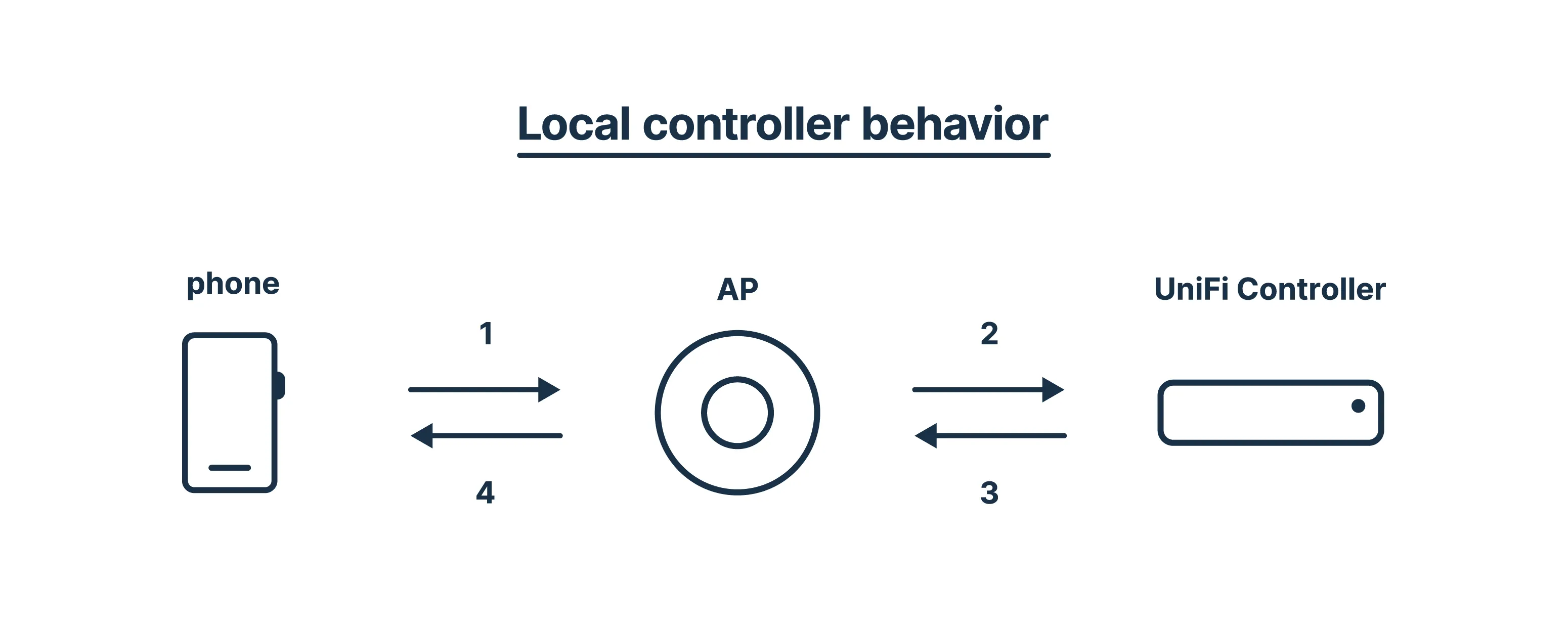
- The phone sends a request to the controller through the Access Point.
- The user is authorized on the controller.
- The controller instantly sends a response confirming the authorization.
- The user is authorized and can browse the internet.
Externally hosted controller behavior
With externally hosted controllers, UniFi APs send an “inform” packet approximately every 30 seconds. As a result, the controller may take up to 30 seconds to notify the AP that a guest has been authorized. This delay results in a poor guest login experience.
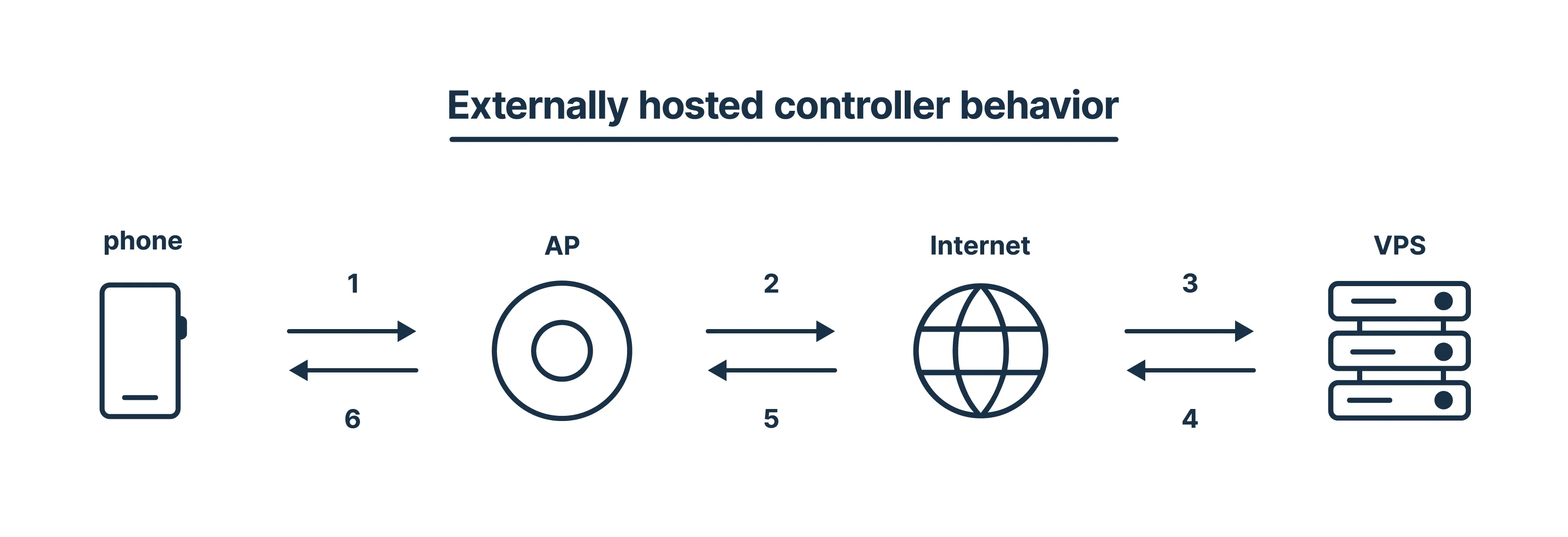
- The phone sends a request to the controller through the Access Point.
- The request is routed to the controller outside the local network.
- The user is authorized, but the information cannot be sent back to the Access Point instantly.
- The Access Point checks for configuration updates with the controller every 30 seconds.
- When the Access Point checks in, the authorization information is finally returned.
- The user is authorized and can browse the internet.
Guest roaming issues
Symptom: Guests who move between Access Points lose internet access and are prompted to re-authenticate, even though they were already authorized.
Root cause: Due to the same inform packet mechanism described in the Authentication delay section above, an externally hosted controller cannot instantly notify all Access Points that a guest is already authorized. When a guest roams to a different AP, that AP may not yet know the guest is authorized and will block internet access until the next inform cycle (up to 30 seconds) completes, forcing the guest through the login process again.
Solution: The same approaches that resolve authentication delay also fix roaming issues:
A) Switch to a local controller so that authorization state is propagated instantly - for example a UniFi Cloud Gateway Ultra.
B) Use a MikroTik device to handle the Social WiFi login flow instead of UniFi.
UniFi Firewall upgrade (Zone-based Firewall)
Symptom: After installing the service, or when the firewall is upgraded on an existing installation, none of the available authorization methods work. This is a known issue where Pre-Authorization Allowlist URLs are not applied when a Network (VLAN) has a zone type of Hotspot. This issue is currently being investigated with UniFi.
Solution: Create a new firewall rule above broken rule (ID: 30004) with the following configuration.
| Name | Hotspot out |
|---|---|
| Source Zone | Hotspot, Any |
| Port | Any |
| Action | Allow |
| Destination Zone | External, Any |
| Port | Any |
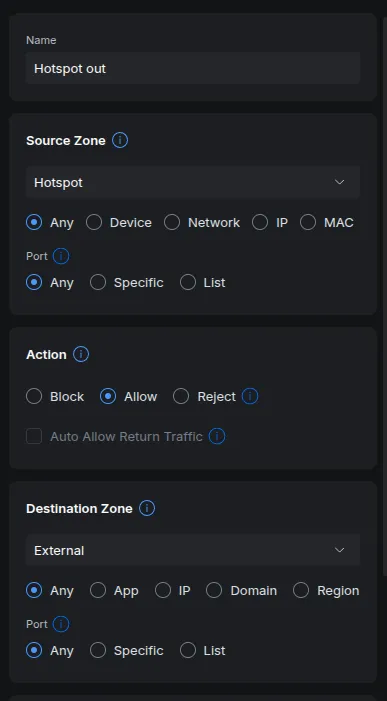
Leave all other settings at their default values.