
How to export configuration from a MikroTik device?
This guide shows how to export a MikroTik configuration file using Winbox and download it to your computer.
Before you start
This assumes you already have Winbox installed and can connect to your MikroTik device.
If not, download Winbox from MikroTik’s download page.
Step 1. Open a terminal in Winbox
Connect to your MikroTik device in Winbox.
Open New Terminal (top menu / left panel, depending on layout).
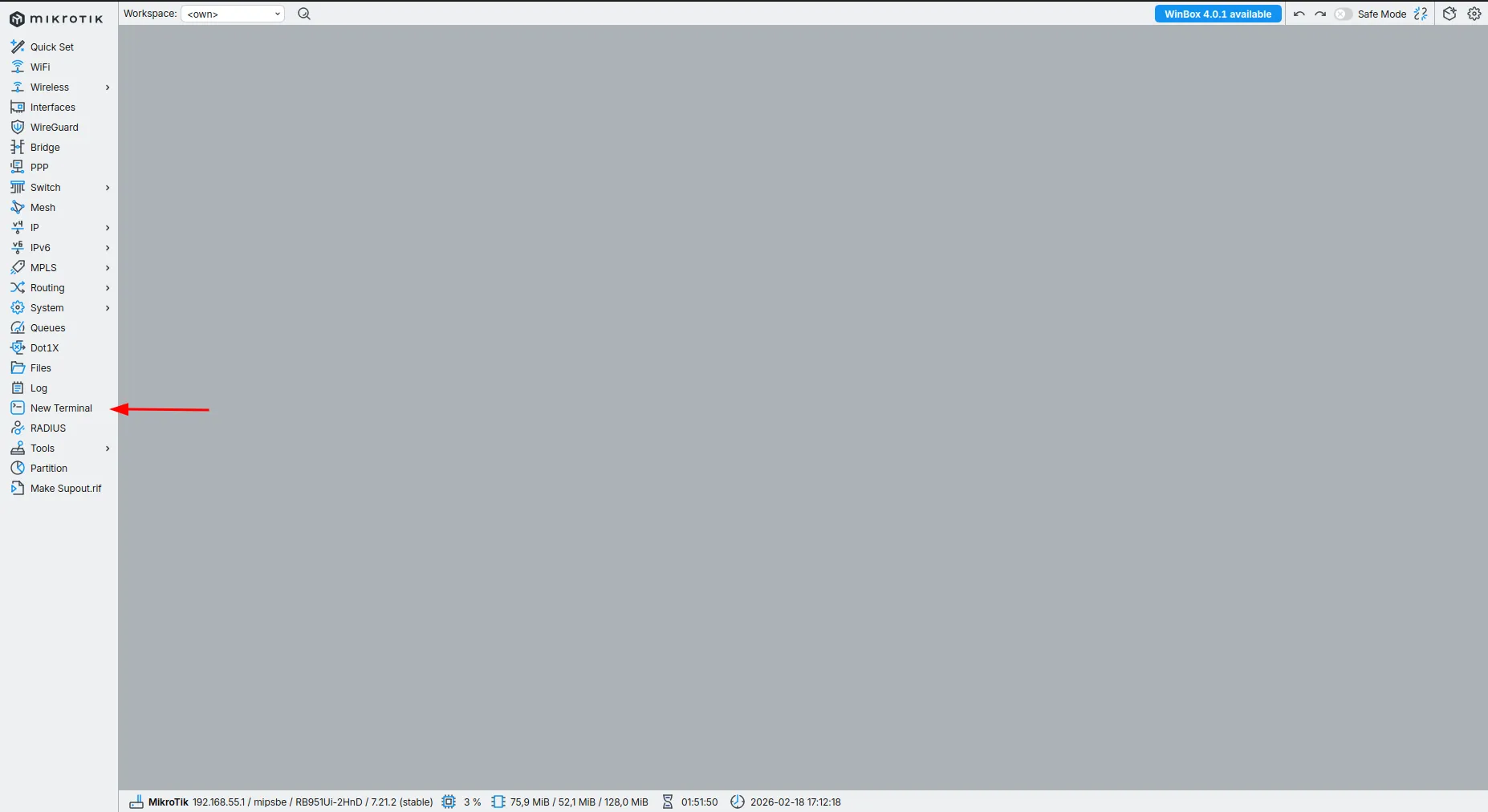
Step 2. Export the config to a file
In the terminal, run:
export file=config_backup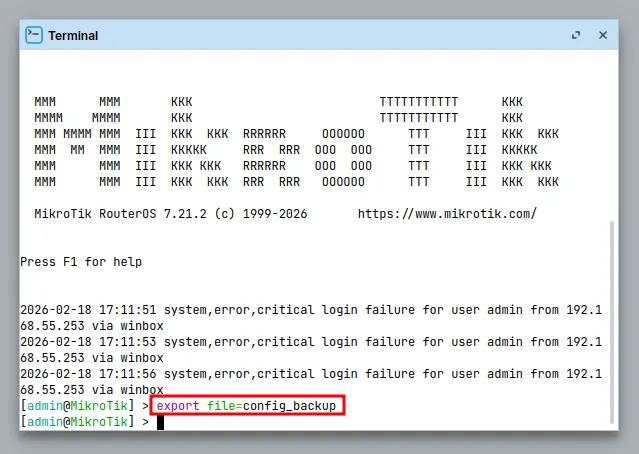
What this does:
- Creates an export of the current configuration
- Saves it on the router as a file named config_backup.rsc (the “.rsc” is normal)
Step 3. Find the exported file
Go to Files in Winbox.
Look for config_backup.rsc.
If you don’t see it:
- Refresh the Files view (or close and reopen it).
- Re-run the command and check for typos.
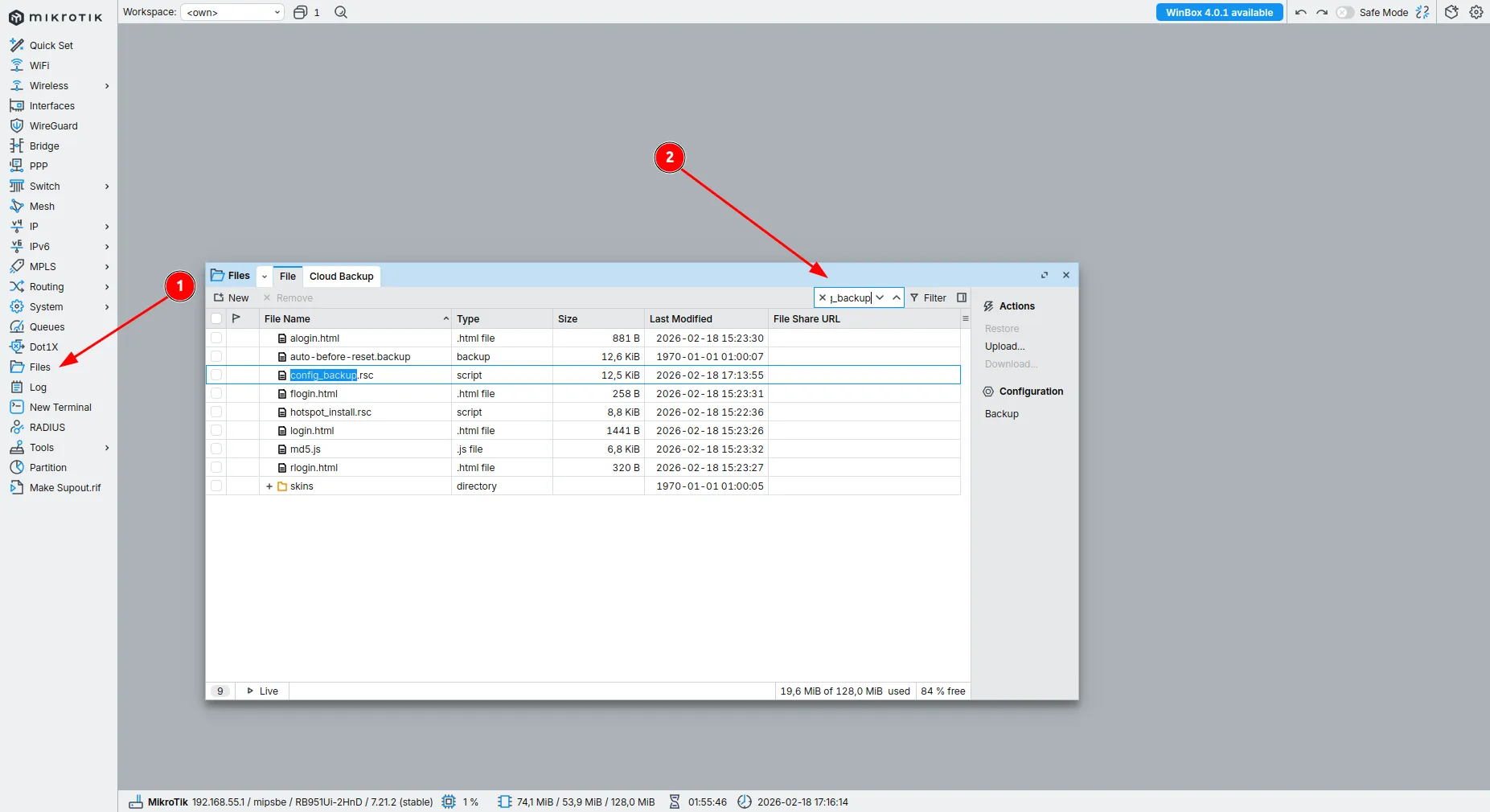
Step 4. Download it to your computer
- In Files, right-click config_backup.rsc.
- Click Download.
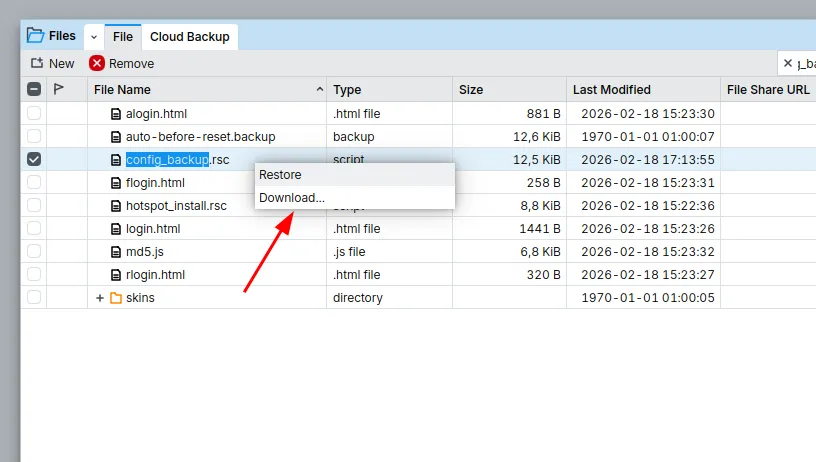
Step 5. Choose where to save it
In the popup window:
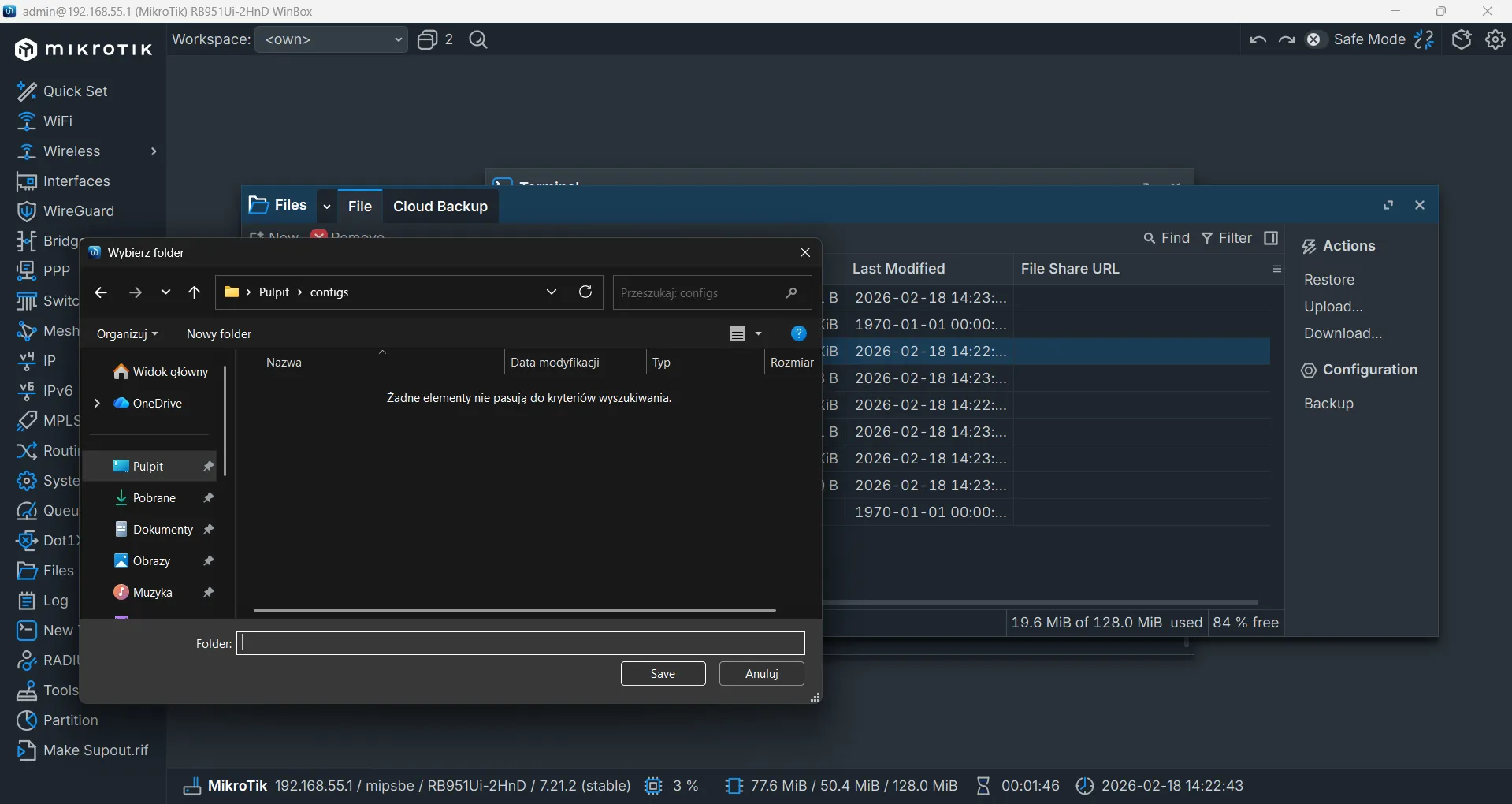
Pick a folder on your computer (e.g., Desktop)
Confirm the save
Result
After these steps, you should have the MikroTik configuration export saved locally (typically as config_backup.rsc) on your computer.