
How to change when a review request email is sent?
Gathering online reviews is one of the most valuable tools that Social WiFi provides you. But asking for feedback is as much about timing as anything else. This is why we allow you to tailor the delivery timing of your review emails.
It’s very simple, so let’s take a look.
1) In the Social WiFi dashboard, enter the Venue that you wish to configure. On the left side menu, select Review System and Settings from the subsequent drop-down list.
2) In the Settings window, we need to edit the Action based on section.
3) Select if you want the timing to be based on the user’s login to the service or logout.
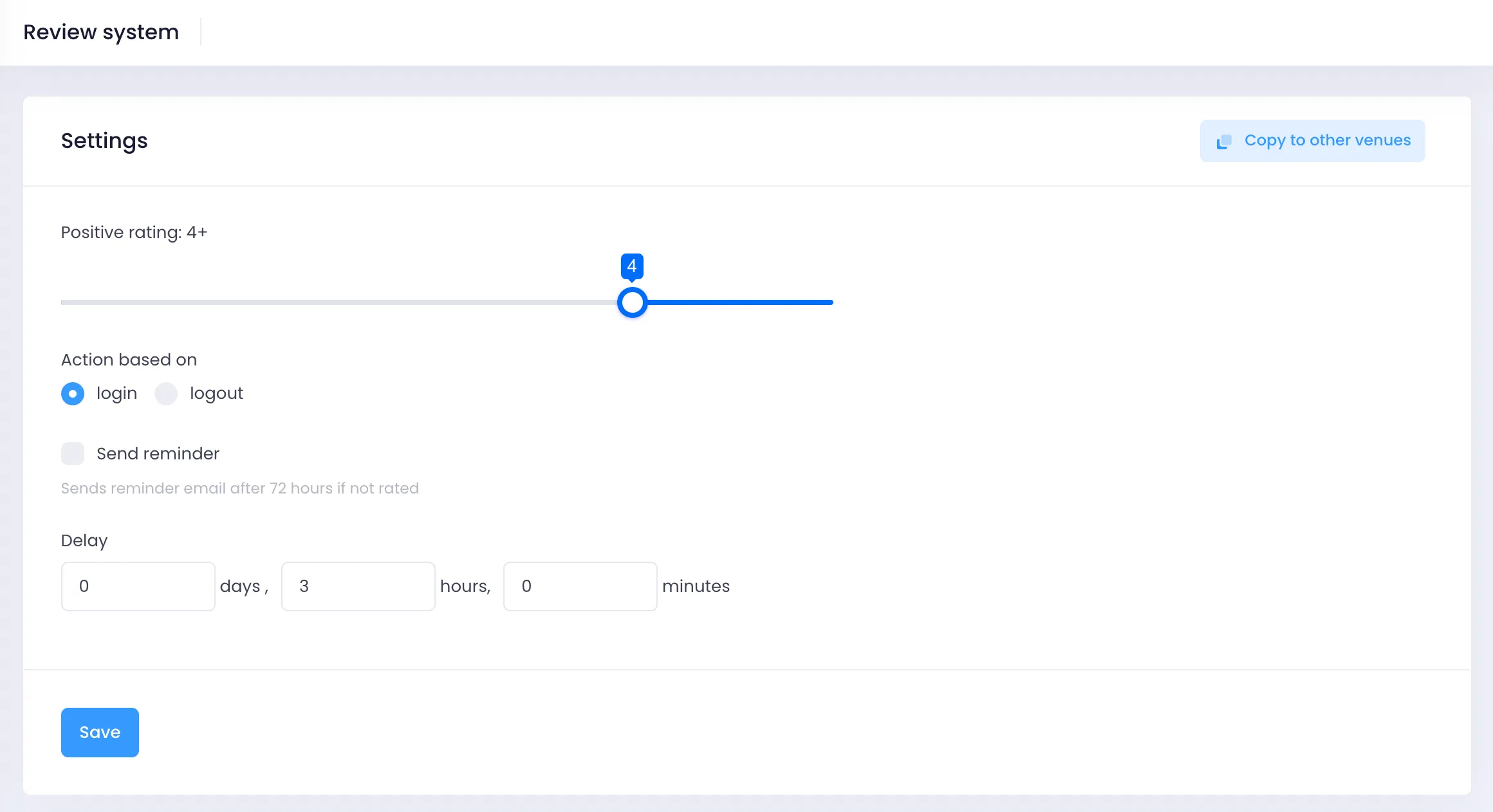
Logout timing is not an exact science; after all, nobody actually logs out from WiFi, they just disconnect. We cannot detect when a device leaves the network exactly, but we can make some approximate estimations.
4) In the delay fields, choose how long after the login or logout that you would like the email to be sent.
5) When you’re happy with your changes, press Save.
Our Recommendations
Not all businesses are the same and you’ll have your own ideas on when to send these emails. But in our experience, we have been able to work out when it is a good time to send these review requests. We have identified 3 groups and some good timings.
- Bars/Restaurants/Coffee Shops etc. – 3 hours after login
- Hotels – 36 hours after logout
- Malls – 5 hours after login
In our experience, these times get the best results and best match the user behaviour.