
Understanding Access Point statuses?
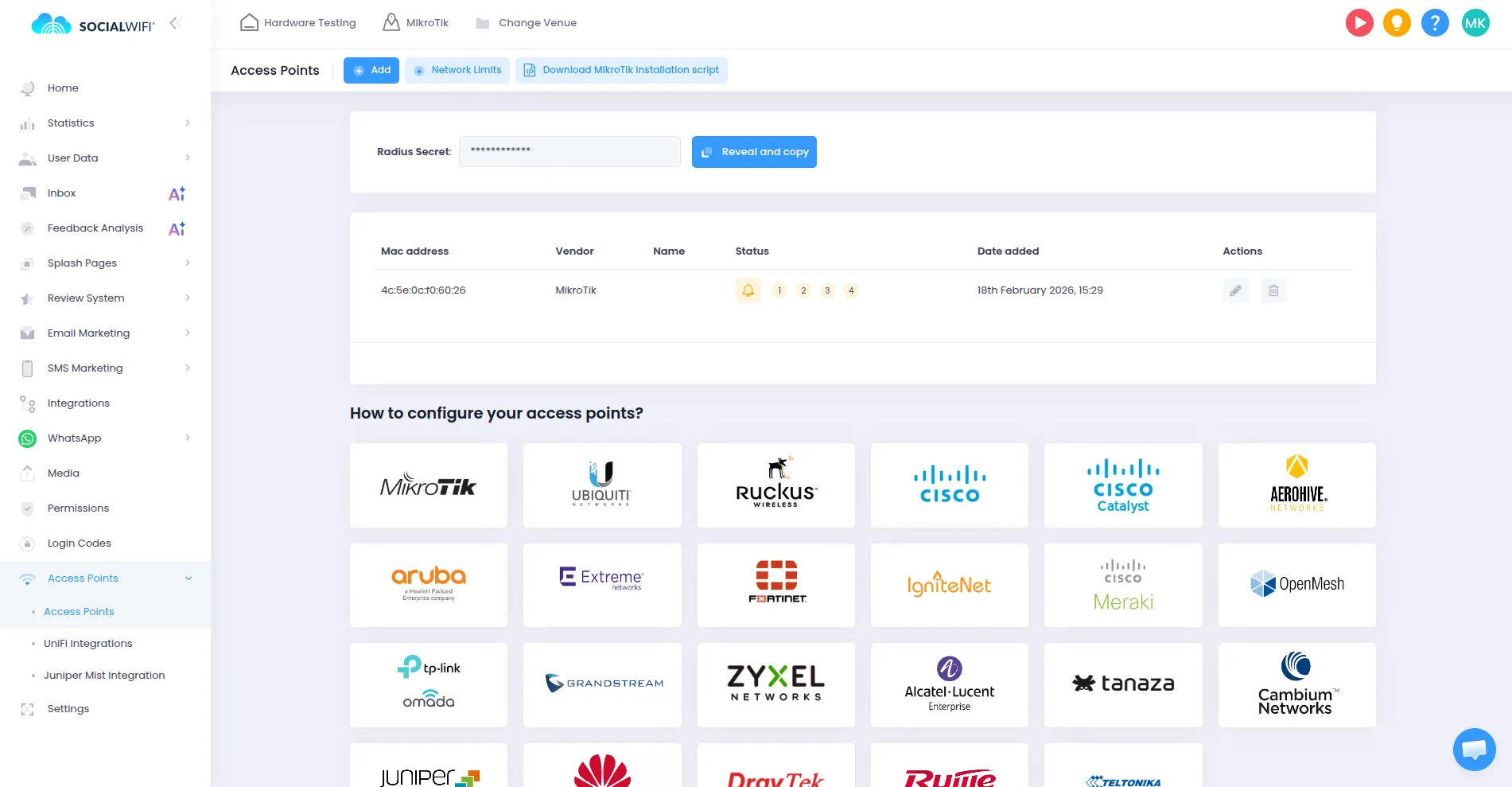
Access Point statuses show how user devices progress through the hotspot login flow. The flow is displayed as 4 bubbles. Each bubble represents one stage, and turns green when the stage has been completed.
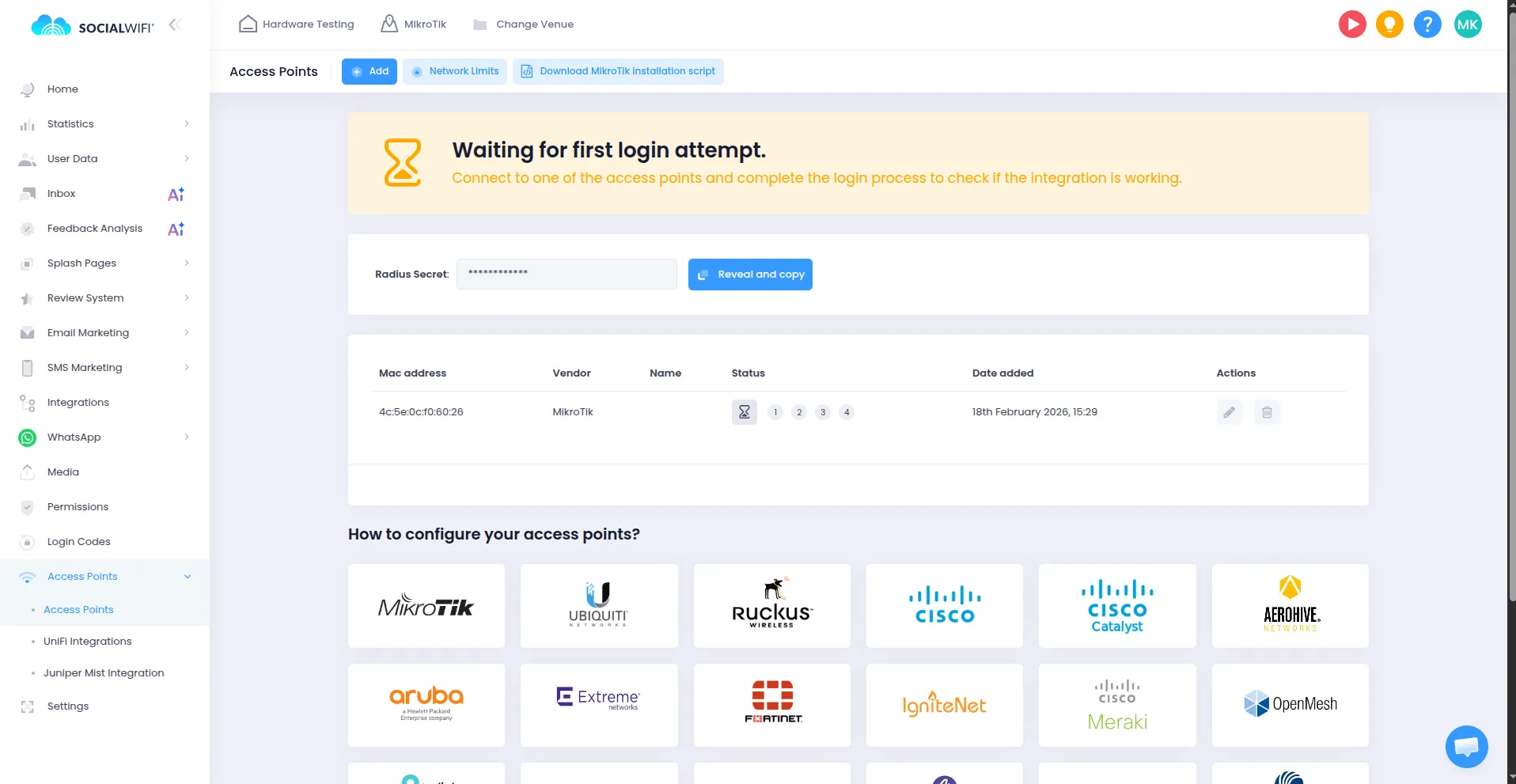
Step 1 - Waiting for first login attempt
This status appears right after you add an Access Point. It means Social WiFi hasn’t detected any client traffic yet (no one has tried to connect and start the login flow).
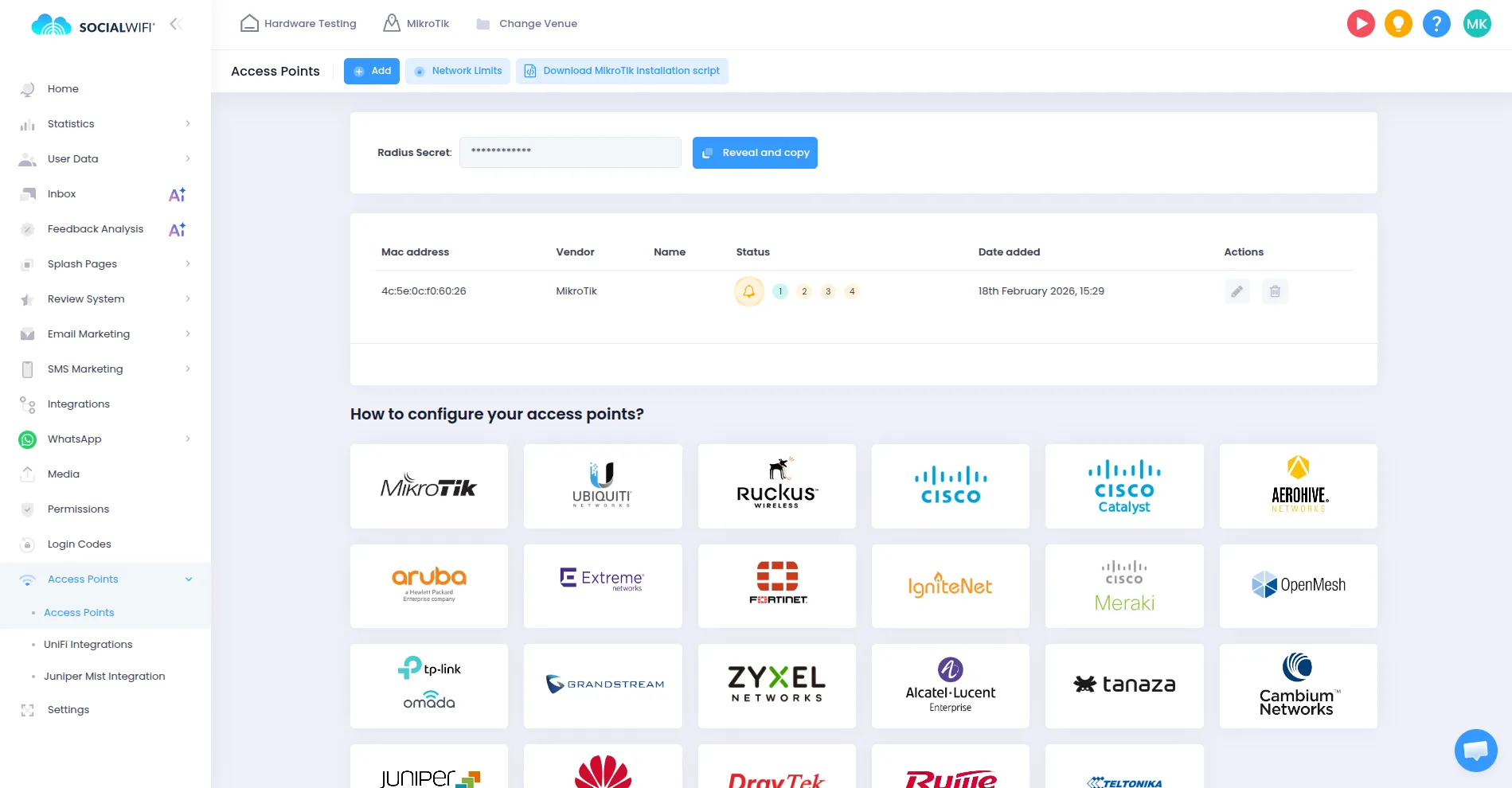
Step 2 - Login page displayed
This step appears when at least one device has opened the captive portal (login page). The first bubble turns green, confirming the portal is being displayed.
If the next bubble does not turn green, it means the user opened the page but did not continue to authentication.
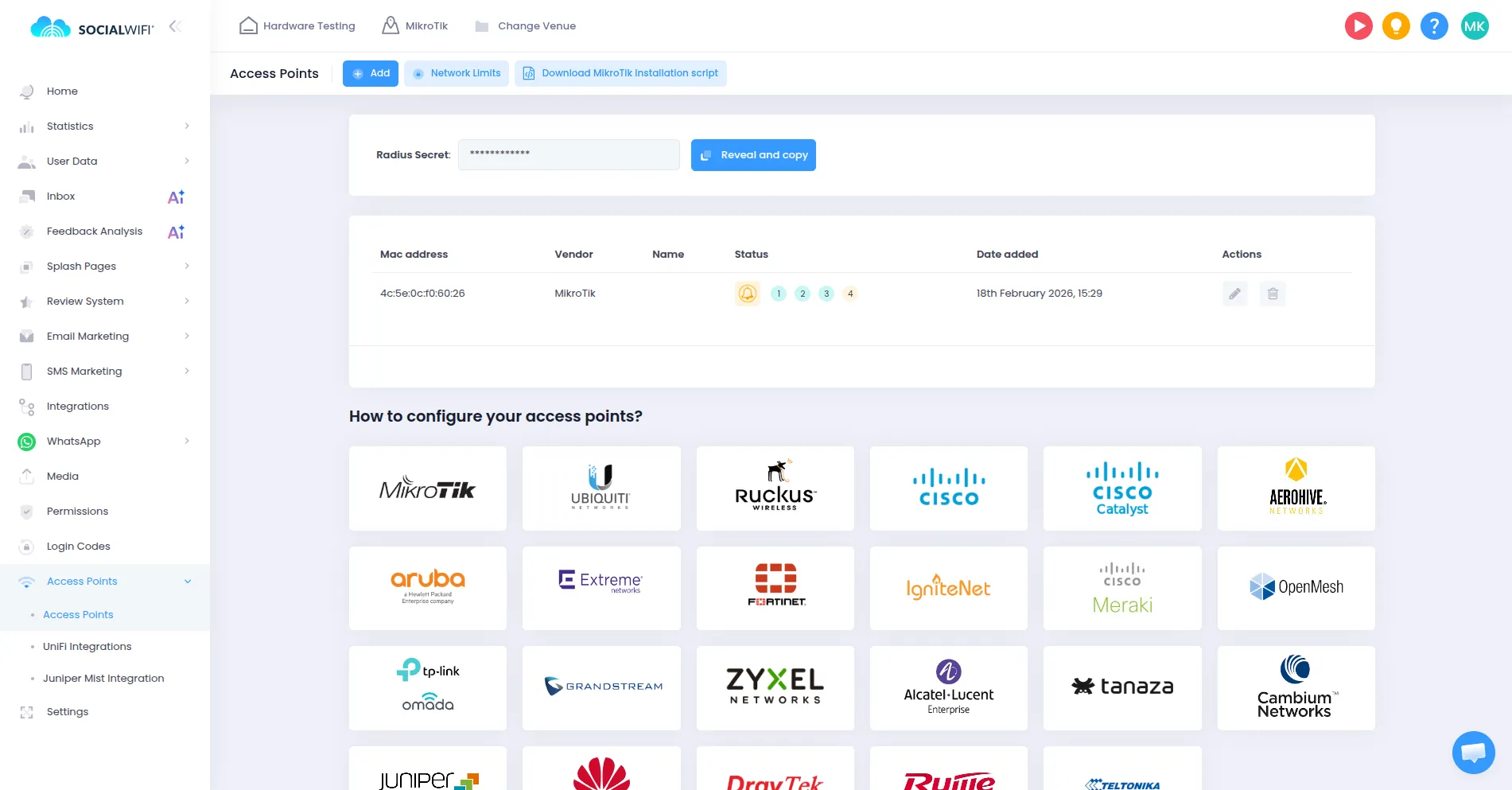
Step 3 - Authenticated
The third bubble turns green when the user successfully authenticates using one of the available methods (e.g., WhatsApp, Facebook, X, LinkedIn, Email).
Step 4 - Internet access granted
The fourth (final) bubble turns green when the full login flow is completed and the user is authorized by Social WiFi to access the Internet.
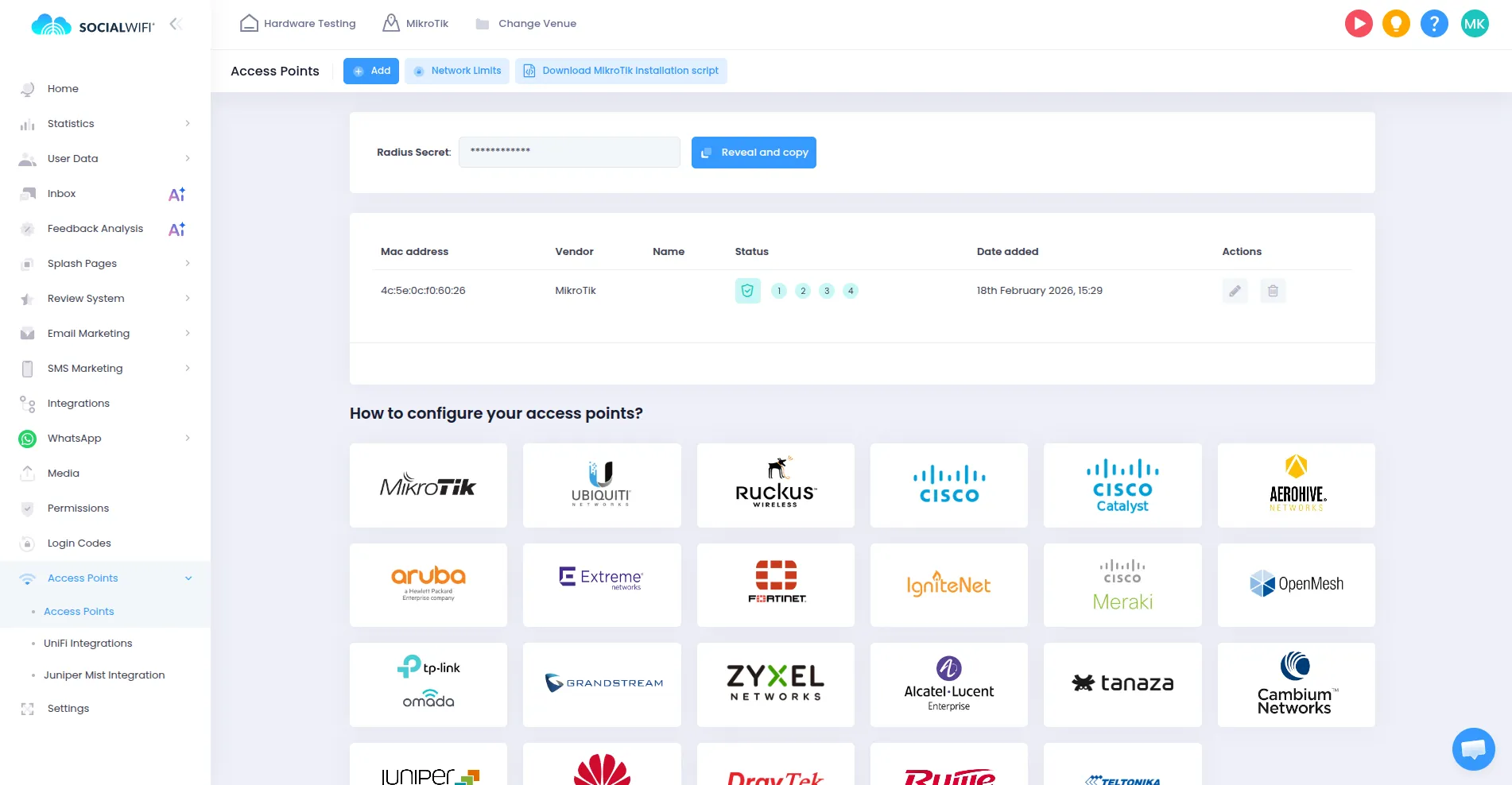
No activity in the last 36 hours
If you see the status like below, it means no device has completed the login process in the last 36 hours. To verify the integration, connect to the hotspot and complete the login flow.
What if any bubble turns red or you see an error?
If any bubble turns red or you encounter an error at any stage, it means the login flow didn’t complete successfully and needs attention. In that case, we’re happy to help contact our Support team at support@socialwifi.com.